Guides
How to Block or Unblock Someone on Pinterest
How to block someone on Pinterest from their profile on mobile and desktop, what blocking actually does, whether they're notified, and how to unblock later.
Short answer
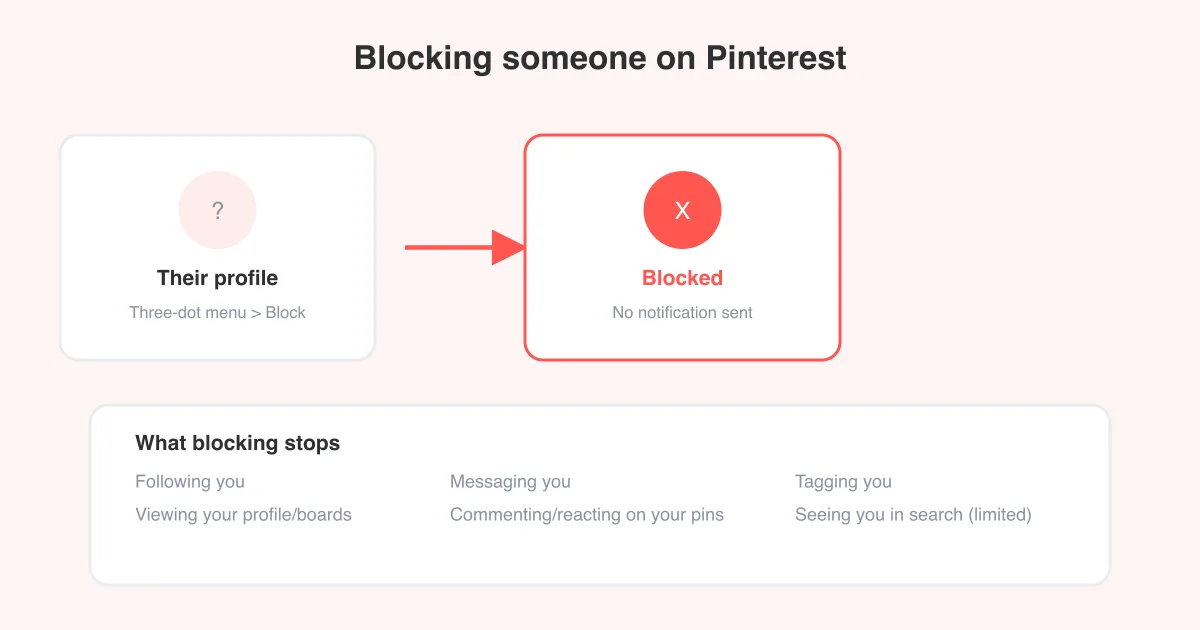
To block someone on Pinterest, open their profile, tap the three-dot menu, and choose Block. Blocking stops that account from following you, seeing your profile, messaging you, or interacting with your pins, and Pinterest does not send them a notification that you've done it. If the problem is a specific pin rather than the whole account, consider reporting the content instead of or alongside blocking.
What blocking someone on Pinterest actually does
Blocking is an account-level action — it targets a whole Pinterest profile, not a single pin or comment. Once you block someone, Pinterest cuts off most ways that account can interact with you or your content going forward.
- They can no longer follow you, and if they already followed you, that follow is removed.
- They can't view your profile, boards, or pins while logged in as that account.
- They can't message you, and any existing message thread with them is hidden from your inbox.
- They can't comment on, react to, or save your pins.
- They're removed as a follower and unfollowed from you automatically, in both directions.
Blocking doesn't delete anything they already posted
Blocking someone doesn't remove pins they've already saved from your boards, and it doesn't erase comments they left before you blocked them in every case — Pinterest's cleanup of past interactions can lag. If a specific pin or comment is the real problem, pair blocking with reporting the content so Pinterest reviews it directly.
How to block someone on the Pinterest app (iOS and Android)
- Open the Pinterest app and go to the account's profile — search their username or tap their name on a pin, comment, or message.
- Tap the three-dot More options icon, usually in the top-right corner of their profile.
- Select Block.
- Confirm when the pop-up asks if you're sure you want to block this person.
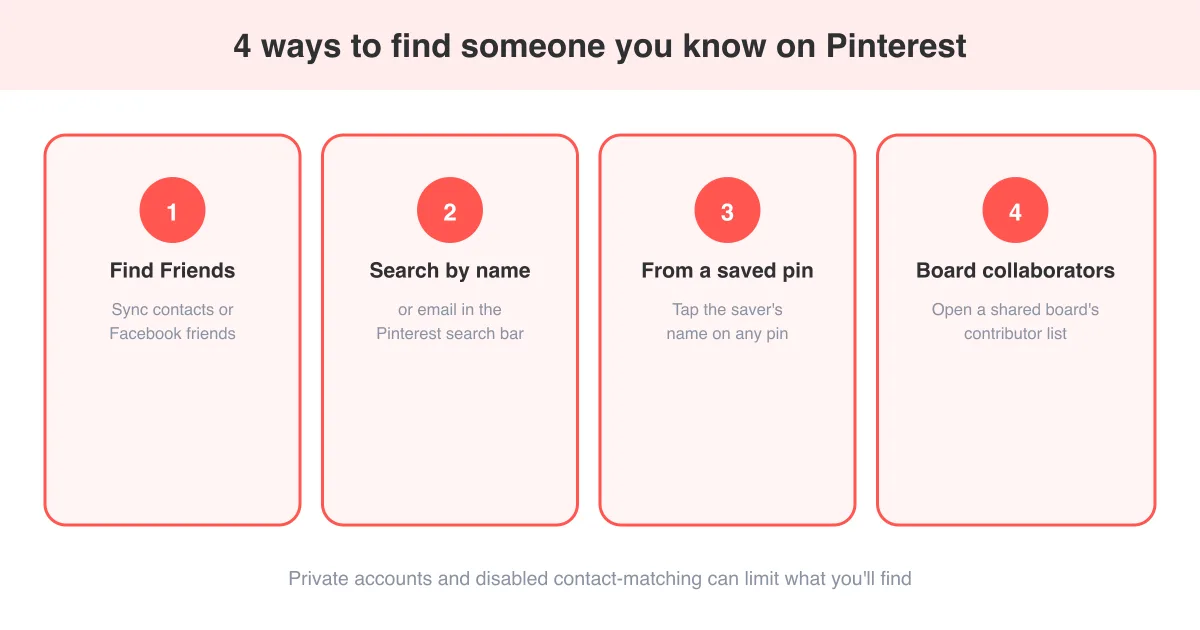
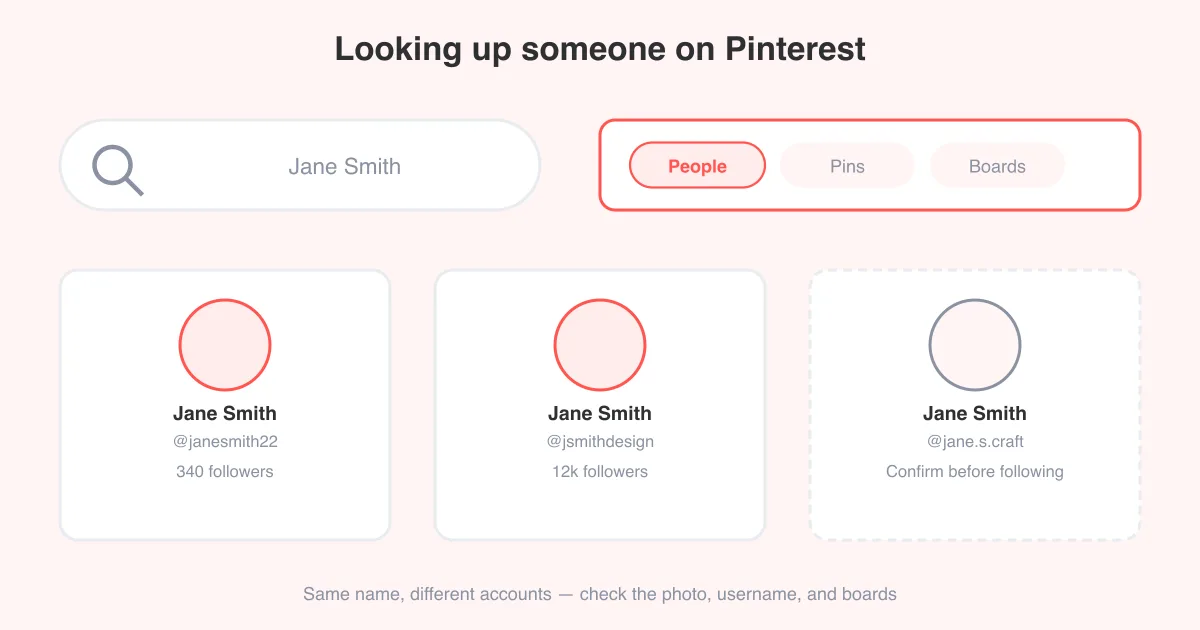
If you don't know the account's exact profile, how to find a person on Pinterest walks through searching by name, username, or shared boards so you can pull up the right profile before blocking.
How to block someone on Pinterest.com (desktop)
- Log in at pinterest.com and open the account's profile page.
- Click the three-dot More options icon near their profile name or cover photo.
- Choose Block.
- Confirm the action in the dialog that appears.
The desktop flow mirrors the app closely, since both route through the same profile options menu. Exact icon placement can shift slightly between Pinterest updates, but the block option is always tucked under that three-dot menu on the profile itself.
Does the person get notified that you blocked them?
No. Pinterest does not send a notification, email, or alert telling someone they've been blocked. The other account simply loses access — they can no longer see your profile, follow you, or message you. They may eventually notice on their own if they try to visit your profile and find it inaccessible or if a message they send fails to go through, but Pinterest doesn't announce it directly.
Because there's no notification, blocking is a quiet way to cut off contact without confrontation. It's a good option when you want distance from an account without escalating things.
Blocking vs. reporting: which one do you need?
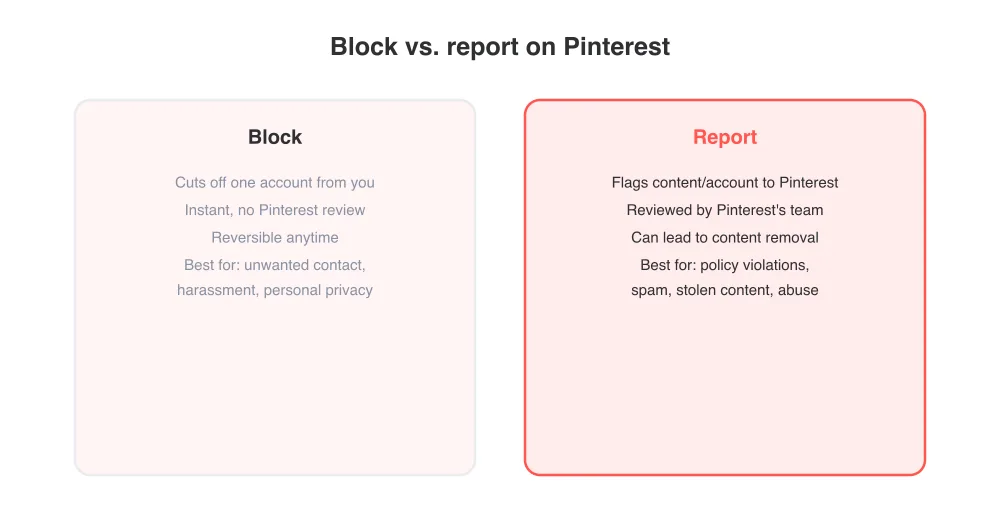
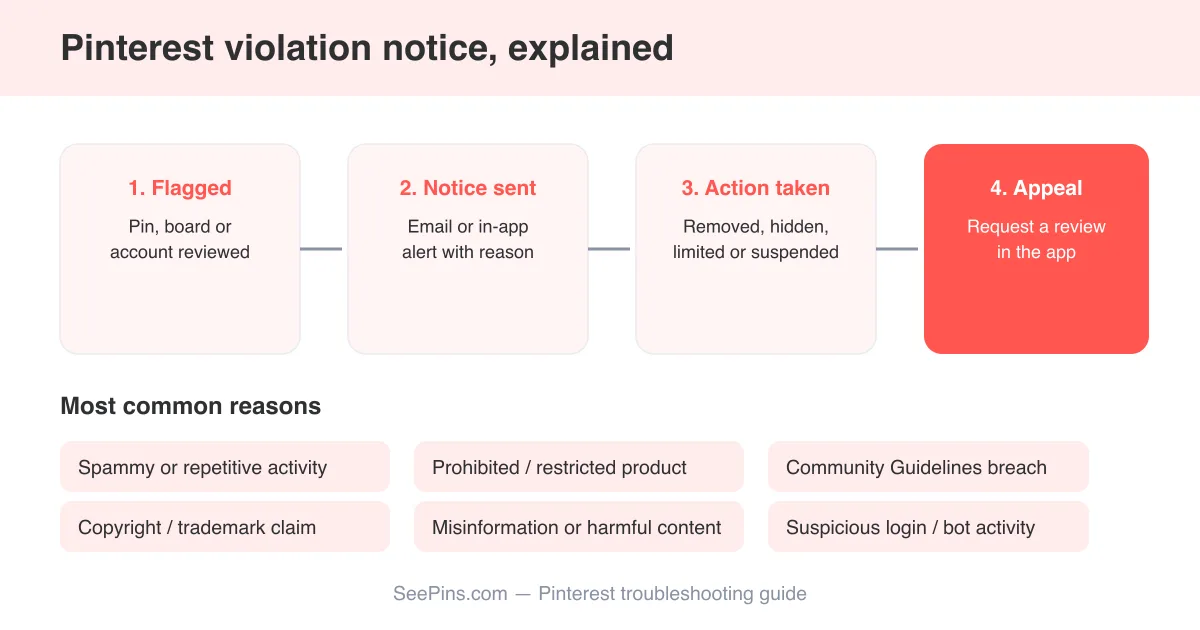
Blocking only changes what that one account can do in relation to you — it doesn't tell Pinterest anything is wrong. Reporting sends the pin, comment, or profile to Pinterest's moderation team for review against its policies, and can lead to content removal or account penalties. If you're on the receiving end of a warning yourself, why did I get a violation notice on Pinterest explains how that review process works from the other side.
- Use block when you just want an account out of your notifications and off your profile.
- Use report when the content itself breaks Pinterest's rules (spam, harassment, stolen images, scams).
- You can do both — blocking someone doesn't cancel or replace a report you've already filed, and vice versa.
How to unblock someone on Pinterest
- Go to Settings in the Pinterest app or on pinterest.com.
- Tap or click Social permissions (sometimes labeled Blocked accounts or found under Account management).
- Find the Blocked list and locate the account you want to unblock.
- Tap or click Unblock next to their name.
Unblocking restores the ability for that account to follow, message, and interact with you — it doesn't automatically re-follow them or resend old messages, so both sides start from a clean slate.
Managing your blocked accounts list
Pinterest keeps every account you've blocked in one place inside Settings, so you don't have to remember usernames to unblock someone later.
- Review your blocked list occasionally — it's easy to forget who's on it after a while.
- There's no published limit on how many accounts you can block, but keep the list to people or accounts that genuinely need it.
- Blocking doesn't affect your visibility in Pinterest search results for other users, only your relationship with the specific blocked account.
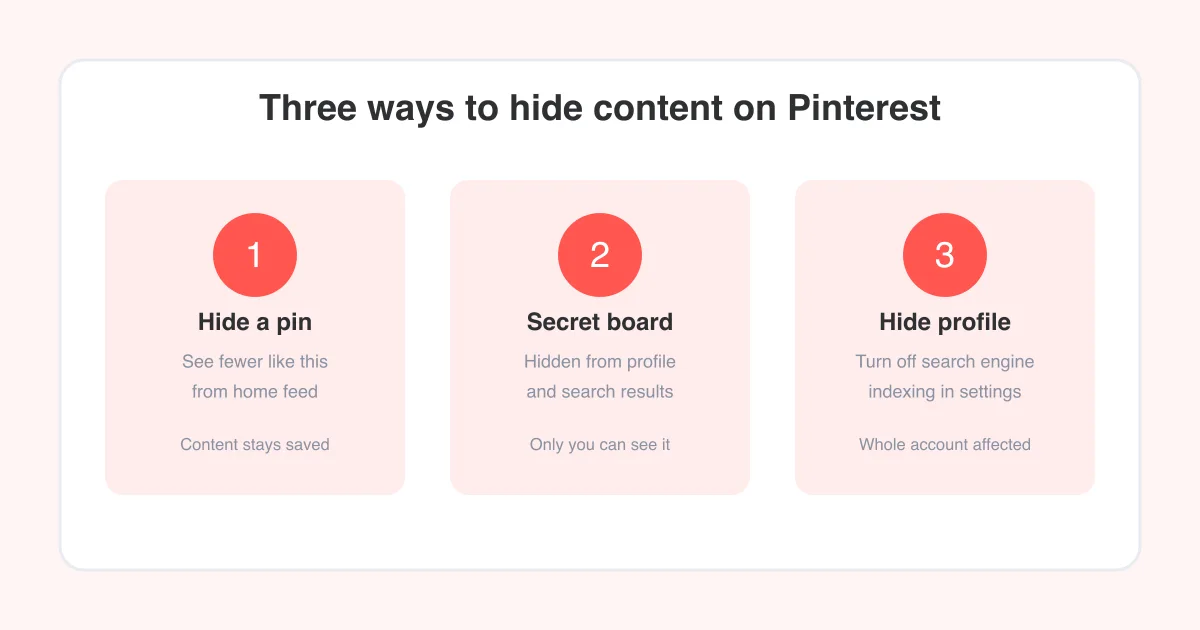
- If you're trying to reduce unwanted contact broadly rather than block accounts one by one, review your privacy settings and consider hiding specific boards so less of your activity is visible to begin with.
Blocking a lot of accounts at once?
If you're dealing with repeated harassment from multiple accounts, blocking each one individually plus reporting the pattern to Pinterest gives the strongest combination — blocking protects you immediately, and a report lets Pinterest act on the accounts themselves.
Frequently asked questions
Open their profile, tap or click the three-dot More options icon, choose Block, and confirm. This works the same way on the mobile app and on pinterest.com.
Sources