Guides
How to Hide Pins and Boards on Pinterest
Learn how to hide pins from your home feed with See fewer, make a board secret, and hide your profile from search engines on Pinterest.
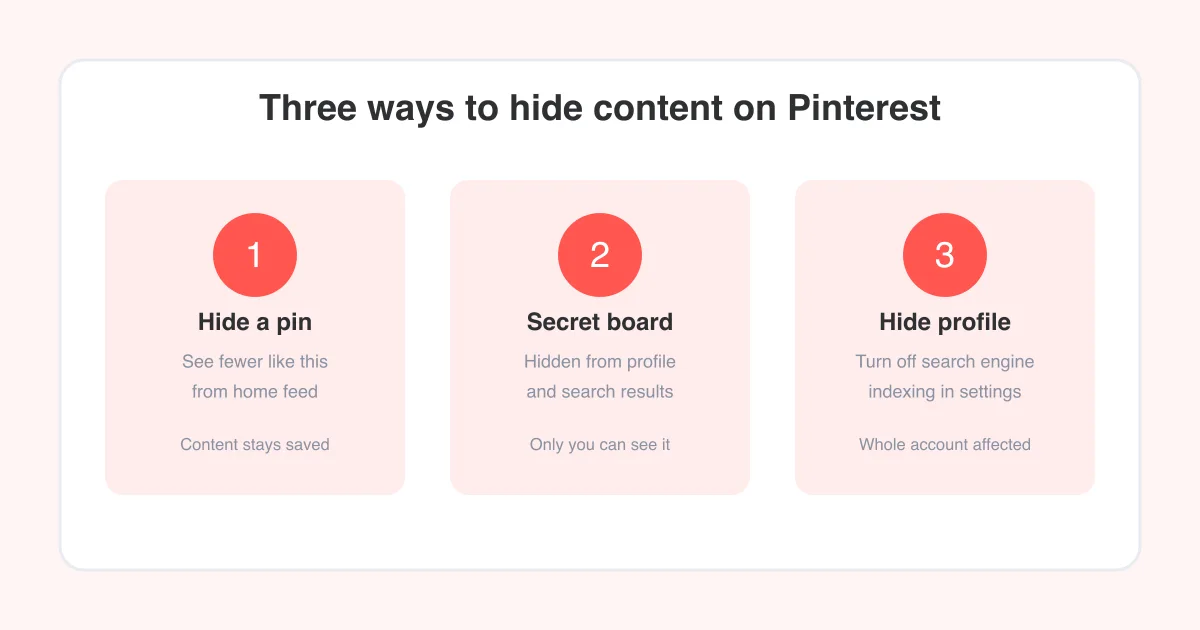
Short answer
To hide a pin from your home feed, tap the three dots on the pin and choose See fewer like this (or Hide pin on some versions) — this tells Pinterest's algorithm to show you less of that topic. To hide an entire board, open the board, go to its settings, and switch it to a secret board, which removes it from your profile and search entirely. These are different from deleting: hiding and going secret both keep your content, they just control who sees it. See our guide on making a secret board for the full walkthrough.
Hide, secret, or delete: what's the difference?
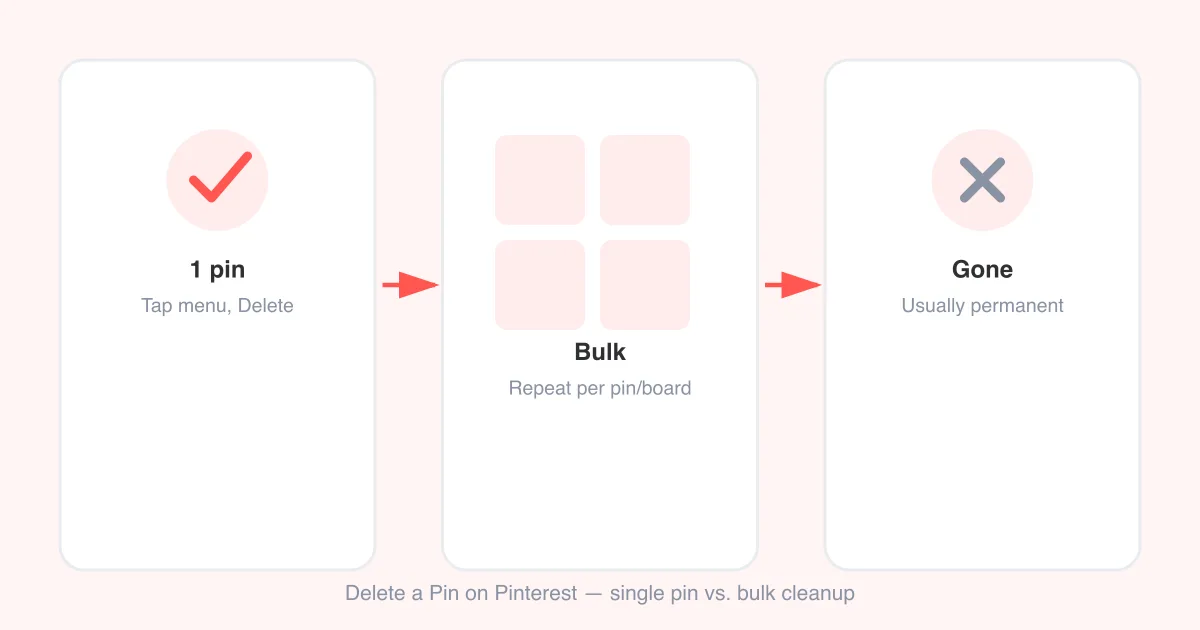
Pinterest gives you three separate tools for controlling what shows up, and they're often confused with each other. Hiding a pin only affects your home feed recommendations — it doesn't remove the pin from the board it's saved to. Making a board secret removes that board and every pin in it from your profile, search results, and other people's feeds, but everything stays intact for you. Deleting a pin or board permanently removes it. If you're trying to declutter without losing anything, hide or go secret. If you genuinely don't want the content anymore, see our guide on how to delete pins on Pinterest.
- Hide a pin → affects only your home feed suggestions, pin still exists on its board
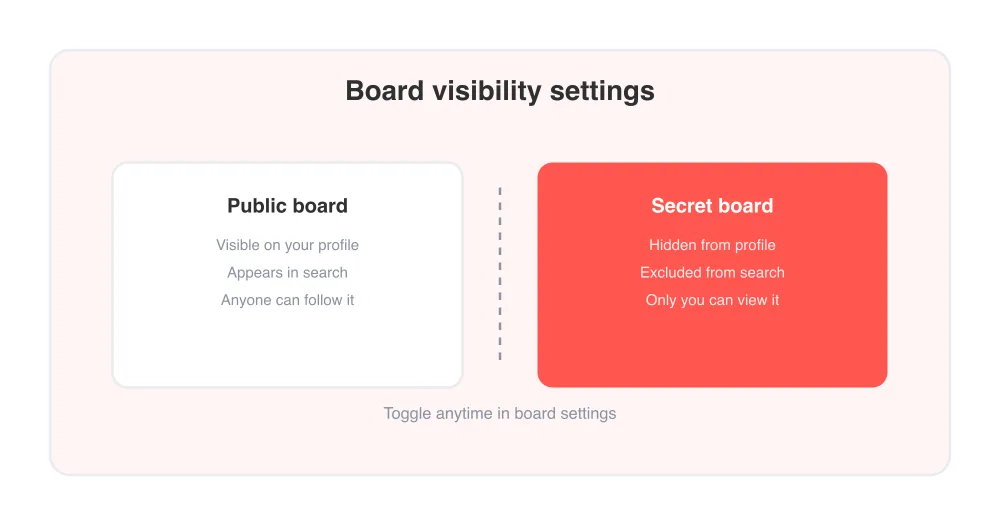
- Make a board secret → board disappears from your profile and search for everyone but you
- Delete a pin or board → permanently removed, cannot be undone in most cases
How to hide a pin from your home feed
If Pinterest keeps recommending pins you're not interested in, telling the algorithm to back off is faster than scrolling past them every time. This works on both the mobile app and desktop.
- Find the pin in your home feed (this option isn't available on pins inside a board you opened directly).
- Tap or click the three-dot menu (•••) in the corner of the pin.
- Select See fewer like this (some app versions label it Hide pin).
- Optionally, choose a reason or topic so Pinterest knows what to deprioritize.
- Repeat for a few similar pins if the topic keeps resurfacing — the algorithm adjusts gradually, not instantly.
Heads up
Hiding a pin does not stop the person who posted it from seeing their own content, and it doesn't unfollow the board or account it came from. If you want to stop seeing everything from a specific source, unfollow that board or profile directly.
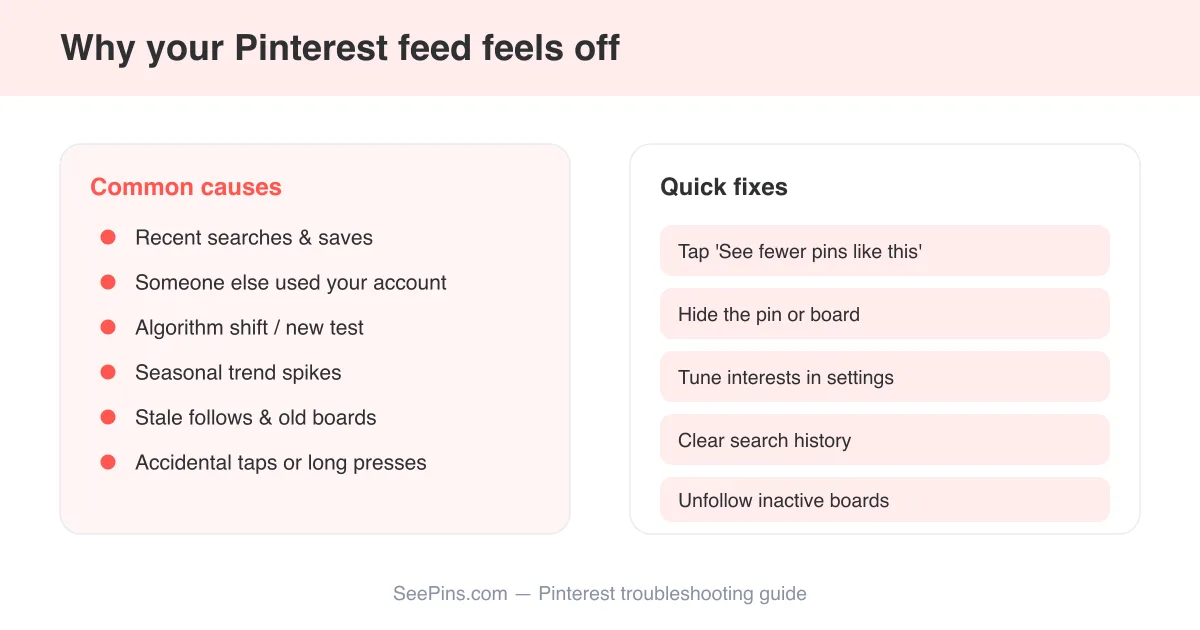
If your feed feels off no matter how many pins you hide, it may be a broader personalization issue rather than a one-pin problem — see why Pinterest keeps showing irrelevant images for a deeper fix.
How to hide an entire board (make it secret)
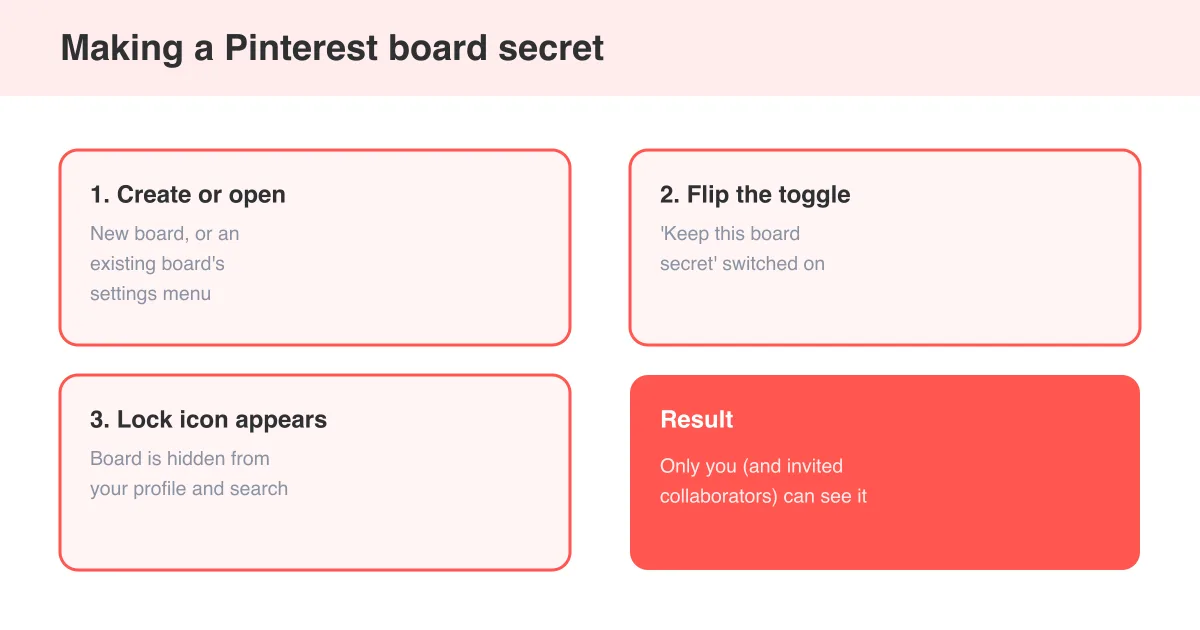
Secret boards are the right tool when you want to keep planning something privately — a gift board, a wedding, a home renovation — without deleting anything.
- Open the board you want to hide.
- Tap the edit (pencil) icon or board settings menu.
- Toggle the board to Secret.
- Save your changes.
Once secret, the board and its pins vanish from your profile, from Pinterest search, and from other users' feeds. You can flip it back to public any time. For a full step-by-step with screenshots and notes on group boards, read how to make a secret board on Pinterest.
How to hide your Pinterest profile from search engines
Even with public pins, you can stop Pinterest from letting Google, Bing, and other search engines index your profile page. This is a privacy setting, not a content setting — it doesn't affect what's visible inside Pinterest itself.
- Go to your account Settings.
- Open the Social permissions or Privacy and data section (naming varies by app version).
- Find Search privacy or Hide your profile from search engines.
- Turn the toggle on.
This setting only affects external search engines. Your public boards and pins can still appear in Pinterest's own search and recommendations unless you make them secret individually.
When you should delete instead of hide
Hiding and going secret are reversible and non-destructive — good defaults when you're unsure. Delete when you're certain you no longer want the content anywhere, including in your own account, or when a pin violates guidelines you don't want associated with your profile. For the full process, including how to remove multiple pins at once, see how to delete pins on Pinterest.
- Keep and hide: content you might want later, seasonal boards, gift planning
- Make secret: private collaboration, drafts, sensitive personal topics
- Delete: duplicate saves, broken links, content you regret pinning
Frequently asked questions
No. Hiding a pin with See fewer like this only affects your home feed recommendations. The pin stays exactly where you saved it.
Sources