Guides
How to Delete Pins on Pinterest (Single or Bulk)
Learn how to delete pins on Pinterest one at a time or in bulk, on mobile and desktop, plus the difference between deleting, hiding, and unsaving a pin.
Short answer
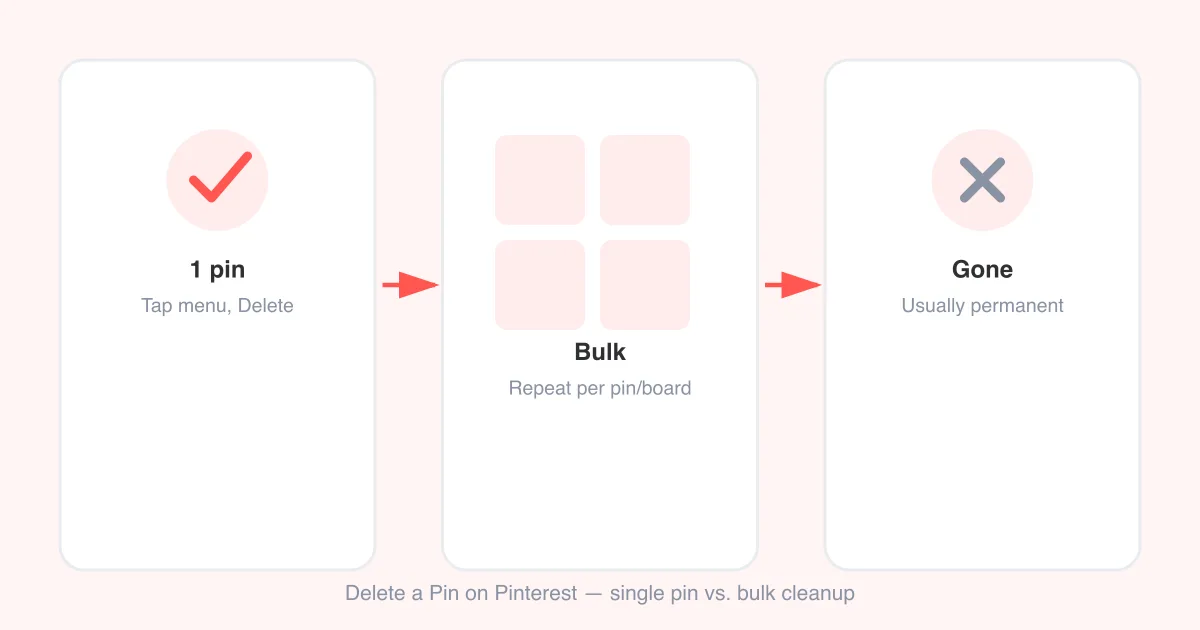
To delete a pin on Pinterest, open the pin, tap the three-dot menu, and choose Delete Pin — this removes it permanently from your account if you created it, or removes it from your profile if you saved it from someone else. There's no native bulk-delete tool, so removing many pins means repeating this per pin or per board. If you just want a pin off your home feed without deleting it, unsave or hide it instead.
Deleting vs. hiding vs. unsaving: what's the difference
Pinterest gives you a few ways to make a pin disappear, and they're not the same thing. Understanding which one you want avoids the most common mistake: deleting a pin you actually just wanted off your feed.
- Delete — permanently removes a pin you created from Pinterest entirely, or removes a saved pin from your profile/board (the original pin, if someone else made it, still exists elsewhere).
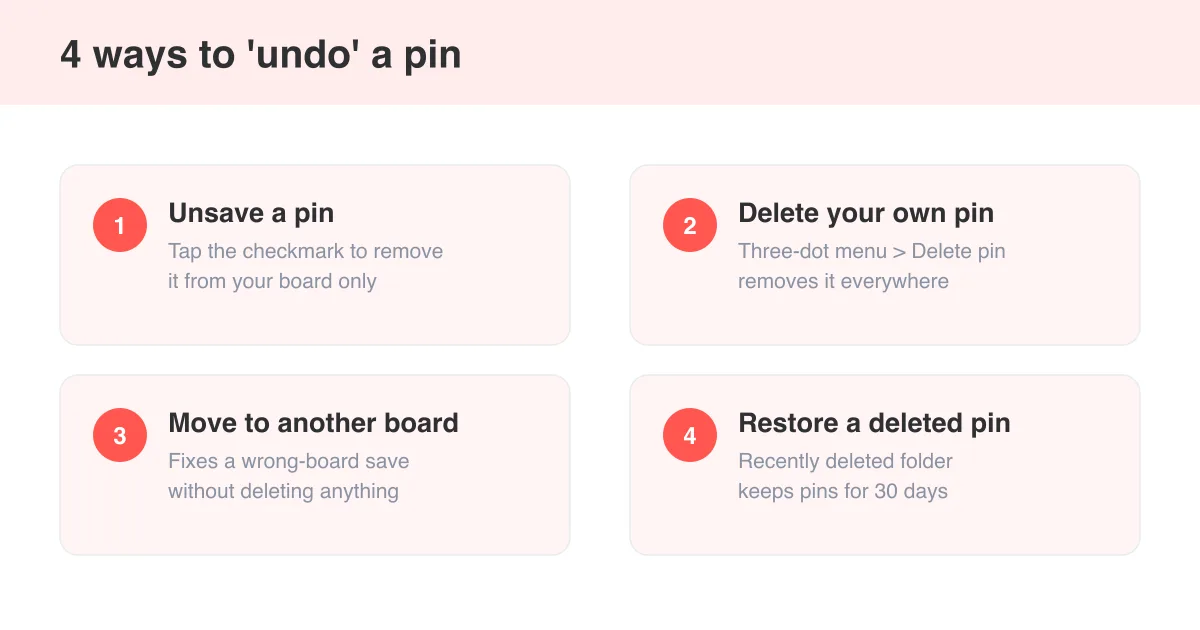
- Unsave — takes a pin off one of your boards without deleting the original pin from Pinterest; it's the reverse of saving.
- Hide — tells Pinterest's algorithm you're not interested in a pin or topic so it stops showing similar content in your home feed, without touching your saved boards at all.
- Archive a board — hides an entire board from your profile without deleting its pins; you can unarchive it later.
Not sure which you need?
If you're trying to reverse a pin you accidentally saved or clean up a messy feed rather than permanently remove content, see how to undo a pin on Pinterest for the unsave and feed-tuning options.
How to delete a single pin on mobile (iOS and Android)
- Open the Pinterest app and go to the pin you want to remove — via search, your profile, or a board.
- Tap the pin to open it full screen.
- Tap the three-dot menu icon (usually top right of the pin).
- Select Delete Pin (created pins) or Remove from board / Unsave (for pins you saved from others).
- Confirm when prompted. The pin disappears from that location immediately.
Exact labels and icon placement can shift slightly between Pinterest app versions and between iOS and Android, but the three-dot menu on the pin is consistently where this option lives.
How to delete a single pin on desktop
- Go to pinterest.com and log in.
- Navigate to the pin, either through your profile, a board, or search.
- Hover over the pin to reveal the options, or open it in the full pin view.
- Click the three-dot (more options) icon.
- Choose Delete Pin, or Remove from board / Unsave if it isn't yours.
- Confirm the deletion in the popup that appears.
If you manage a business account or brand boards, deleting pins works the same way — the account type doesn't change the menu location, though business accounts may show extra analytics options alongside it.
How to bulk-delete or organize multiple pins
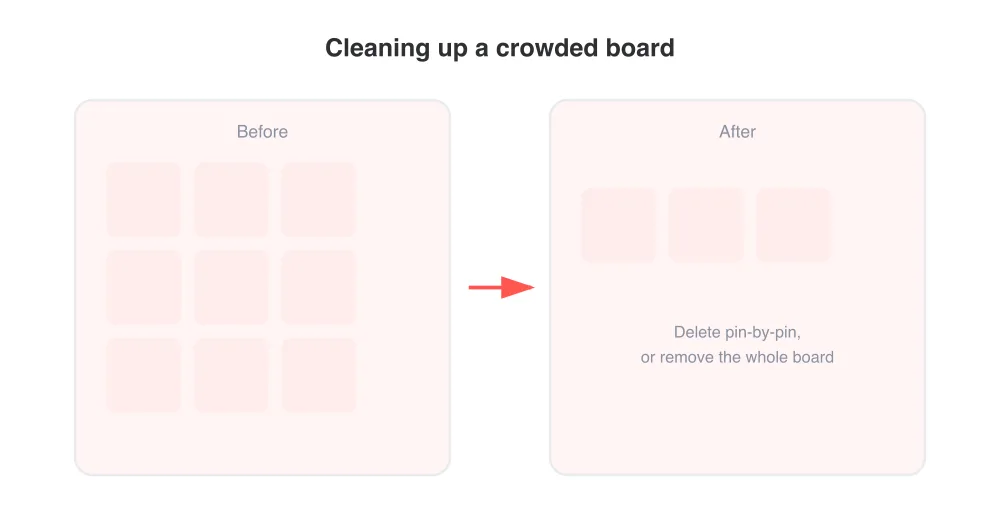
Pinterest does not currently offer a native multi-select bulk-delete button for pins the way some apps let you check several items and remove them at once. Cleaning up a large board still means working through pins individually, but a few approaches make it faster.
- Open the board you want to clean up and go pin by pin, using the three-dot menu to delete or unsave each one.
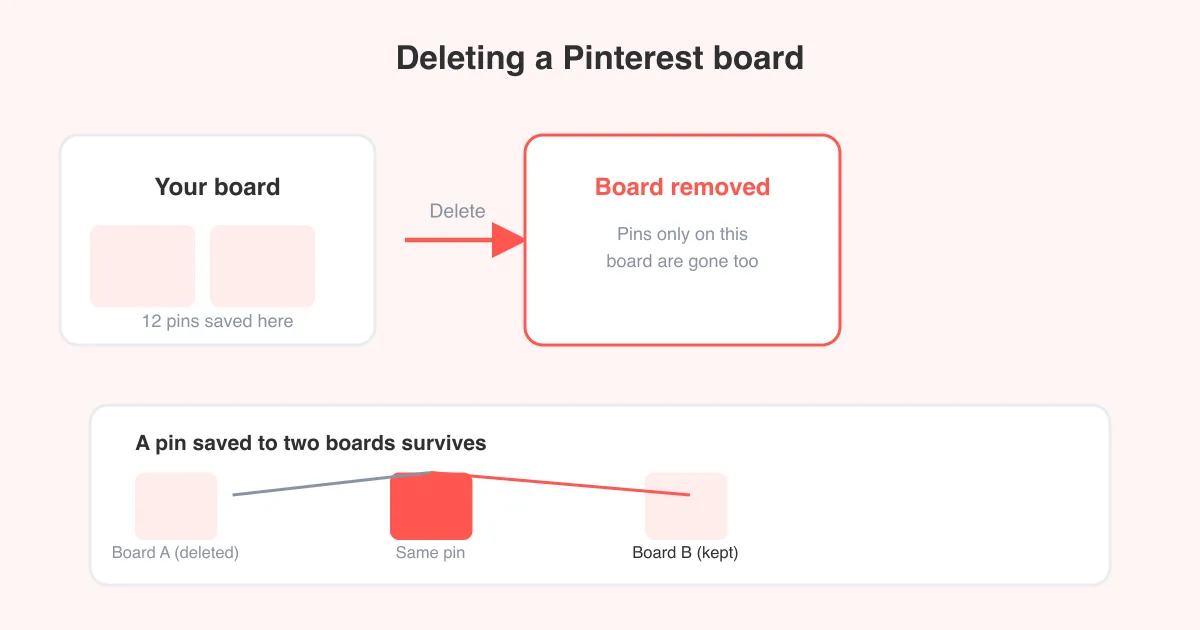
- For a faster reset, consider deleting the whole board instead of each pin individually — see how to delete a board on Pinterest if you want to clear everything in one action.
- Use board sections to isolate the pins you want gone into one place first, so you're not hunting through a mixed board.
- On desktop, working through a browser tends to be faster than mobile since you can open pins in new tabs and process them in sequence.
Can you recover a deleted pin?
Generally, no. Once you delete a pin you created, Pinterest treats it as permanently removed — there's no built-in trash, undo history, or recently-deleted folder for pins. If you unsaved or removed a pin that belongs to someone else, you can usually find and re-save it as long as the original still exists on Pinterest, since you're only removing your copy, not the source.
Save before you delete
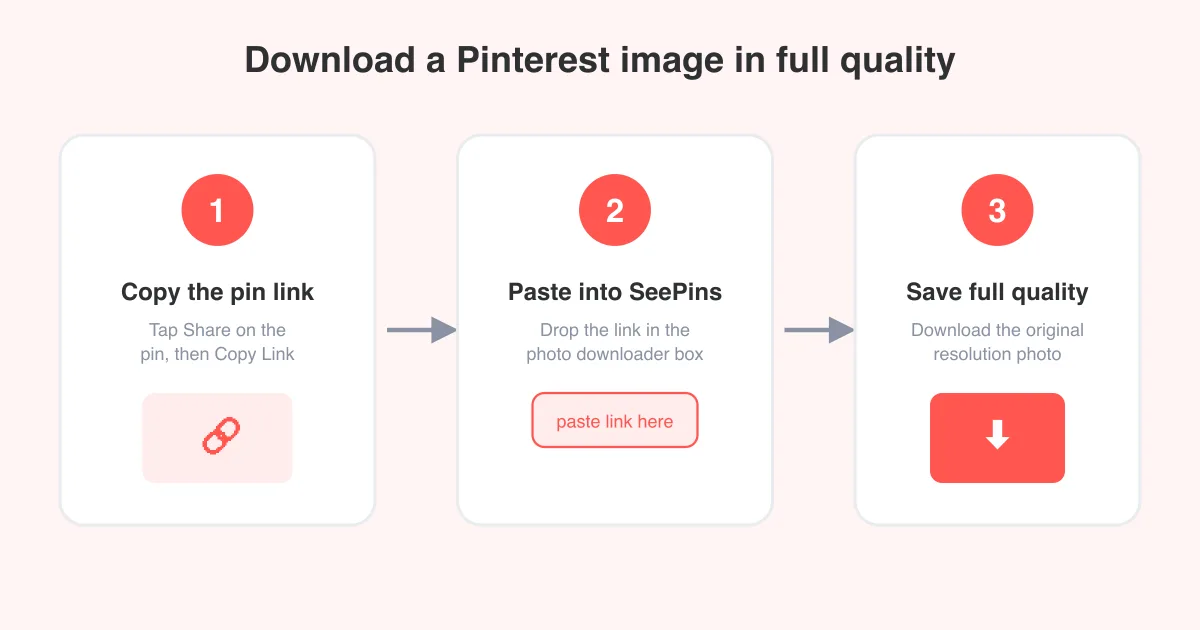
If there's any chance you'll want the image later, download it first with the Pinterest photo downloader before you delete the pin. That way you keep a local copy even after it's gone from your account.
Common reasons people delete pins
- Cleaning up boards that no longer match current interests or a rebranded business account.
- Removing outdated product pins or promotions that are no longer accurate.
- Tidying a profile before sharing it publicly or with a client.
- Getting rid of duplicate saves after reorganizing boards.
- Removing content that was pinned by mistake or that violates personal preferences.
If your goal is really about controlling what Pinterest recommends rather than cleaning up your own boards, why Pinterest is showing irrelevant images covers the feed-tuning settings that work alongside hiding and deleting pins.
Troubleshooting: when the delete option won't show up
- Confirm you're logged into the account that owns the pin or board — you can't delete pins from an account you don't control.
- Update the Pinterest app; older versions sometimes hide menu options or place them differently.
- Try switching between the app and pinterest.com in a browser — occasionally one interface loads a stale menu state.
- Check whether the pin belongs to a shared/group board, since some permission levels limit who can delete which pins.
- If a pin still shows after deletion, refresh or restart the app — it's a caching delay, not a failed delete.
Frequently asked questions
Open the pin, tap or click the three-dot menu, and choose Delete Pin. If it's a pin you saved from someone else rather than created yourself, the option may instead read Remove from board or Unsave.