Guides
How to Delete a Board on Pinterest (and What Happens to the Pins)
How to delete a board on Pinterest on mobile and desktop, what happens to the pins on it, and when to archive or merge a board instead of deleting it.
Short answer
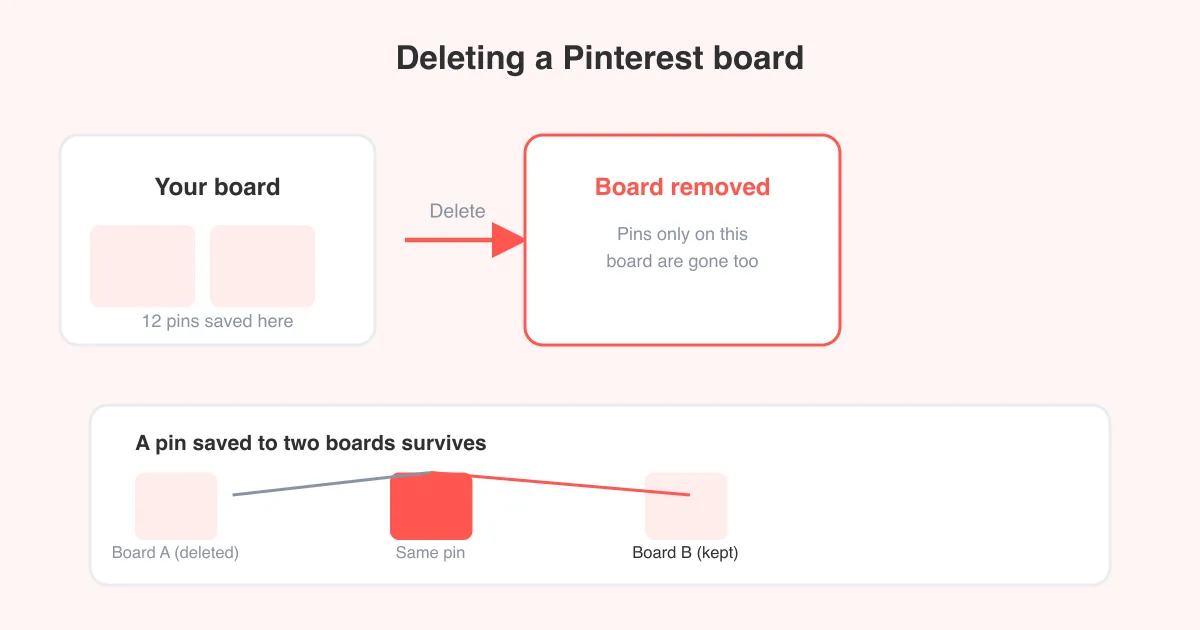
To delete a board on Pinterest, open the board, tap the edit (pencil) icon or the three-dot menu, choose Delete board, and confirm. Deleting a board permanently removes it and every pin saved only to that board — pins that are also saved to other boards stay put. If you just want the board out of sight without losing anything, archive it instead of deleting.
Before you delete a board, know this
Deleting a Pinterest board is permanent. Once it's gone, Pinterest does not offer a way to restore it, and any pins that existed only on that board are deleted along with it. Pins you also saved to at least one other board are unaffected — they simply lose their link to the deleted board.
Save first, delete later
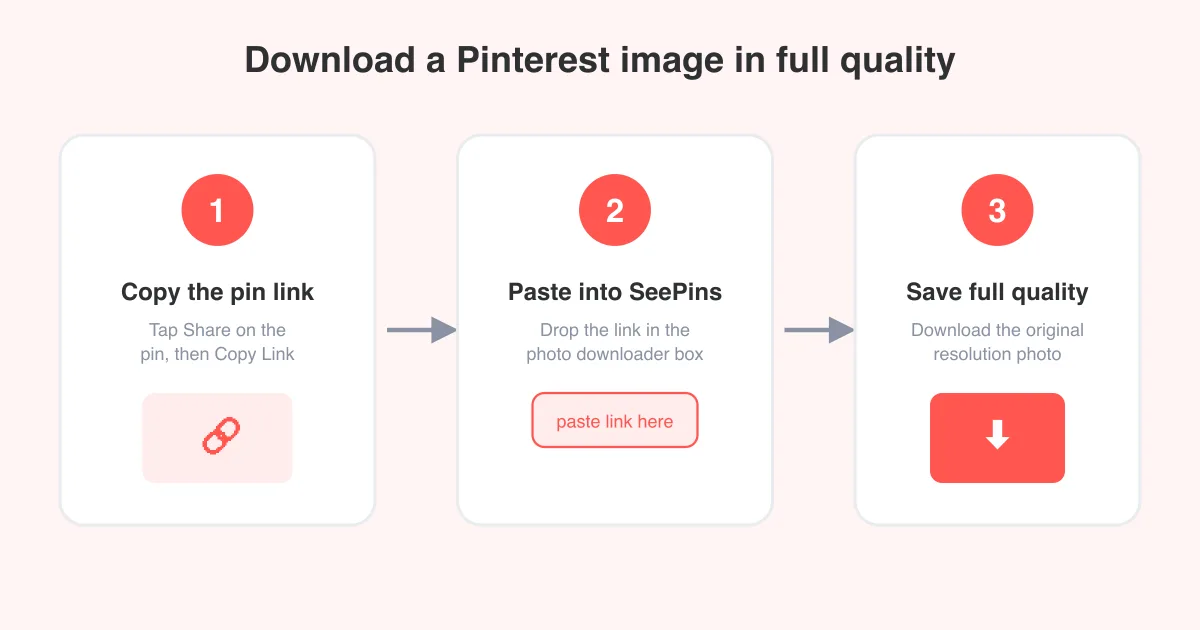
If a board has images or videos you want to keep, grab copies before you delete anything. Our Pinterest photo downloader saves the full-size image from any pin URL in a couple of clicks, so you're not relying on Pinterest to hold onto it.
If you're not sure whether you want the board gone forever, skip ahead to the archive vs. delete section — archiving hides a board from your profile without destroying anything.
How to delete a board on the Pinterest app (iOS and Android)
- Open the Pinterest app and go to your Profile.
- Tap the board you want to delete to open it.
- Tap the edit icon (pencil) near the board name, or tap the three-dot More options menu.
- Select Edit board.
- Scroll to the bottom and tap Delete board.
- Confirm by tapping Delete again when the warning pop-up appears.
Exact labels shift a little between app versions and between iOS and Android, but the path is always the same: open the board, find its edit or settings screen, then look for the delete option near the bottom.
How to delete a board on Pinterest.com (desktop)
- Log in at pinterest.com and click your profile picture, then Profile.
- Click the board you want to remove.
- Click the pencil icon or the three-dot menu at the top of the board.
- Choose Edit board.
- Scroll down in the panel that opens and click Delete.
- A confirmation window will ask if you're sure — click Delete again to finish.
The desktop and mobile web flows are nearly identical, since both run through the same board settings panel.
What happens to the pins on a deleted board
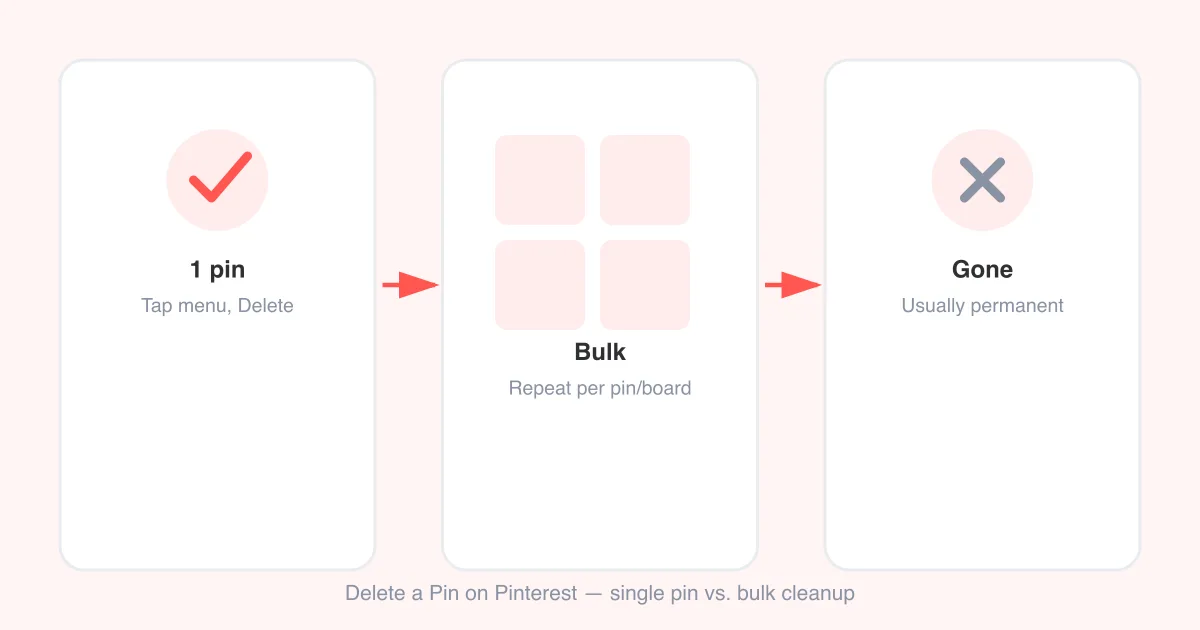
- Pins saved only to the deleted board are permanently removed from your account.
- Pins saved to the deleted board and at least one other board stay in your account, still attached to the other board(s).
- The original pin still exists on Pinterest (on whichever account first posted it) — deleting your board only removes your saved copy/reference.
- Any secret or section-only pins tied uniquely to that board are deleted with no recovery option.
- Comments, likes, and save counts tied to your board disappear along with it.
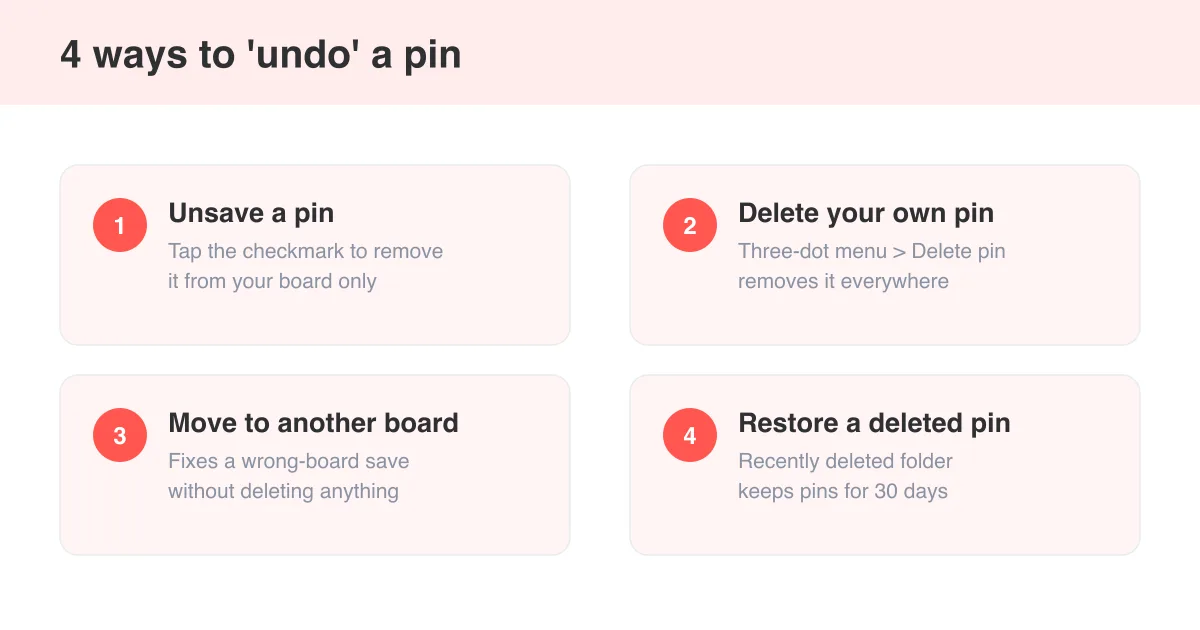
Deleted a board by accident and something you needed is now missing? Check how to undo a pin on Pinterest for what recovery options actually exist — Pinterest's undo window is short and doesn't cover board deletion.
Archive vs. delete: which one do you actually want?
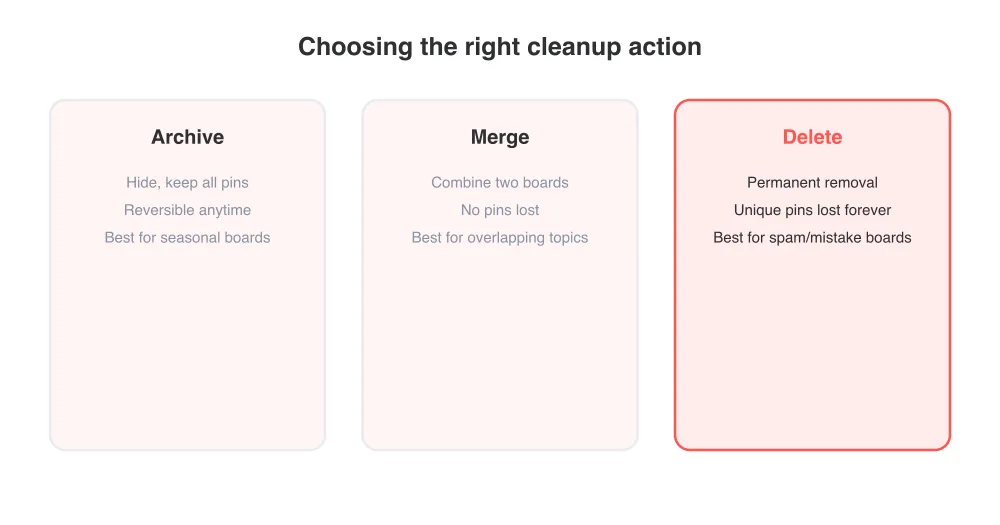
Archiving hides a board from your profile and search without deleting a single pin. It's the safer move whenever you're on the fence — you can always unarchive later.
- Archive when: you're seasonal (holiday decor, event boards), you're decluttering your profile's look, or you might want the board back someday.
- Delete when: the board was created by mistake, it's spam or duplicate content, or you're certain you'll never need those pins again.
To archive instead of delete: open the board, tap the edit/three-dot menu, and choose Archive board rather than Delete board. Archived boards live in a separate section of your profile and can be restored (unarchived) at any time.
Merge boards instead of deleting one
If your real goal is cleaning up overlapping boards — say, 'Recipes' and 'Dinner Ideas' covering the same ground — merging is usually better than deleting. Merging moves all the pins from one board into another, so nothing is lost, and you end up with a single, tidier board.
- Open the board you want to merge away (the one that will disappear).
- Tap the edit icon or three-dot menu, then Edit board.
- Look for Merge (on mobile) or use the merge option in the board settings panel (desktop/web).
- Pick the destination board you want the pins added to.
- Confirm the merge — Pinterest moves the pins over and removes the empty source board.
Not seeing a merge option?
Merge availability has varied by app version and region over time. If you don't see it, you can move pins manually: open each pin, tap Move, and pick the board to move it to, then delete the now-empty board.
How to delete a section within a board
Sections let you sub-divide a board (like 'Appetizers' and 'Desserts' inside a 'Recipes' board). Deleting a section is separate from deleting the whole board.
- Open the board and scroll to the section you want to remove.
- Tap the three-dot menu on that section.
- Select Delete section.
- Confirm when prompted.
Deleting a section removes the section label but, on most current app versions, the pins inside it drop back into the main board unsectioned rather than being deleted — double-check the confirmation text before confirming, since this detail has changed across updates.
Cleaning up boards without losing pins
- Before deleting, scroll through the board once and save copies of any images you don't want to lose using the photo downloader.
- If the board mixes good and bad pins, remove the bad ones individually first — see how to delete pins on Pinterest for the exact steps.
- Rename and reorganize instead of deleting when the board's content is still useful but the title is stale.
- Batch-review boards you haven't opened in a year; archiving several at once tidies your profile fast without any risk.
Frequently asked questions
Only if those pins aren't saved anywhere else. A pin saved solely to the deleted board is removed permanently, while a pin also saved to another board stays in your account.