Downloads
How to Download a Pinterest Video in HD (Free & Fast)
Learn how to download a Pinterest video in HD in seconds: copy the pin link, paste it into SeePins, pick a quality, and save the MP4 to your phone or computer.
Short answer
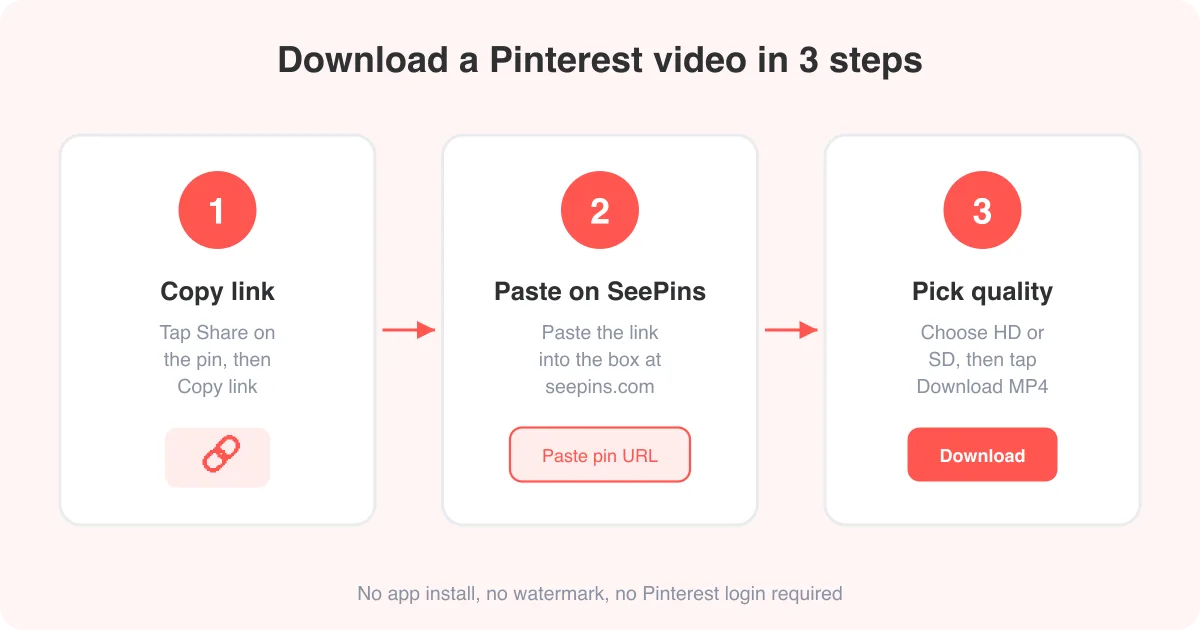
To download a Pinterest video, copy the pin's share link, paste it into the Pinterest video downloader, choose your preferred quality, and tap download to save an MP4 file. It works in any browser on iPhone, Android, Mac, or Windows, and no app or account is required.
How to download a Pinterest video (step by step)
The fastest way is to use a link-based tool like the Pinterest video downloader, which works entirely in your browser. You don't need to install anything or log in to Pinterest. Here's the full process:
- Open the Pinterest app or pinterest.com and find the video pin you want to save.
- Tap the share icon (a paper-airplane or three-dot icon, depending on your app version) and choose 'Copy link'.
- Go to the Pinterest video downloader and paste the link into the input box.
- Tap 'Find' or 'Download' to let the tool fetch the video preview.
- Choose your quality — HD (higher resolution, larger file) or SD (smaller, faster).
- Tap the download button and save the MP4 file to your device.
Tip
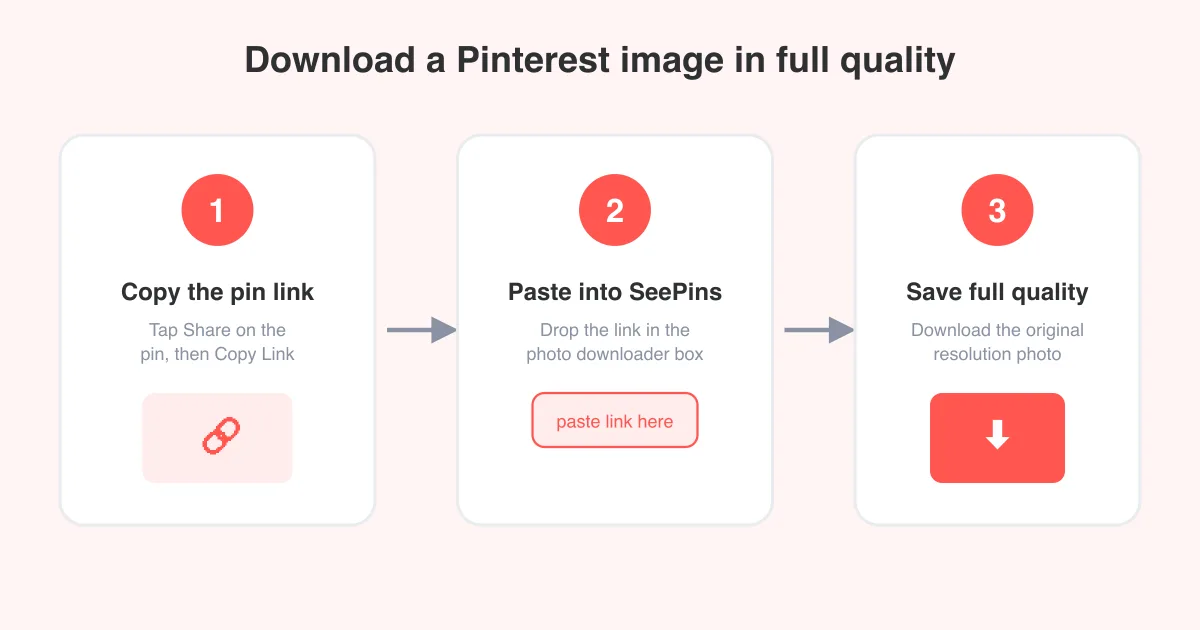
If the tool doesn't find a video, double-check that the pin actually contains a video and not just a static image — you can confirm using our photo downloader instead if it's a still image.
Why you need a downloader tool at all
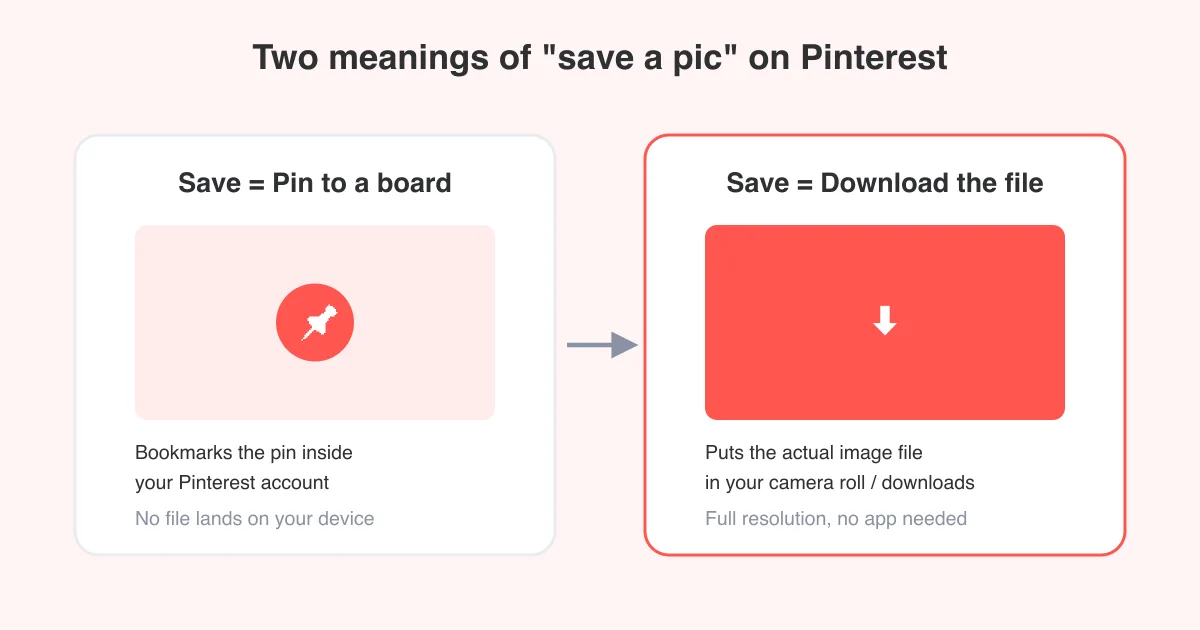
Pinterest's app and website don't include a native 'save video to camera roll' button for most pins — you can only save the pin itself back to a board, which keeps it inside Pinterest rather than on your device. A dedicated downloader reads the pin's public page, extracts the direct video file, and hands you a normal MP4 you can keep, edit, or repost elsewhere.
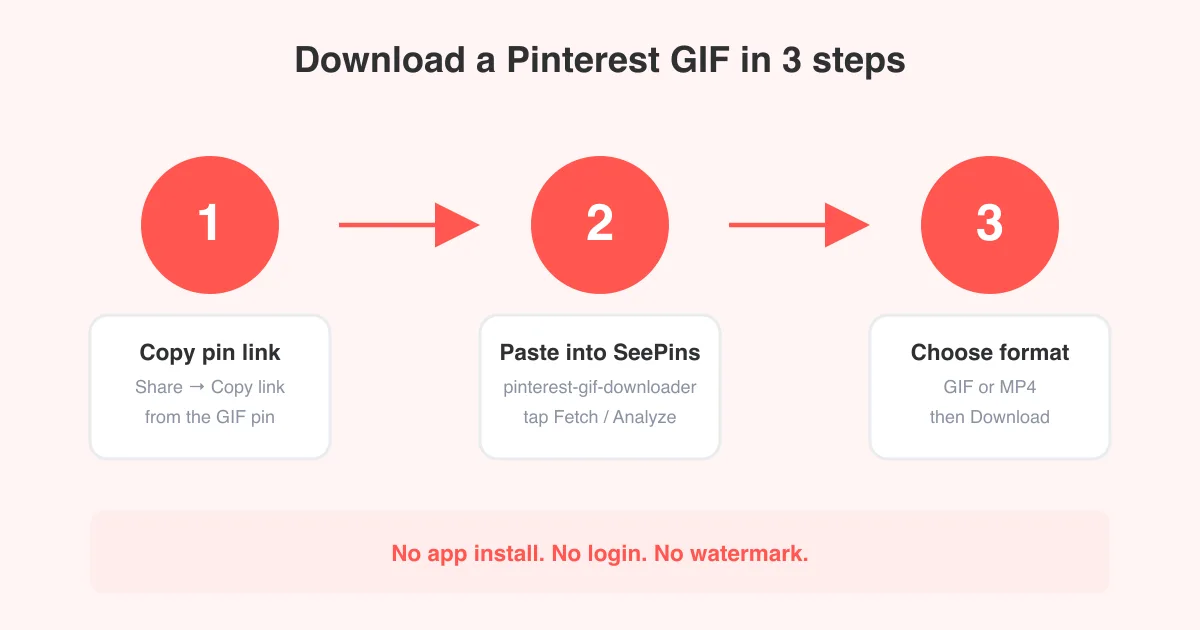
This is different from downloading images or GIFs, which use different file formats. If you're trying to save a moving GIF-style pin instead, see our guide on how to download a Pinterest GIF. For static images, check how to download a Pinterest image.
Downloading on iPhone and Android
On mobile, the whole flow happens in your regular browser (Safari or Chrome) or right inside the Pinterest app's in-app browser — you don't need a separate app.
- iPhone: copy the pin link, open Safari or Chrome, go to the video downloader, paste, and download. The MP4 saves to the Files app or Photos, depending on your browser settings.
- Android: the same steps work in Chrome. Downloaded files land in your Downloads folder and are usually accessible from your Gallery or Files app once the download finishes.
- If a download opens instead of saving, press and hold the video preview and choose 'Save video' or 'Download' from the menu that appears.
Downloading on Mac and Windows
On desktop, right-click behavior varies by browser, so the easiest path is still the Pinterest video downloader:
- Copy the pin's link from pinterest.com (click the share icon on the pin, then 'Copy link').
- Paste it into the downloader and choose your quality.
- Click the download button — most browsers save straight to your Downloads folder unless you've set them to ask each time.
For a broader walkthrough of Pinterest features beyond downloading, our how-to hub covers topics like posting, accounts, and troubleshooting.
Where does the downloaded video go?
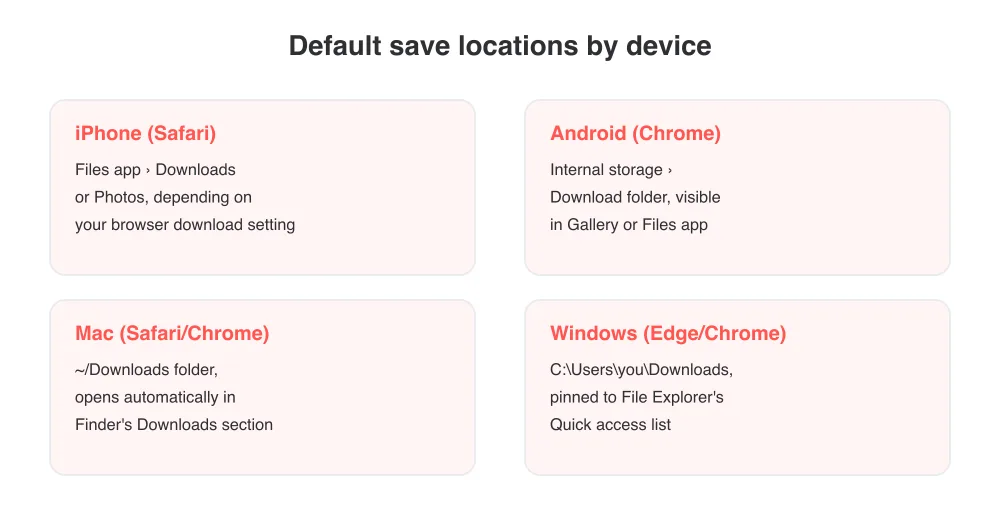
Most browsers save downloads to a default 'Downloads' folder unless you've changed the setting to prompt for a location each time. If you can't find a file after downloading, check your browser's download history (usually a downward-arrow icon or a menu item labeled 'Downloads').
What file format do you get?
Pinterest videos download as standard MP4 files, which play natively on iPhone, Android, Mac, Windows, and virtually every media player and editing app. This makes them easy to reuse in projects, presentations, or your own social posts without needing to convert anything.
- MP4 is compatible with iOS Photos, Android Gallery, QuickTime, VLC, and most video editors.
- Choosing HD keeps the original resolution when available; SD trades some quality for a smaller file size and faster download.
- Downloaded files are saved to your device only — nothing is uploaded back to Pinterest or shared publicly.
Troubleshooting common issues
- 'Link not found' or 'no video detected': make sure you copied the pin's link (not the board link) and that the pin actually contains a video rather than a static image.
- Download button does nothing: try a different browser, or disable any ad blocker or content blocker temporarily and retry.
- Video plays but has no sound: some Pinterest video pins are uploaded without audio by the original creator — this isn't something a downloader can add back.
- Private or deleted pins: if a pin has been removed or set to a private board you don't have access to, the link won't resolve and the video can't be downloaded.
- Slow downloads: this is usually your network connection or the original file size — try SD quality for a quicker save.
Only download videos you have the right to reuse. Respect the original creator's copyright, and give credit when reposting content that isn't yours.
Frequently asked questions
Yes. The Pinterest video downloader is free to use, doesn't require an account, and has no hidden download limits for personal use.