Downloads
How to Download a Pinterest GIF (Free, No App)
Learn how to download a Pinterest GIF in seconds: copy the pin link, paste it into a free browser tool, and save the animated GIF or MP4 to your device.
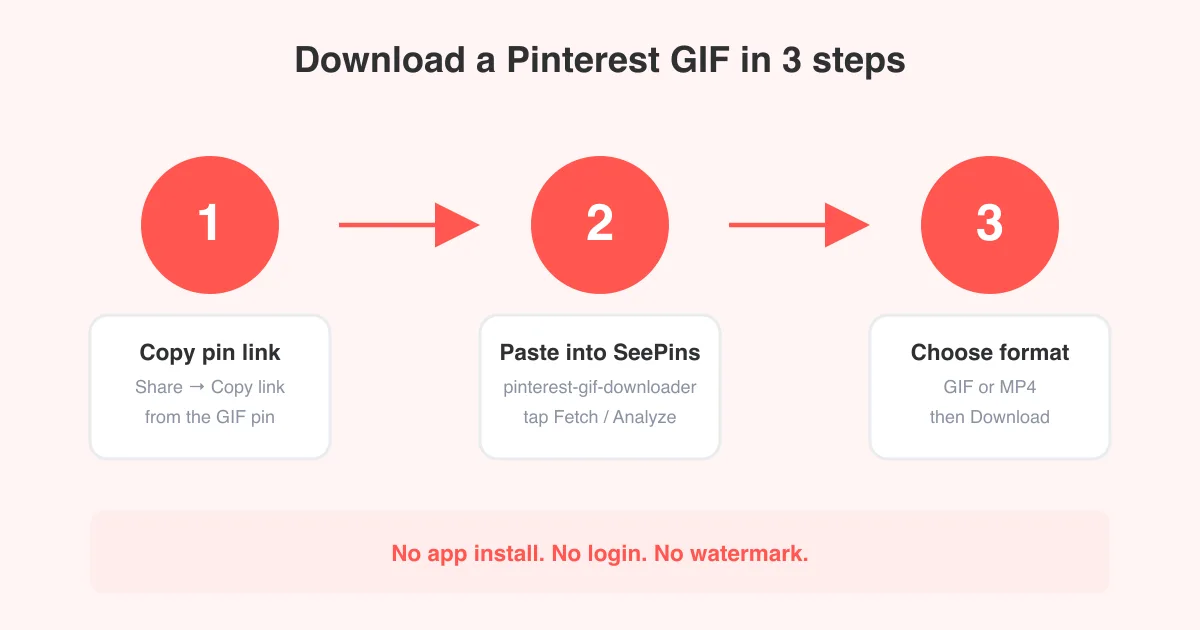
Short answer
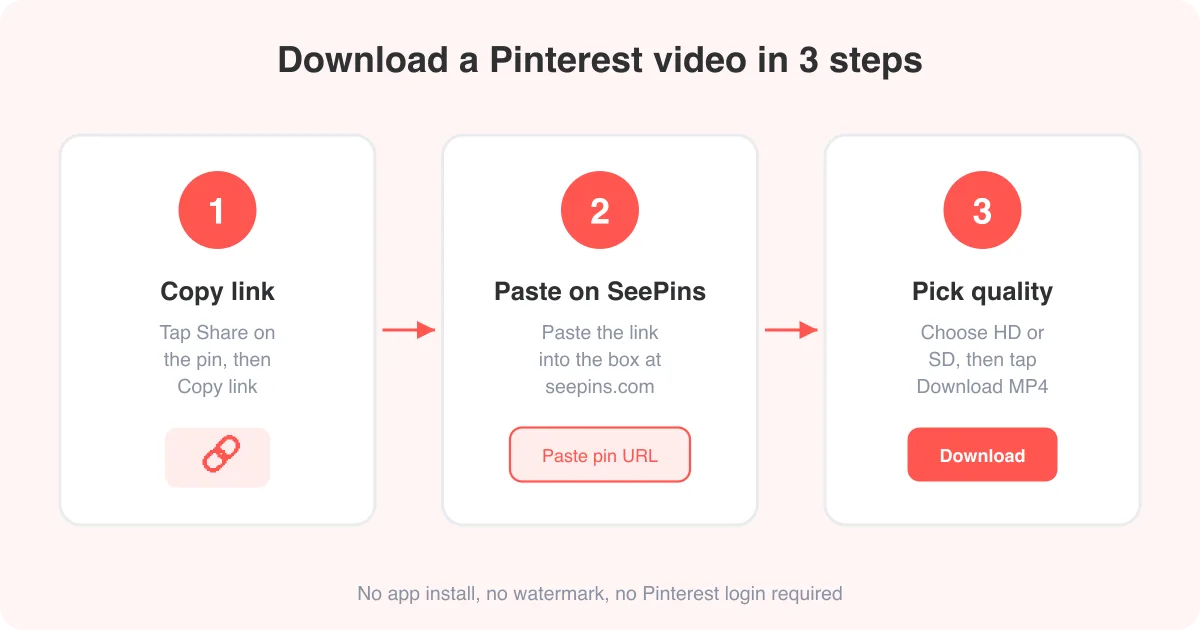
To download a Pinterest GIF, copy the pin's share link, paste it into a free tool like the Pinterest GIF downloader, and tap download to save the animation. No app, login, or watermark is required, and it works the same way on phones, tablets, and desktop computers.
What you need before you start
Downloading a Pinterest GIF only requires two things: the pin's link and a browser. You do not need the Pinterest app, a browser extension, or a Pinterest account. The process works whether the GIF was uploaded directly to Pinterest or pulled in from a site like Giphy or Tenor, as long as the pin itself is public.
- The share link (URL) of the specific pin — not just the board it's on
- A browser on your phone, tablet, or computer (Safari, Chrome, or any modern browser)
- A free tool such as the Pinterest GIF downloader to convert the link into a saveable file
Not every animated-looking pin is a real GIF
Some pins that appear to move are actually short looping videos rendered by Pinterest's player, not GIF files. If a tool returns an MP4 instead of a GIF, that's usually why — see the GIF vs MP4 section below for how to handle it.
How to download a Pinterest GIF on desktop
- Open Pinterest in your browser and find the animated pin you want to save.
- Click the pin to open it in full view.
- Click the share icon (usually a paper-airplane or arrow icon) and choose Copy link.
- Go to the Pinterest GIF downloader in a new tab.
- Paste the link into the input box and click Fetch (or Analyze, depending on the current button label).
- Wait a moment while the tool retrieves the file, then click Download GIF (or the MP4 option if that's what's available).
- Choose a save location — most browsers default to your Downloads folder.
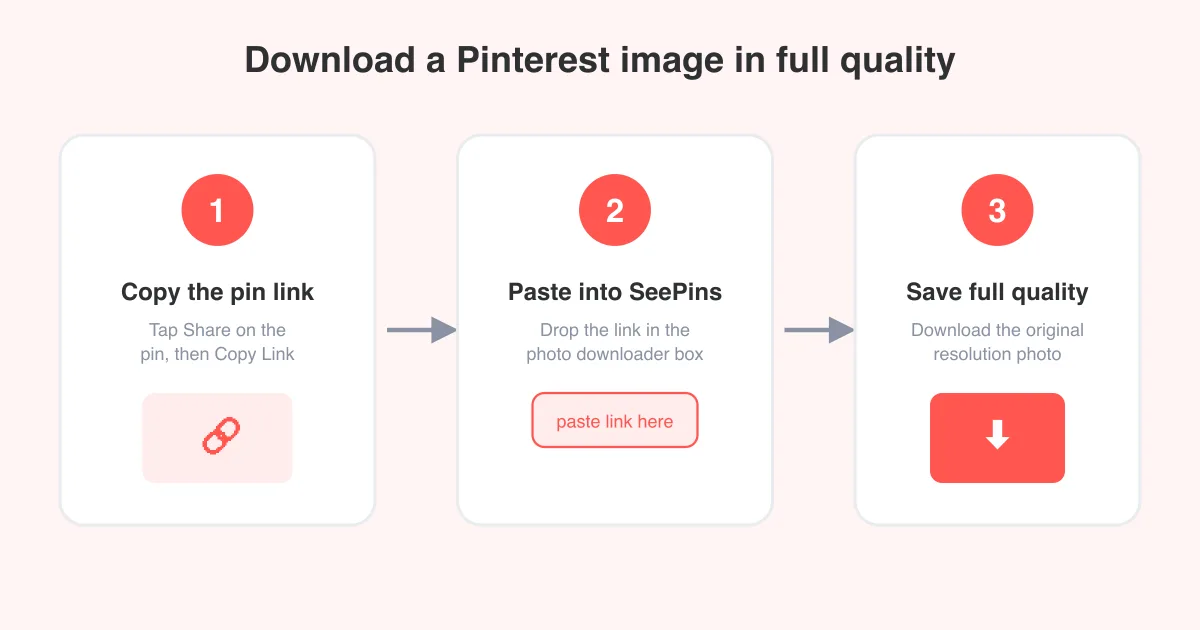
This works the same way for a photo or a video pin too — the tool auto-detects the media type. If you're downloading a still image instead, use the photo downloader for a cleaner, unanimated result.
How to download a Pinterest GIF on iPhone or Android
- Open the Pinterest app or pinterest.com in your mobile browser and tap the animated pin.
- Tap the share icon (a square with an arrow, or three dots depending on your app version).
- Select Copy Link.
- Switch to your mobile browser and open the Pinterest GIF downloader.
- Paste the link into the box (long-press the field and tap Paste) and tap Fetch.
- Tap Download. On iPhone, the file typically saves to the Files app or prompts you to save to Photos; on Android, it usually lands in your Downloads or Files app.
iPhones do not natively animate GIFs saved to the Photos app the same way Android or a computer does. If your GIF appears as a still image after saving, open it with the Files app instead of Photos, or save it as an MP4 so it plays back with motion everywhere.
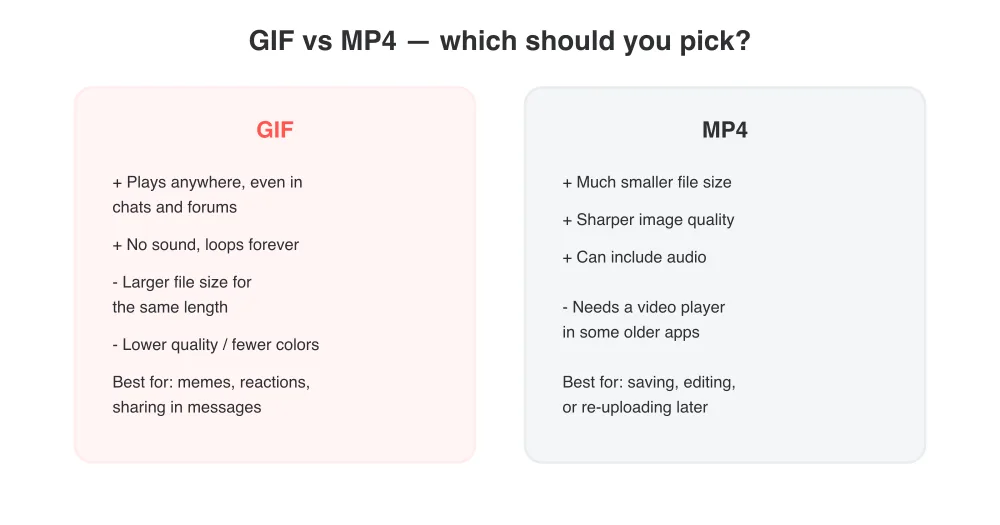
GIF vs. MP4: which format should you choose?
Most animated Pinterest pins are actually stored as compressed video (often MP4 or WebM) and only look like GIFs because they loop silently. Good downloader tools let you choose the output format, so it helps to know the difference before you download.
- Choose GIF if you plan to drop the file straight into a text message, forum post, or anywhere that may not support video playback
- Choose MP4 if you want a smaller file, better image quality, or plan to edit the clip later
- Either works for quickly re-posting content on Pinterest boards you manage
If you're not sure which the tool produced, check the file extension after downloading — a truly animated GIF ends in .gif and will typically be a larger file than a similarly long .mp4.
Where the downloaded file goes
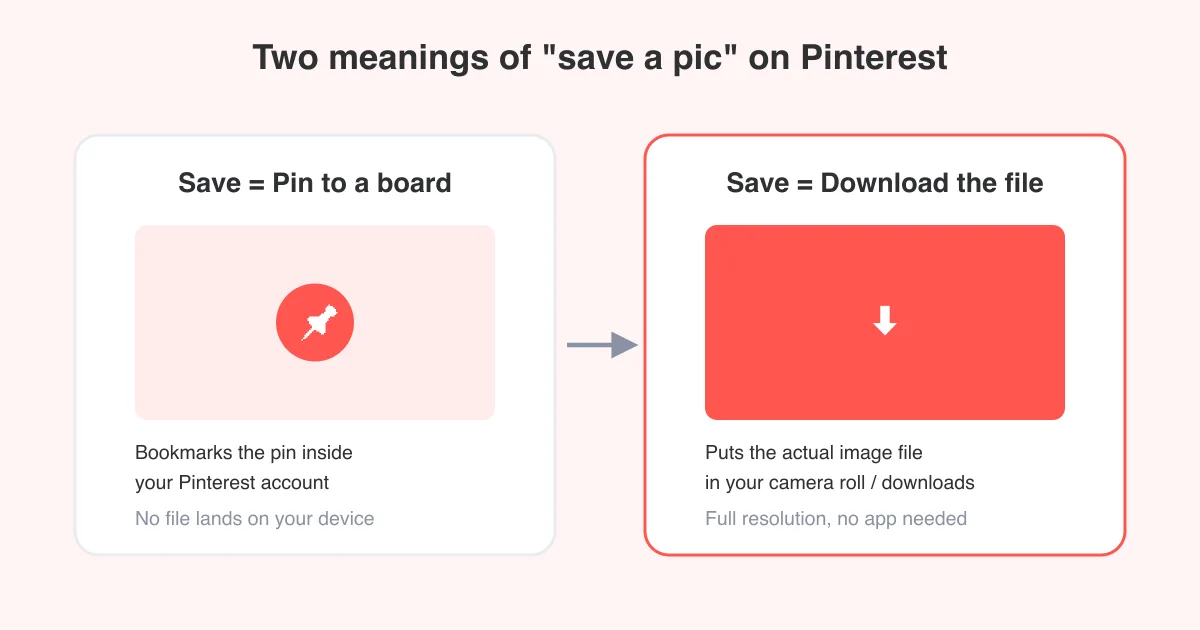
Because the Pinterest GIF downloader saves directly through your browser, the file lands wherever your browser normally puts downloads — there's no separate app storage to dig through.
- Windows/Mac browsers: the Downloads folder, unless you've changed the default in browser settings
- iPhone Safari: the Files app under Downloads, or directly to Photos if prompted and you choose Save Image
- Android Chrome: the Downloads folder, viewable in the Files app or your device's gallery for image-type saves
Can't find the file?
Check your browser's download history (usually Ctrl/Cmd+Shift+J in Chrome, or the download arrow icon) — it shows the exact path the file was saved to.
Troubleshooting common problems
- Link doesn't work: make sure you copied the individual pin's link, not the board or search page URL
- Pin is private or in a secret board: downloader tools can only access public pins; ask the pin owner to make it public first
- Download button does nothing: try refreshing the page and pasting the link again, or double-check the link was copied in full
- File plays as a still image: open it with a different app (Files instead of Photos on iPhone) or re-download as MP4
For a general walkthrough of every Pinterest download type — video, photo, and GIF — visit the how-to hub. If you're after a static photo instead of an animation, the photo downloader is the faster route, and for saving full video pins, see our guide on how to download a Pinterest video.
A quick note on using downloaded GIFs
Downloading a GIF for personal use, mood boards, or private reference is generally fine, but the underlying artwork or footage still belongs to its original creator. If you plan to repost, sell, or use a GIF commercially, credit the source or get permission first. If you're building out your own Pinterest presence rather than just saving content, our guides on how to post on Pinterest and using Pinterest for business are good next reads.
Frequently asked questions
Yes. A browser-based tool like the Pinterest GIF downloader works entirely through your web browser, so no app install is needed on phone or desktop.