Downloads
How to Save a Pic from Pinterest (Full Quality, Any Device)
Learn how to save a pic from Pinterest the right way: pin it to a board vs. download the actual file. Get full-quality photos on phone or desktop, no screenshots.
Short answer
To save a pic from Pinterest as an actual file on your device, don't just tap the Save button — that only pins it to a board inside your Pinterest account. Instead, copy the pin's link and paste it into the Pinterest photo downloader, which pulls the original, full-resolution image file straight to your phone or computer.
"Save" means two different things on Pinterest
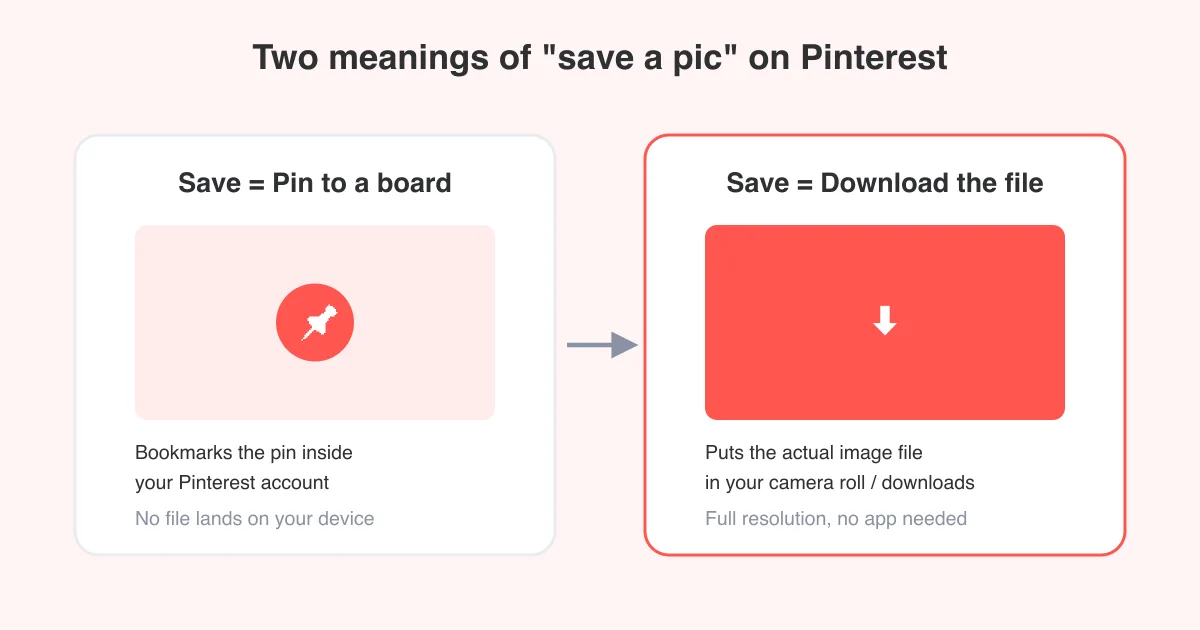
This is the single biggest source of confusion for new users. On Pinterest, the word Save has two completely different meanings, and only one of them puts a picture file on your device.
- Save to a board: tapping the red Save button bookmarks the pin inside your Pinterest account so you can find it later. It does not download anything — the image stays on Pinterest's servers.
- Save to your device: this means downloading the actual image file (JPG or PNG) so it lives in your camera roll, gallery, or downloads folder, viewable even without opening Pinterest.
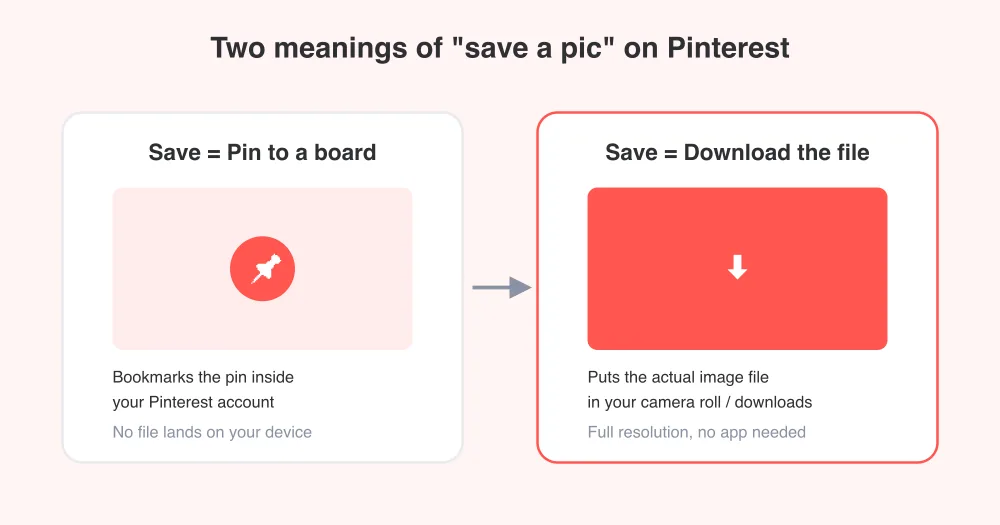
If you tapped Save and now can't find the picture in your phone's gallery, that's why — it went to a Pinterest board, not your camera roll. To get an actual file, you need to download it, which is exactly what the Pinterest photo downloader is built for.
Why a screenshot is a bad way to save a pic
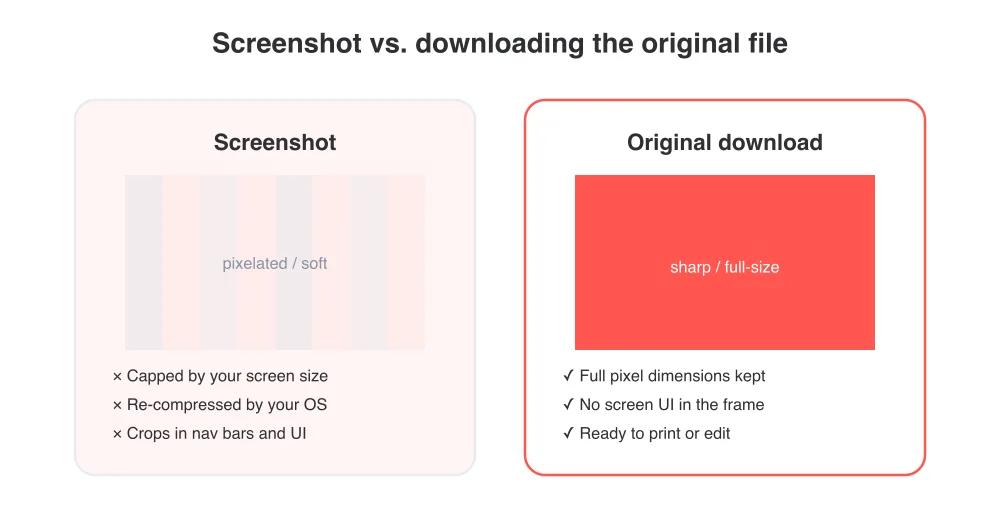
Because Pinterest's own Save button doesn't produce a downloadable file on most platforms, a lot of people fall back on screenshotting the pin. It works in a pinch, but it throws away quality every time.
- A screenshot only captures your screen's resolution, not the photo's real pixel dimensions
- Phones and browsers often re-compress screenshots, adding visible artifacts and softness
- Cropping out the app's toolbar and buttons loses even more of the image
- The result saves in whatever format your OS uses, not the original source file
Skip the screenshot
Instead of capturing what's on screen, pull the source file directly. Paste the pin link into the Pinterest photo downloader and you get the same image Pinterest itself stores, at full resolution — no blur, no cropped toolbar.
How to save a pic from Pinterest as a real file
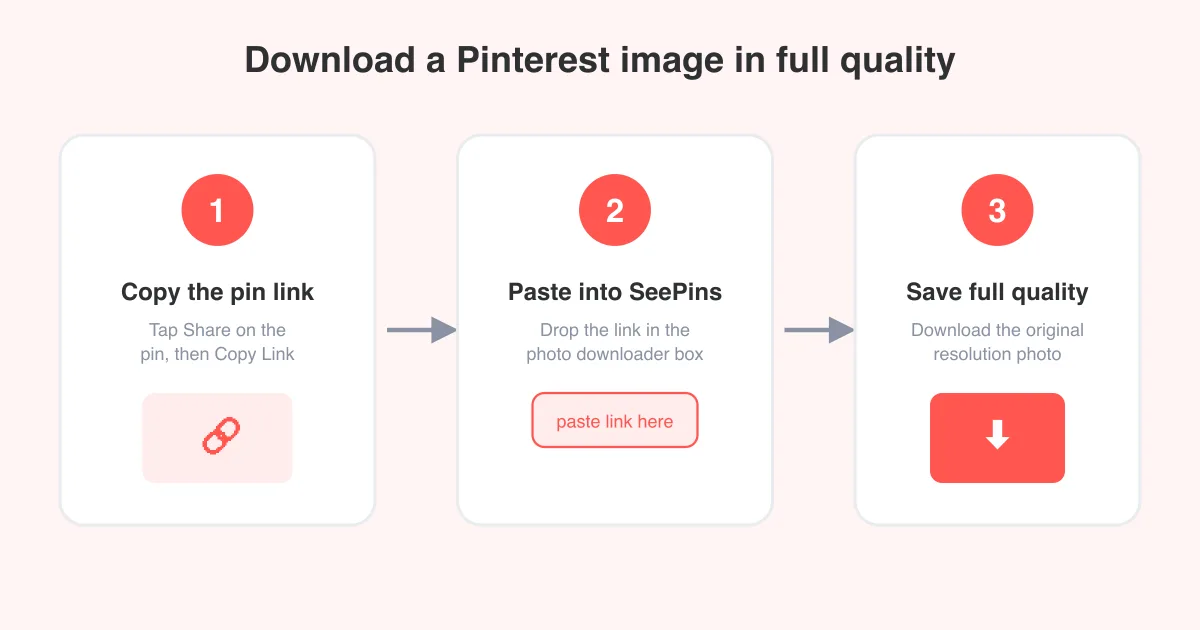
- Open the pin you want in the Pinterest app or on pinterest.com.
- Tap or click the Share icon on the pin (the exact icon and label can vary a little by app version and platform).
- Choose Copy Link to copy the pin's URL to your clipboard.
- Go to the Pinterest photo downloader and paste the link into the input box.
- Press the download button and let the tool fetch the original image.
- Save the file to your phone's camera roll or your computer's downloads folder.
That's the whole process. No Pinterest login is required, and nothing needs to be installed — you're simply asking the tool to fetch the same photo file Pinterest hosts. For a broader walkthrough of copying links and using our tools, see the how-to hub.
Same trick works for other pin types
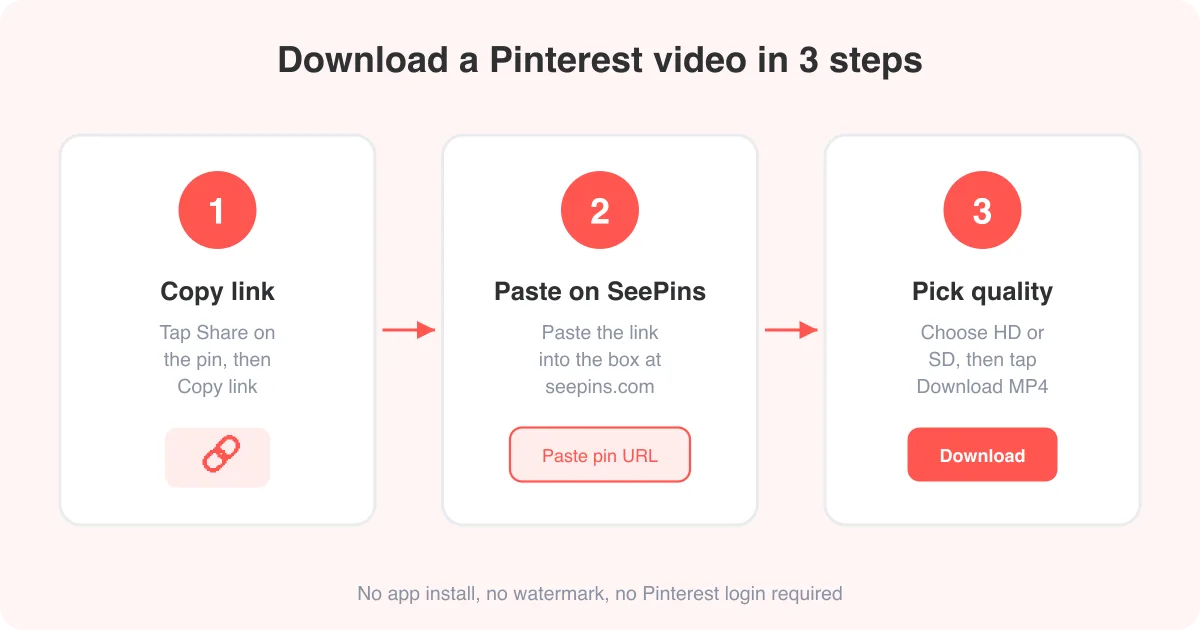
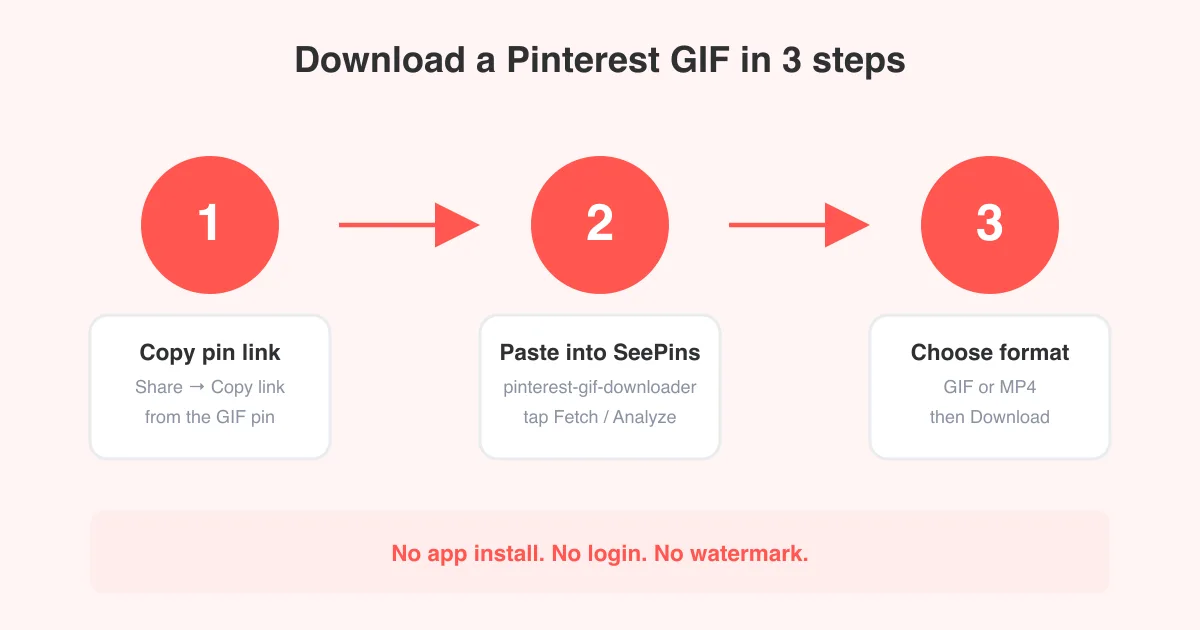
If the pin is a clip instead of a photo, this same copy-link-and-paste approach works with our video downloader for full pin videos, and the GIF downloader for looping clips.
Saving a pic on mobile vs. desktop
The steps are nearly identical everywhere — only the Share menu looks a little different depending on where you're browsing.
- Mobile app (iOS/Android): tap the pin, tap the paper-plane or three-dot Share icon, select Copy Link, then paste it into your mobile browser at the photo downloader page
- Mobile browser: open the pin, tap Share in the browser or the in-page share icon, then Copy Link
- Desktop: open the pin on pinterest.com, click the Share icon (or the three dots), choose Copy Link, then paste it into the downloader in a new tab
On mobile, the saved photo typically lands in your Photos or Gallery app right after downloading. On desktop, it goes to your browser's default Downloads folder unless you use 'Save As' to pick a different location.
A note on copyright and permission
Saving a picture for personal reference — like a mood board, recipe, or DIY idea — is generally fine. But the photo itself still belongs to whoever created or posted it, even after you've downloaded a copy.
- Only save and reuse pins you have the right to use, or that are clearly free to reuse
- Don't repost, resell, or use someone else's photo commercially without permission or credit
- If you're the original creator and want your pin removed or credited, Pinterest has a formal copyright process for that
Downloading isn't the same as owning the rights
A downloaded file is just a copy on your device — it doesn't change who holds the copyright. When in doubt, trace the pin back to its original source before reusing the image.
Troubleshooting common issues
- Nothing appears in your camera roll after tapping Save: that button only saves to a Pinterest board — use the photo downloader instead for an actual file
- Download link doesn't load: confirm the pin is public and not on a private or secret board
- Downloaded image still looks low quality: the original pin itself may have been uploaded at low resolution
- Paste doesn't work: make sure you copied the pin's direct link via Share > Copy Link, not a board link or a shortened share link from another app
Menu names and icons shift slightly between Pinterest app updates, but the core flow — find Share, copy the link, paste it into the tool — stays consistent.
Frequently asked questions
Pinterest's Save button bookmarks the pin to a board inside your account — it doesn't download a file. To get an actual image file on your device, you need to download it separately.
Sources