Downloads
How to Download a Pinterest Image in Full Quality
Learn how to download a Pinterest image in full quality instead of a blurry screenshot. Copy the pin link, paste it, and save the original photo on mobile or desktop.
Short answer
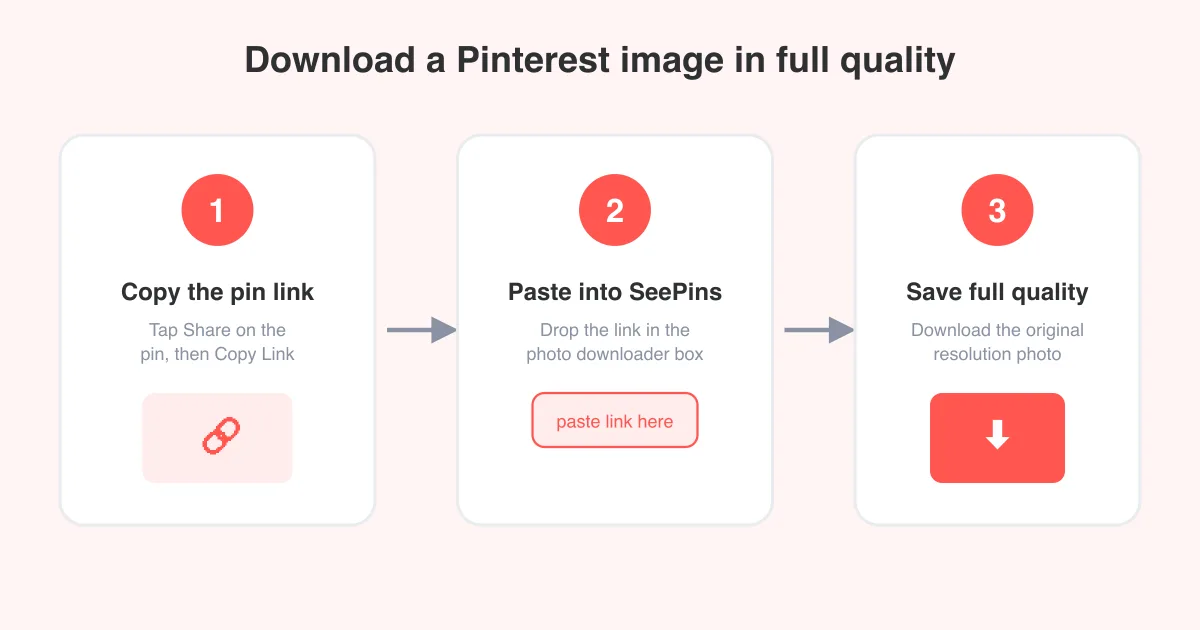
To download a Pinterest image in full quality, copy the pin's link from the Share menu, paste it into the Pinterest photo downloader, and save the original-resolution file it generates. This gives you the actual photo Pinterest stores, not a compressed screenshot, and it works the same way on phones, tablets, and desktop browsers.
Why screenshots lose quality
A screenshot only captures what is currently drawn on your screen, at your screen's resolution. If the pin's preview image is displayed at, say, 400 pixels wide inside the app, that is all the detail your screenshot can ever contain — even if the original photo behind it is 2,000 pixels wide.
- Screenshots are limited to your device's screen resolution, not the photo's real size
- Phones and browsers often re-compress screenshots, adding visible artifacts
- Cropping to just the image means you lose even more resolution
- Screenshots save as whatever format your OS uses (often lossy), not the source file
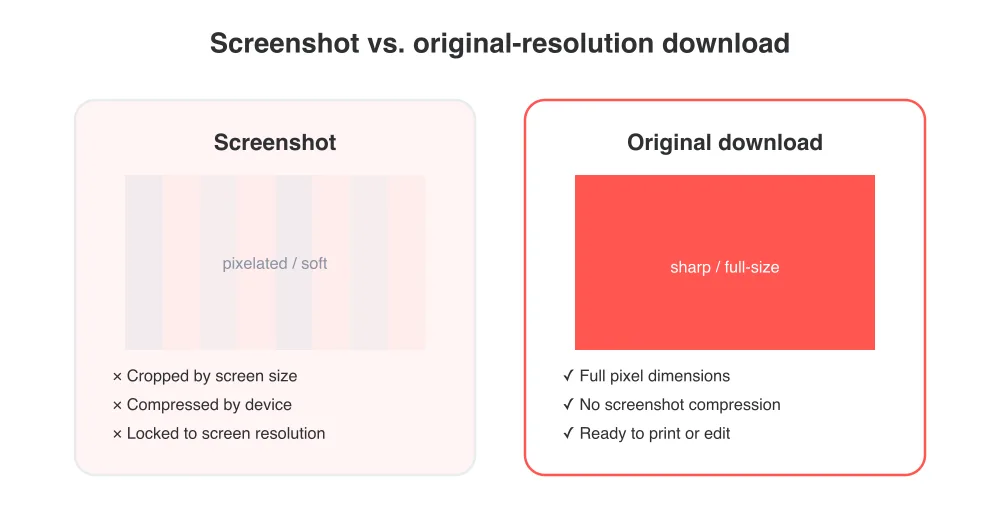
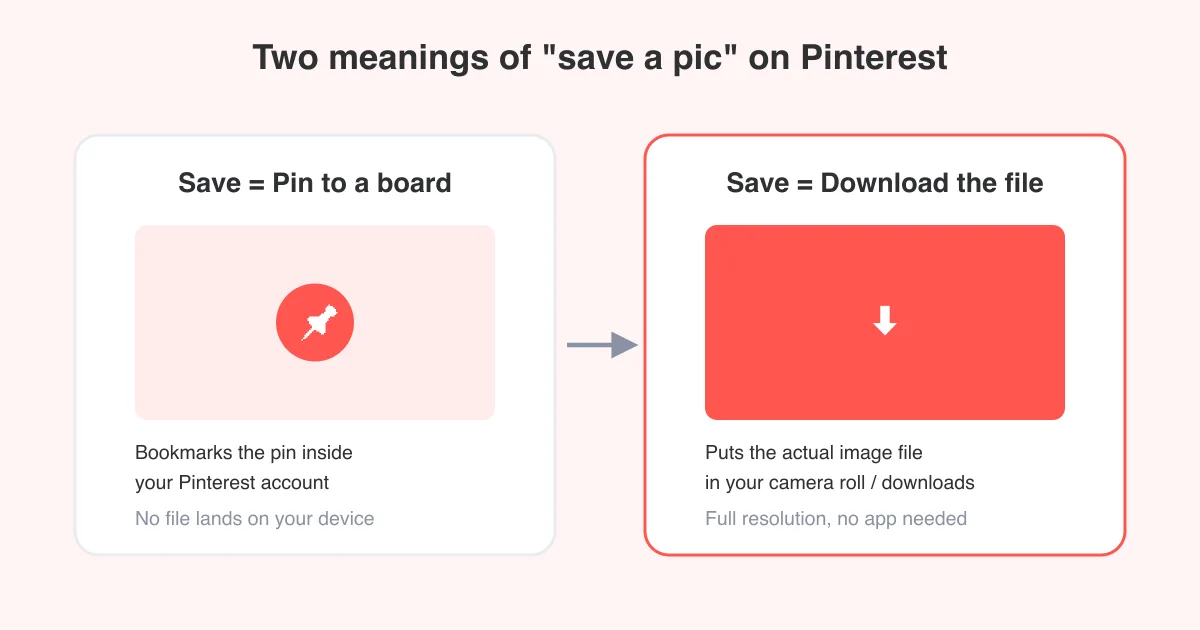
The fix is simple: instead of capturing what's on screen, pull the original image file directly. That's exactly what the Pinterest photo downloader does — it fetches the source photo Pinterest hosts, at its full resolution.
How to download a Pinterest image in full quality
- Open the pin in the Pinterest app or on pinterest.com.
- Tap or click the Share icon on the pin (exact icon and label can vary slightly by app version).
- Choose Copy Link — this copies the pin's URL to your clipboard.
- Go to the Pinterest photo downloader and paste the link into the input box.
- Press the download button and wait for the tool to load the original image.
- Save the file to your device, camera roll, or downloads folder.
No login required
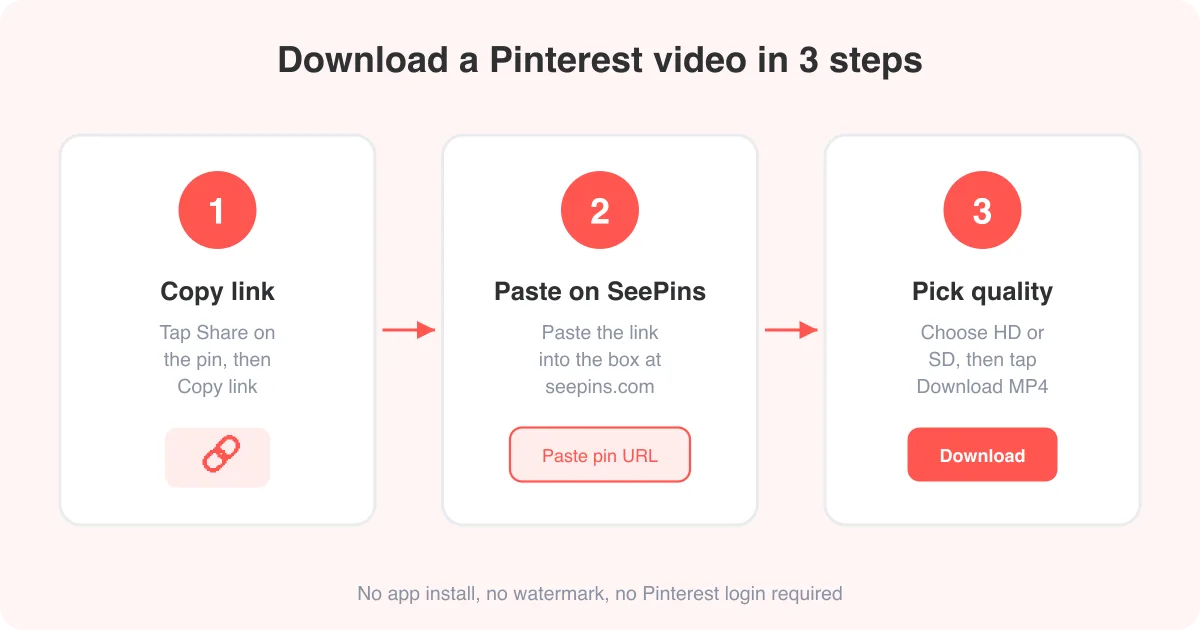
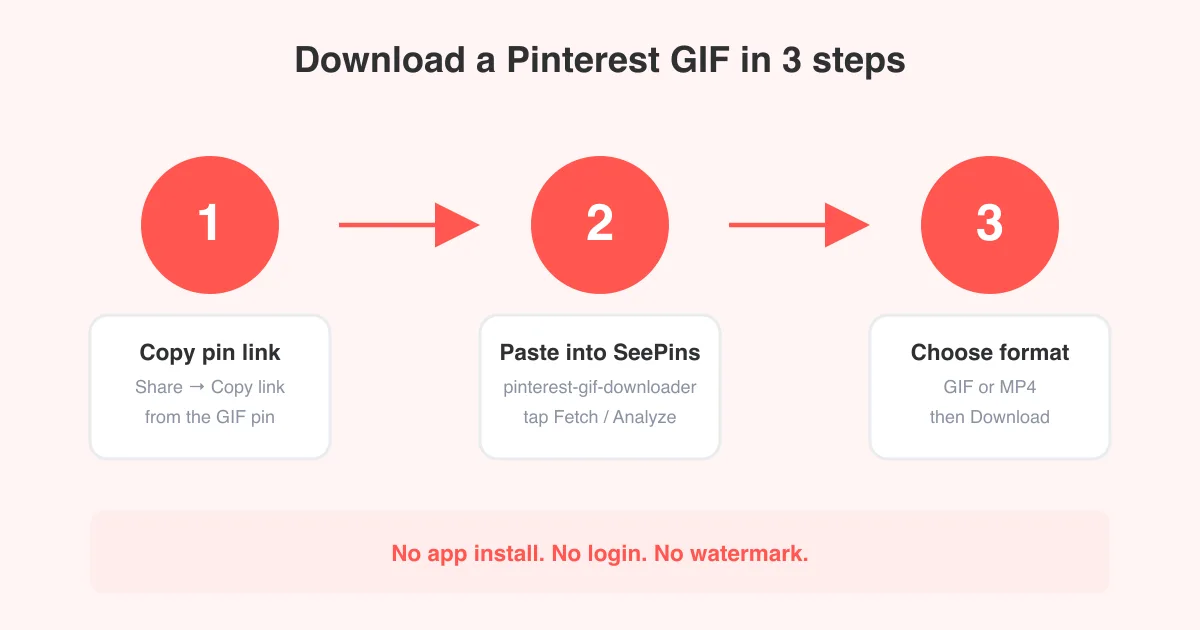
You don't need to sign in to Pinterest or install anything. Paste a public pin link and the downloader fetches the image directly — the same approach used by our video downloader and GIF downloader for other pin types.
If the link doesn't work, double check that you copied the pin's link and not a board link or a shortened share link from a different app. For a broader walkthrough of copying links correctly, see our how-to hub.
Downloading on mobile vs. desktop
The steps are nearly identical on both platforms — only the share menu looks a little different.
- Mobile app (iOS/Android): tap the pin, tap the paper-plane or three-dot Share icon, select Copy Link, then paste it into your mobile browser at the photo downloader page
- Mobile browser: open the pin, tap Share in the browser or the in-page share icon, then Copy Link
- Desktop: open the pin on pinterest.com, click the Share icon (or the three dots), choose Copy Link, then paste it into the downloader in a new tab
On mobile, the saved image usually lands in your Photos or Gallery app. On desktop, it goes to your browser's default Downloads folder unless you choose 'Save As' to pick a different location.
Image formats: JPG vs. PNG
Most Pinterest photos are stored as JPG, which is the standard for photographs and keeps file sizes reasonable while preserving good detail. Some pins — especially graphics, infographics, or images with transparency and text — may be PNG.
- JPG: smaller files, ideal for photos, slight compression but visually near-identical to the source
- PNG: larger files, best for graphics, logos, or anything needing transparency or crisp text edges
- The downloader saves the image in whatever format Pinterest originally hosts it in, so quality matches the source
If you need the image for printing or professional editing, always download the original file rather than a screenshot — you'll have far more pixels to work with before quality drops.
Where your downloaded photo saves
File locations depend on your device and browser settings:
- iPhone/iPad: saved images typically go to the Photos app, in your camera roll or a 'Downloads' album
- Android: files usually land in the Gallery app or a Downloads folder in your file manager
- Windows/Mac browsers: files go to the default Downloads folder unless you changed your browser's download settings
If you can't find a downloaded file, check your browser's download history (often a shortcut like Ctrl+J or Cmd+Shift+J) or search your device's file manager for the file name.
Troubleshooting common issues
- Link doesn't load: make sure the pin is public, not from a private or secret board
- Image looks the same quality as before: confirm you pasted the pin link, not a screenshot you already took
- Download button unresponsive: refresh the page and re-paste the link, or try a different browser
- Pin was deleted or made private: the original file may no longer be accessible to download
Keep in mind that exact menu names and icons can shift slightly between Pinterest app updates, but the core flow — find Share, copy the link, paste it into the tool — stays the same.
Frequently asked questions
Yes. You don't need a Pinterest account or to log in — just copy the public pin's link and paste it into the photo downloader.