Business
How to Use Pinterest for Business in 2026 (Complete Playbook)
Learn how to use Pinterest for business in 2026: set up a business account, optimize your profile, plan content pillars, and turn pins into real traffic and sales.
Short answer
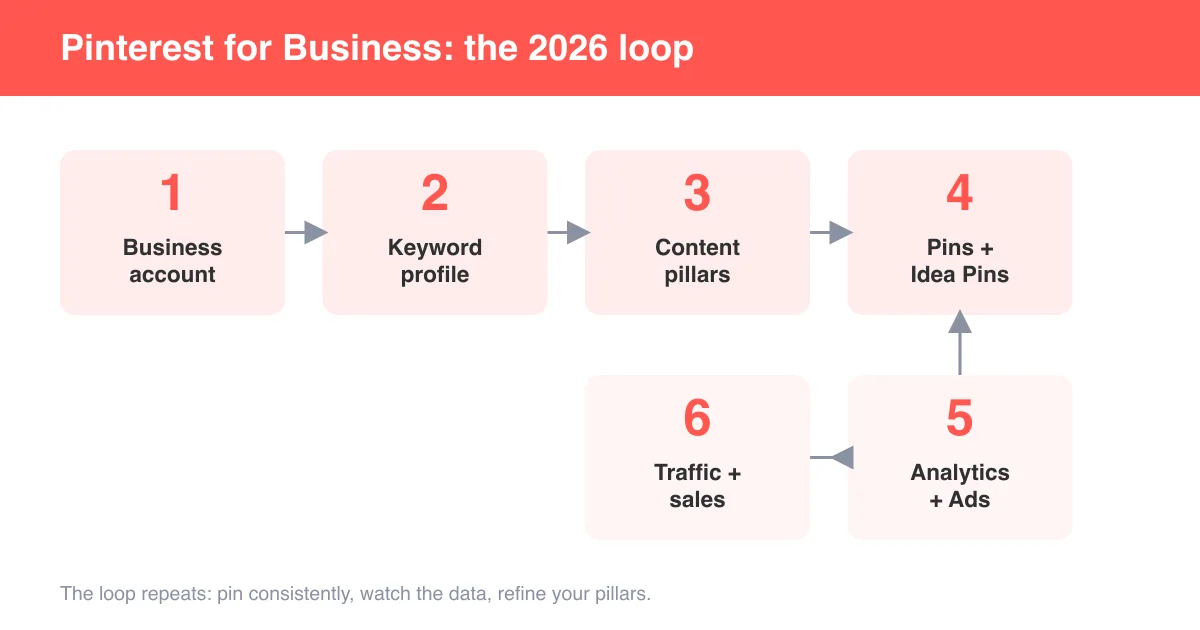
To use Pinterest for business, start with a free business account, optimize your profile with keywords, and publish a steady mix of standard pins, Idea Pins, and Rich Pins tied to a handful of content pillars. Then use Pinterest Analytics to see what resonates, and layer in Pinterest Ads once your organic pins are converting. Pinterest rewards consistency and search-friendly content over viral moments, so treat it like a visual search engine, not a social feed.
Step 1: Set up a Pinterest business account
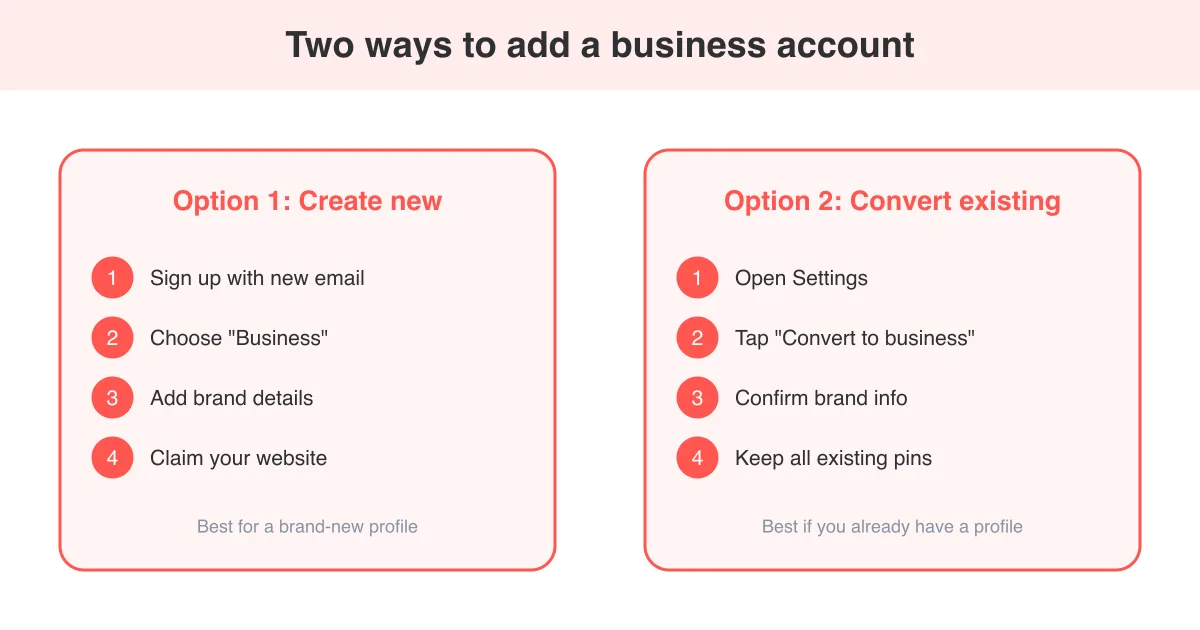
Everything else in this guide assumes you're on a business account, because it unlocks Analytics, Rich Pins, ad tools, and claimed website/domain features that personal accounts don't have. If you haven't done this yet, follow our dedicated walkthrough on how to add a business account on Pinterest — it's free and takes a couple of minutes, whether you're converting an existing personal profile or starting fresh.
- Go to Pinterest's business sign-up page or convert an existing account from Settings.
- Choose a business name that matches how customers search for you (not just a brand slogan).
- Add your website and verify/claim the domain so your pins show your logo and site name.
- Select the industry that best matches what you sell or publish.
- Fill in your business description using natural, keyword-rich language.
Already have a personal account?
You don't need to start over. Pinterest lets you convert a personal profile to business in Settings, keeping your existing pins, boards, and followers intact.
Step 2: Optimize your profile like a landing page
Pinterest functions more like a visual search engine than a social network, so your profile should be built around the terms your customers actually type into the search bar. Treat your username, display name, and about section as prime SEO real estate.
- Use your primary keyword in your display name (e.g. "Jane's Kitchen | Easy Weeknight Recipes") rather than only your brand name.
- Write a profile description with 2–3 natural keyword phrases, not a keyword-stuffed list.
- Upload a clear, recognizable logo or headshot as your profile photo.
- Organize boards by topic so both Pinterest's algorithm and human visitors immediately understand what you offer.
- Pin your best, most relevant boards to the top of your profile.
Step 3: Build a keyword and SEO strategy
Keywords drive discovery on Pinterest the same way they drive discovery on Google. Before you design a single pin, research the terms your audience searches for and weave them into board titles, board descriptions, pin titles, and pin descriptions.
- Type your core topic into Pinterest's search bar and note the autocomplete suggestions — these are real, popular queries.
- Check the related-search pills that appear above the results grid for adjacent keyword ideas.
- Build a simple keyword list grouped by theme (e.g. "meal prep," "budget meal prep," "meal prep for beginners").
- Use one primary keyword per pin title and 1–2 supporting phrases in the pin description.
- Avoid keyword stuffing — write for a human reader first, search relevance second.
Pinterest content has a long shelf life. A well-optimized pin can keep driving traffic for months or years, unlike a tweet or Instagram post that's relevant for a day.
Step 4: Define your content pillars
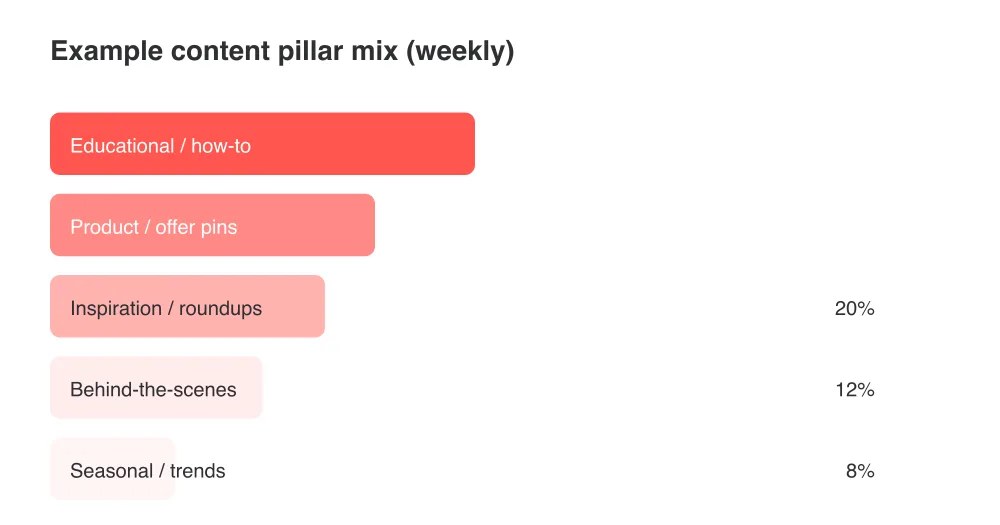
Content pillars are the 3–5 recurring themes that all of your pins fall under. They keep your output focused, make batching content easier, and help Pinterest's algorithm understand what your account is about so it shows your pins to the right people.
- Pick pillars tied directly to what you sell or the problems you solve — not just broad interests.
- Aim for 3–5 pillars; more than that gets hard to maintain consistently.
- Create a dedicated board (or a few) for each pillar.
- Rotate pillars across your weekly posting schedule instead of batching one topic for weeks straight.
- Revisit pillars quarterly using Analytics data to double down on what's working.
Idea Pins vs. standard pins: when to use each
Standard (static) pins are still the backbone of most business accounts — they're easy to batch-produce, link directly to a URL, and are what most people find through search. Idea Pins are Pinterest's multi-page, video-friendly format built for storytelling and discovery inside the app, but they historically haven't supported outbound links the way standard pins do.
- Use standard pins whenever your goal is to drive click-through traffic to a blog post, product page, or landing page.
- Use Idea Pins to build brand awareness, show process/behind-the-scenes content, or repurpose short-form video you've already created for other platforms.
- Add a strong text overlay and clear call-to-action to Idea Pins since there may be no direct outbound link on the pin itself.
- Check your account's current publishing options before planning a campaign, since Pinterest updates formats and features fairly often.
Feature availability varies
Exact format names, button labels, and available features can differ by app version, region, and account type. Always check what's live in your own Pinterest account before building a content calendar around a specific feature.
Set up Rich Pins for extra context and trust
Rich Pins automatically pull extra metadata from your website — like a product's price, an article's headline, or a recipe's ingredients — directly onto the pin. They tend to build more trust and context than a plain image, which can help with both click-through and conversion.
- Add the required meta tags (Open Graph or the format Pinterest specifies) to your website's product, article, or recipe pages.
- Validate your markup with Pinterest's Rich Pins validator tool.
- Apply for Rich Pins for your domain once validation passes.
- Confirm your domain is claimed in your business account settings, since Rich Pins are tied to a verified domain.
- Re-pin or refresh older pins so they pick up the new Rich Pin metadata.
Use Analytics and Pinterest Ads to scale what works
Pinterest Analytics (built into every business account) shows impressions, saves, outbound clicks, and audience insights for your organic pins. Review it regularly rather than guessing which content is working.
- Check which individual pins and boards drive the most outbound clicks, not just impressions or saves.
- Watch your audience demographics to confirm you're reaching the people who actually buy from you.
- Identify your top 3–5 performing pins each month and create similar variations.
- Once organic pins are converting, use Pinterest Ads to promote them to a wider, targeted audience.
- Start with a modest ad budget on your best-performing organic pin before scaling spend.
Promoting a pin that's already converting organically is almost always more efficient than promoting a brand-new, unproven pin.
Posting cadence and measuring ROI
Consistency matters more than volume on Pinterest. A steady, sustainable schedule — even a handful of quality pins per week — tends to outperform sporadic bursts followed by silence.
- Pick a cadence you can sustain long-term (for example, 3–7 pins per week) rather than an aggressive schedule you'll abandon.
- Mix new pins with refreshed versions of proven top performers.
- Track ROI against business goals: website sessions, email signups, or sales — not just vanity metrics like followers.
- Compare Pinterest-attributed conversions in your website analytics against Pinterest's own reported outbound clicks.
- Revisit your content pillars and keyword list every quarter based on what Analytics shows is actually converting.
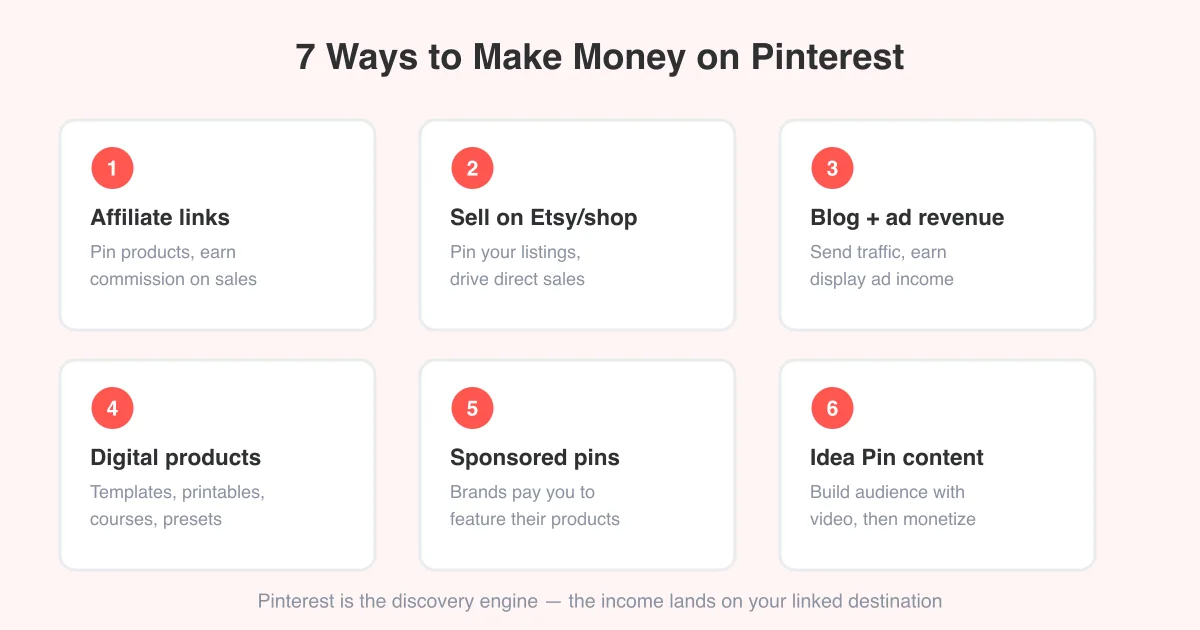
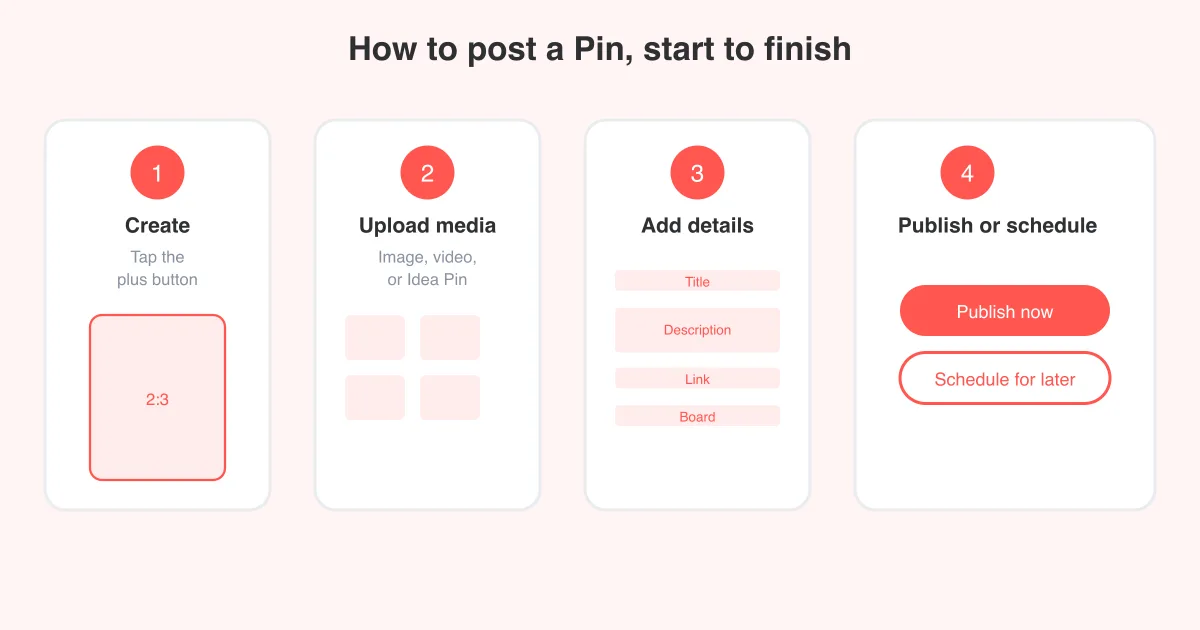
For the practical mechanics of publishing itself — timing, formats, and settings — see our full guide on how to post on Pinterest. And if your goal is direct monetization rather than just traffic, our guide on how to make money on Pinterest covers affiliate links, shop features, and creator monetization in more depth.
Frequently asked questions
Yes. Creating or converting to a Pinterest business account costs nothing and unlocks Analytics, Rich Pins, ads, and domain verification.