Guides
How to Undo a Pin on Pinterest (Unsave, Unpublish or Restore)
Pinterest has no single undo button. Learn how to unsave a pin, delete a pin you created, move a pin to another board, or recover one you deleted by mistake.
Short answer
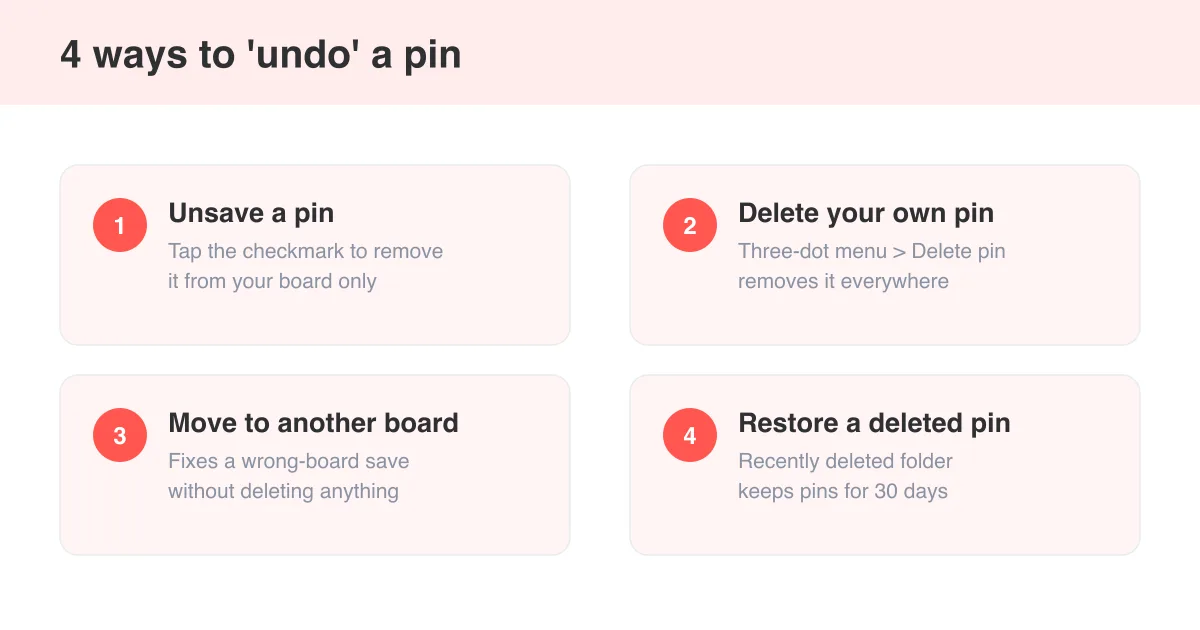
There is no single 'undo pin' button on Pinterest. What you do depends on what you actually want to reverse: tap the saved checkmark to unsave a pin from a board, open a pin's three-dot menu and choose Delete to remove one you created, or use Move to shift it to a different board. If you deleted a pin within the last 30 days, Pinterest keeps a Recently deleted folder where you can restore pins on Pinterest before they're gone for good.
There's no Ctrl+Z on Pinterest
Unlike a document editor, Pinterest doesn't have one universal 'undo' action. That's because 'undo a pin' actually covers several different situations, and each one has its own fix: removing a pin from your board, deleting a pin you created, moving a pin to the right board, or getting back a pin you deleted by accident.
Figure out what you actually want first
Before you tap anything, decide which of these you mean: 'I saved this pin and want it gone from my board' (unsave), 'I posted this pin and want it gone entirely' (delete), 'this pin is on the wrong board' (move), or 'I deleted a pin and want it back' (restore). The rest of this guide is organized around those four cases.
- Unsaving only removes a pin from your saved boards — the original pin still exists elsewhere.
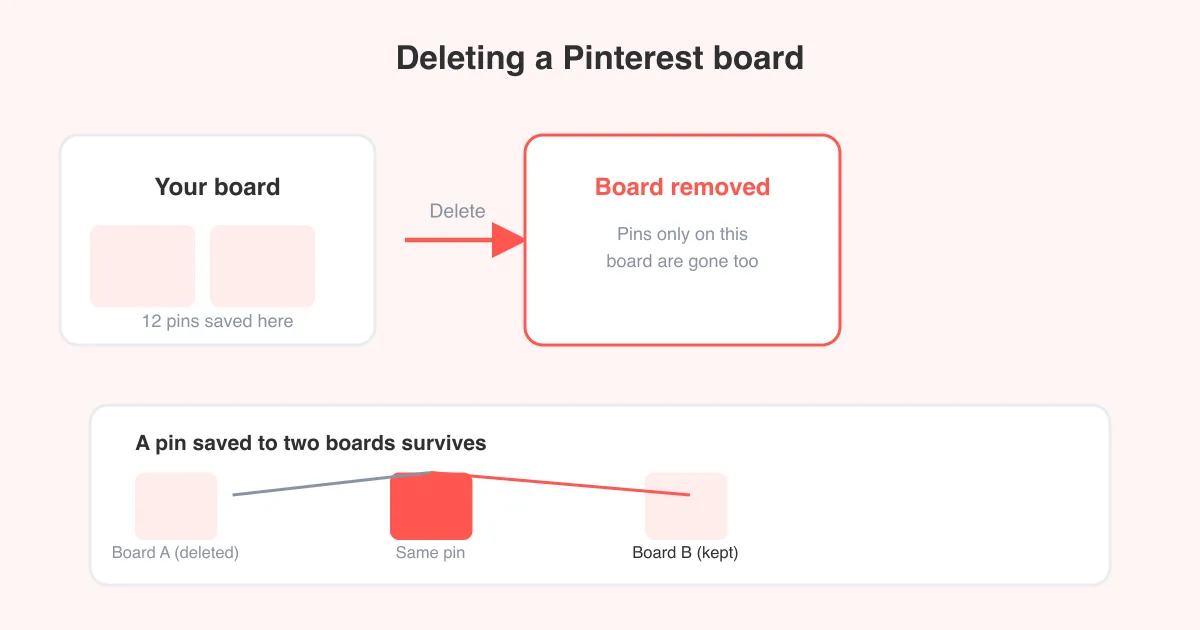
- Deleting a pin you created removes it from Pinterest entirely, including everyone's boards that had saved it.
- Moving a pin keeps it saved, just on a different board.
- Restoring only works for pins you deleted yourself, and only within a limited time window.
How to unsave (unpin) a pin you saved
This is the most common 'undo' request: you saved something to a board and changed your mind. Unsaving removes it from your board without affecting the original pin or its creator's account.
- Open the Pinterest app or website and go to the board that has the pin.
- Tap or click the pin to open it, or hover over its thumbnail in the board grid.
- Look for the red checkmark or 'Saved' label in the top corner of the pin.
- Tap the checkmark, then confirm 'Unsave' or 'Remove from board' when prompted.
On mobile you can also long-press a pin thumbnail from inside a board to bring up a quick menu with an unsave or remove option, which is faster if you're clearing out several pins at once.
How to delete a pin you created
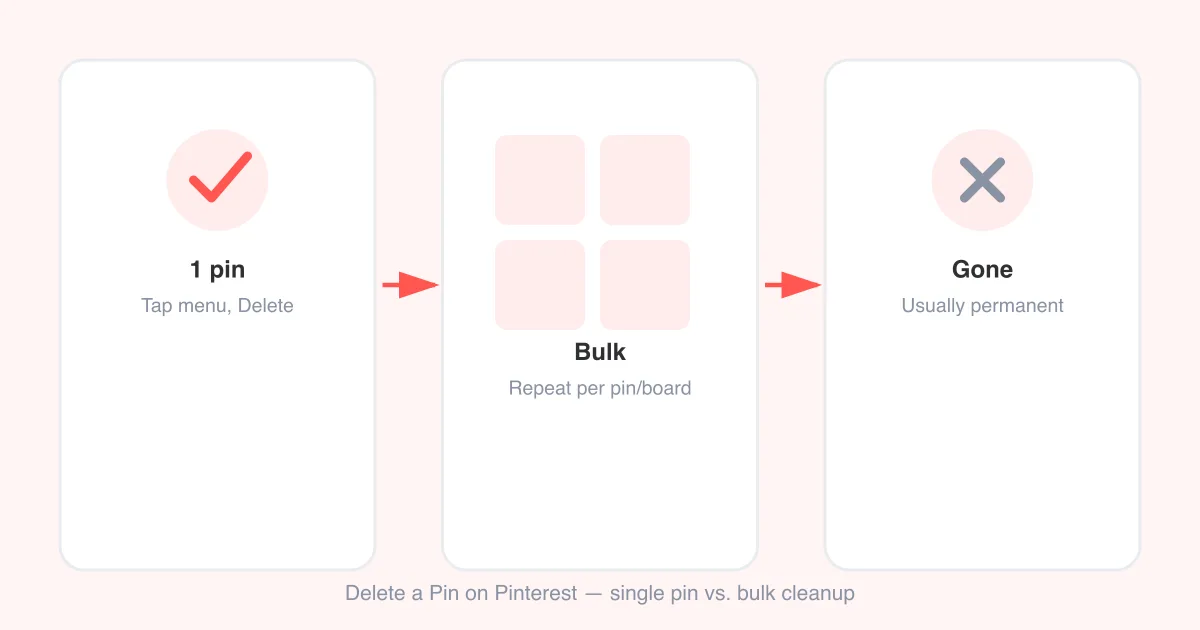
If you posted the pin yourself (an image or video you uploaded), deleting it removes it from Pinterest completely, not just from your own boards. For the full walkthrough, including bulk deletion and what happens to comments and saves, see our dedicated guide on how to delete pins on Pinterest.
- Open the pin you created from your profile or board.
- Tap the three-dot menu (More options) on the pin.
- Select 'Delete pin' from the menu.
- Confirm the deletion when Pinterest asks you to.
Keep in mind that button labels can shift slightly between the Pinterest app and website, and between iOS, Android, and desktop versions, so 'Delete pin' might appear worded a little differently depending on your version.
How to move a pin instead of deleting it
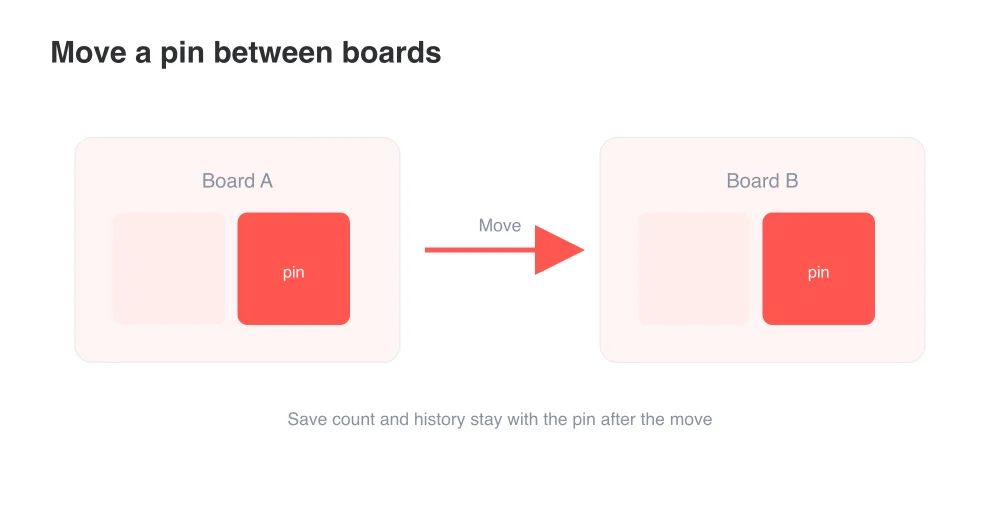
Sometimes what feels like a mistake is really just a pin on the wrong board. Moving it is less destructive than deleting and unsaving, and it preserves the pin's save count and history.
- Open the pin from the board it's currently saved to.
- Tap the three-dot menu and choose 'Move pin' (or 'Edit' on some versions, then change the board).
- Pick the destination board from the list, or create a new one.
- Confirm the move.
How to recover a pin you deleted by mistake
If you deleted a pin you created and want it back, check the 'Recently deleted' section of your Pinterest settings. Pinterest holds deleted pins there for a limited time (commonly around 30 days) before they're permanently erased.
- Go to your Pinterest settings from your profile menu.
- Find 'Recently deleted pins' (sometimes listed under Account settings or Account management).
- Locate the pin you want back and select 'Restore'.
- Confirm — the pin returns to its original board.
There's no recovery for unsaved pins
Recently deleted only applies to pins you created and deleted yourself. If you simply unsaved someone else's pin from your board, there's no recovery tool — you'll need to search for and re-save it manually.
Avoiding pin mix-ups going forward
A little organization up front saves a lot of undo-hunting later. Keep boards clearly named and grouped by topic so pins land in the right place the first time, and double-check the destination board before you tap Save on mobile, where the picker can be easy to misjudge with a fast thumb.
- Review your board list occasionally and merge near-duplicate boards to reduce mis-saves.
- If you're building out boards for a brand or shop, see our guide on how to use Pinterest for business for structuring boards that stay tidy as you scale.
- When you're cleaning out an entire board instead of one pin, it's often faster to know how to delete a board on Pinterest rather than removing pins one by one.
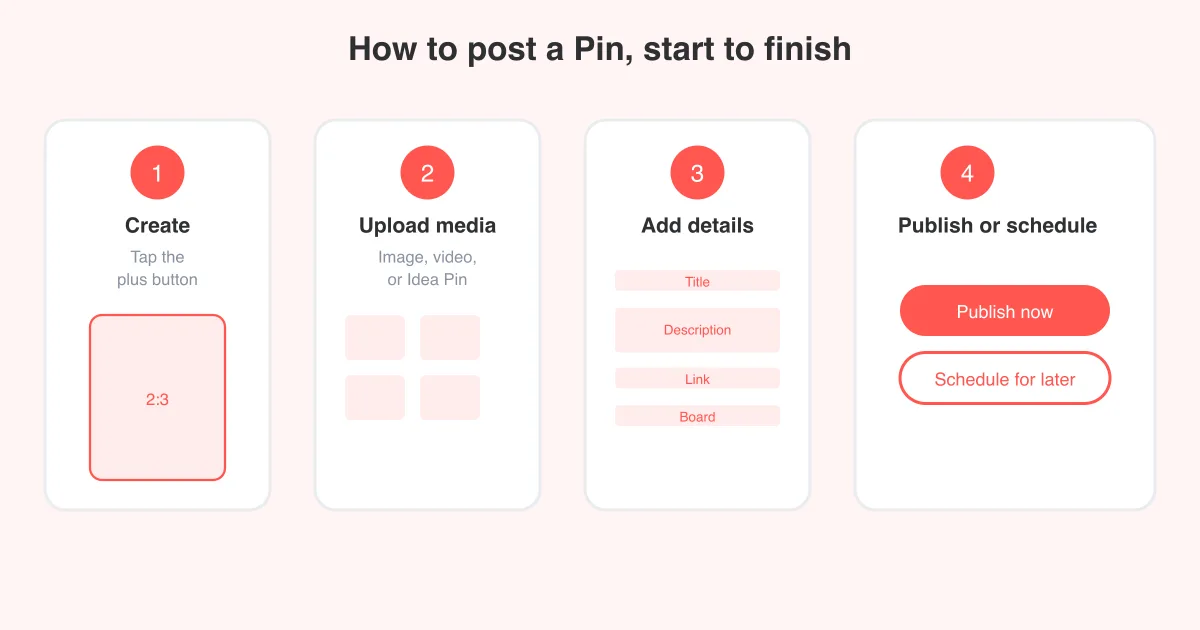
If you're pinning your own content regularly and want a refresher on the posting flow itself, our guide on how to post on Pinterest covers the current steps for uploading images and videos.
Want to keep a copy before you undo anything?
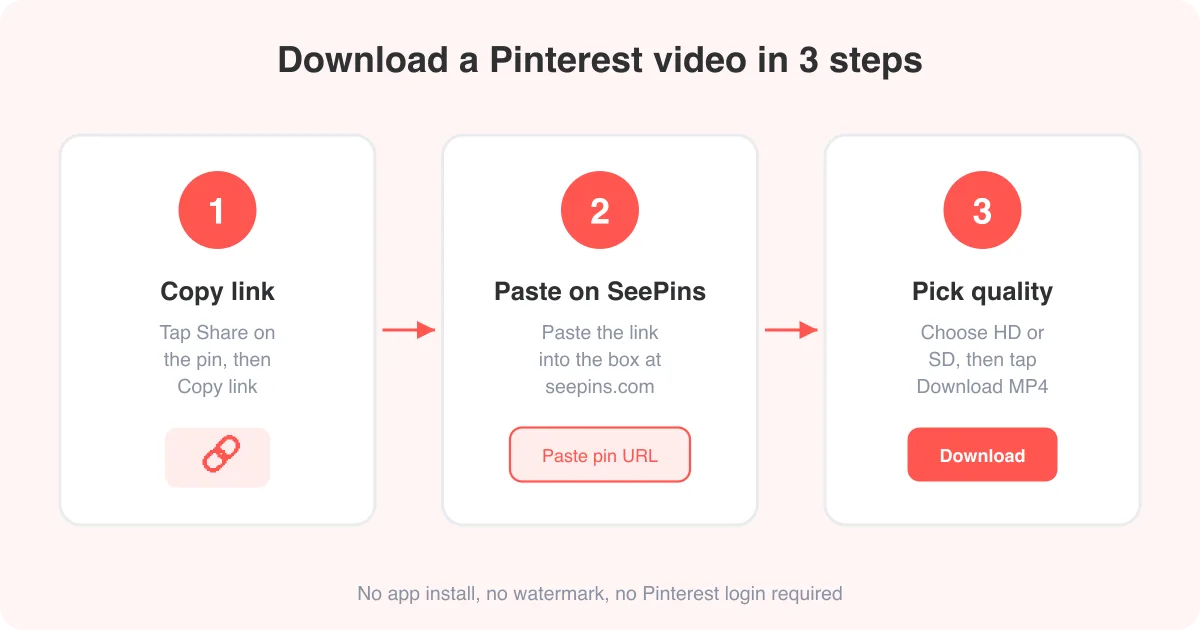
If you're about to delete or unsave a pin but want to keep the media for yourself first, SeePins can save a copy before you do. Use the Pinterest video downloader for video pins, the Pinterest photo downloader for images, or the Pinterest GIF downloader for animated pins.
This is especially useful if the pin belongs to someone else and you're worried it might disappear before you get another chance to save it, or if you're archiving your own boards before a cleanup.
Frequently asked questions
No. Pinterest doesn't have one universal undo action. You unsave a pin, delete a pin you created, move a pin to another board, or restore a deleted pin, and each of those is a separate step.