Troubleshooting
Pinterest Suddenly Showing Irrelevant Images? Here's Why & How to Fix It
Pinterest feed full of random pins that don't match your taste? Learn why this happens and the exact settings to fix your Pinterest recommendations fast.
Short answer
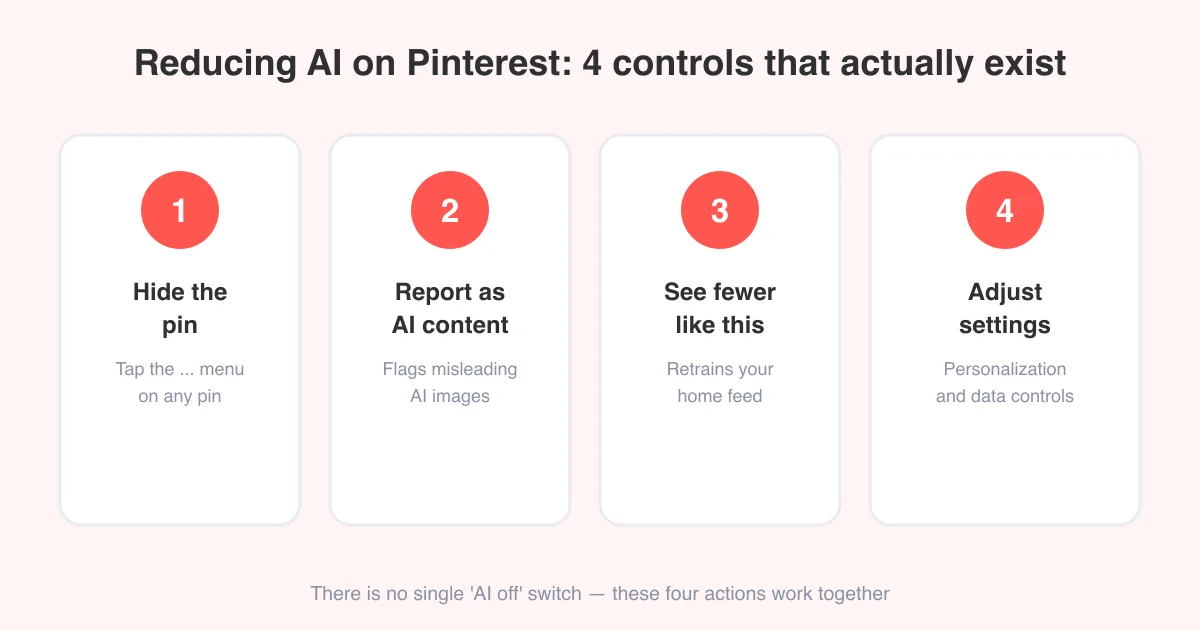
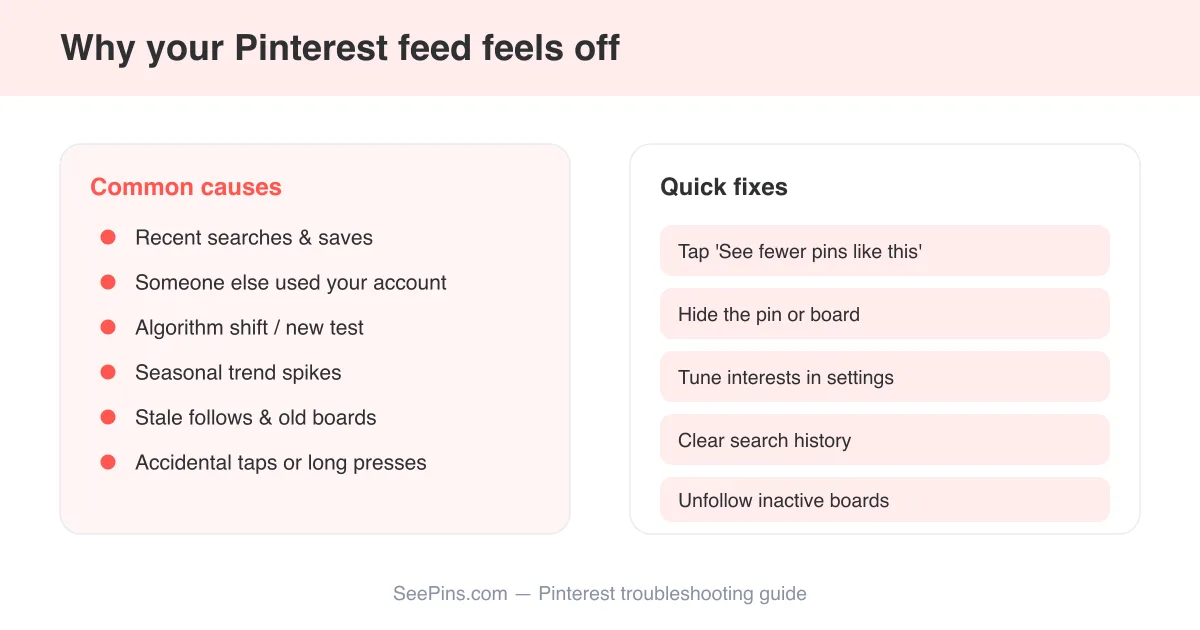
Pinterest shows irrelevant images because its algorithm reacts fast to recent searches, saves, and taps — including accidental ones or searches made by someone else on your account — and it also refreshes recommendations around seasonal trends. You can fix it by tapping See fewer pins like this or Hide on bad pins, tuning your interests in settings, clearing your search history, and unfollowing boards you no longer care about. If you'd rather stop algorithmic picks altogether, you can also turn off AI-driven recommendations in your account settings.
Why Pinterest starts showing pins that don't match your taste
Pinterest's home feed is built by a recommendation system, not a strict follow-only timeline. That means it constantly re-ranks what it shows you based on very recent behavior — sometimes more recent than you'd expect. A single unusual search, a pin you tapped by accident, or even a few seconds spent lingering on something out of curiosity can nudge the algorithm to test more of that content in your feed.
- Recent searches and saves: Pinterest weighs your last few sessions heavily, so a one-off search can temporarily reshape your feed.
- Shared devices or accounts: if a family member, partner, or coworker browsed on your logged-in account, their taps count as your signals.
- Algorithm updates: Pinterest periodically retrains its ranking models, which can shift recommendations even if your behavior hasn't changed.
- Seasonal and trending content: around holidays or viral trends, Pinterest injects more trend-based pins into everyone's feed, even outside your usual interests.
- Stale follows: boards and interests you followed years ago can still influence your feed long after your taste has moved on.
It's usually not a bug
A single irrelevant pin here or there is normal — Pinterest is always experimenting to see what you'll engage with. It only becomes a real problem if most of your feed feels off after a few days, which is when the fixes below help.
Fast fixes: retrain your feed in a few taps
The quickest way to course-correct your feed is to react to bad recommendations the moment you see them, rather than just scrolling past. Pinterest reads these signals to adjust future recommendations.
- Open the irrelevant pin and tap the three-dot menu (or long-press the pin on mobile).
- Choose See fewer pins like this to tell Pinterest to deprioritize similar content.
- If it's a specific topic you never want to see, tap Hide Pin or Hide all from this account/board instead.
- Repeat for a handful of pins over your next few sessions — one tap rarely fixes it instantly, but a pattern of feedback does.
- If a whole board someone else built keeps surfacing, unfollow it from your following list.
Exact wording like 'See fewer pins like this' or 'Not relevant' can vary slightly depending on your app version and platform (iOS, Android, or web), but the option is almost always in the same three-dot or long-press menu.
Tune your interests and personalization settings
Beyond reacting pin-by-pin, you can directly edit what Pinterest thinks you're interested in. This is the setting most people don't know exists, and it can clean up a drifting feed faster than hiding pins one at a time.
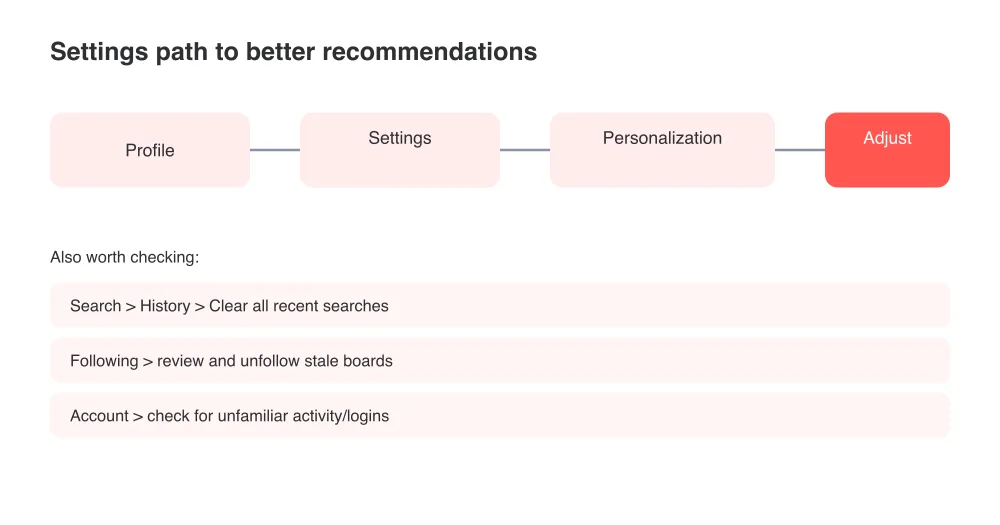
- Go to your profile and open Settings.
- Look for Social permissions or Personalization and data (naming varies by version).
- Review and remove interests that no longer apply to you, if the option is shown.
- Turn off Personalization based on your activity on partner apps and sites if you want Pinterest to rely only on on-platform behavior.
- Save your changes and give the feed a day or two to adjust.
Clear your search history and following list
Your search history is one of the strongest signals Pinterest uses, which is why one odd search session can throw off your feed for days. Clearing it resets that influence.
- Tap the search bar to open your recent searches.
- Tap the X next to individual searches, or look for a Clear all option.
- On the app, you can also go to Settings > Search history to clear everything at once.
- Separately, review Following and unfollow boards, topics, or people that no longer reflect what you want to see.
Check for shared access
If irrelevant pins started appearing after you logged in on a shared or public device, change your password and review active sessions in account settings — someone else's browsing could still be feeding the algorithm.
When to do a fuller personalization reset
If tuning interests and clearing history doesn't help within a week or two, a more thorough reset can help. This trades some short-term feed quality for a cleaner long-term signal.
- Unfollow boards and people you haven't engaged with in months.
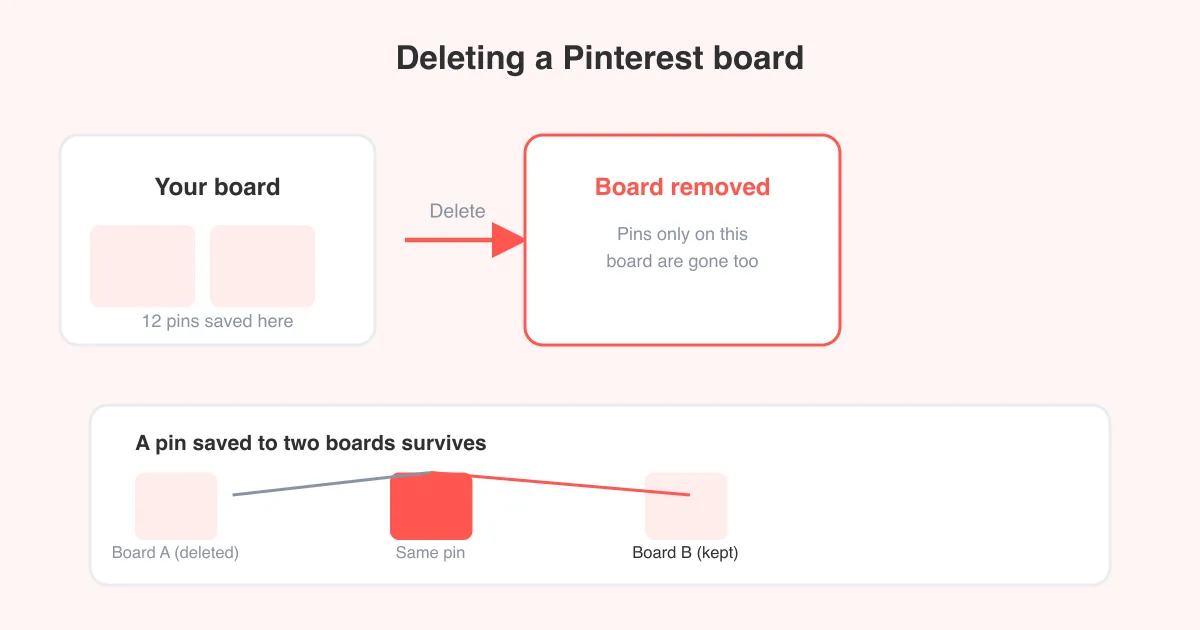
- Delete or archive old boards that no longer match your interests — here's how to delete a board on Pinterest if you want a clean slate.
- Remove or archive old pins and saves tied to topics you've outgrown; see this guide on deleting pins on Pinterest.
- Spend a few sessions deliberately searching and saving only what you actually want recommended more of — Pinterest learns quickly from consistent, intentional behavior.
If you'd rather skip algorithmic guesswork entirely, Pinterest also lets you turn off AI-based personalization, which shifts your feed closer to a straightforward follow-based timeline.
How to keep your feed relevant going forward
- React quickly: use 'See fewer pins like this' or 'Hide' as soon as you notice off-topic pins, instead of scrolling past.
- Search deliberately: avoid idle or joke searches on your main account if you share it, since they get read as genuine interest.
- Groom your boards periodically: unfollow and archive every few months to keep signals fresh.
- Log out of shared devices and keep your password private to avoid other people's activity blending into your data.
- Revisit personalization settings after major Pinterest updates, since defaults can reset.
If you're saving pins you find while browsing and want to keep copies outside Pinterest, SeePins's image downloader and GIF downloader let you save the exact content you actually like, independent of what the feed shows you next.
Frequently asked questions
It's usually caused by recent searches or saves, someone else using your account, a recent algorithm update, seasonal trend content, or stale follows that no longer match your taste. Reacting to a few pins with 'See fewer pins like this' typically corrects it within days.