Tips
How to Turn Off AI on Pinterest (Limit AI Images & Personalization)
Learn how to turn off AI on Pinterest: hide AI-generated pins, report them, adjust personalization settings, and reduce AI content in your feed step by step.
Short answer
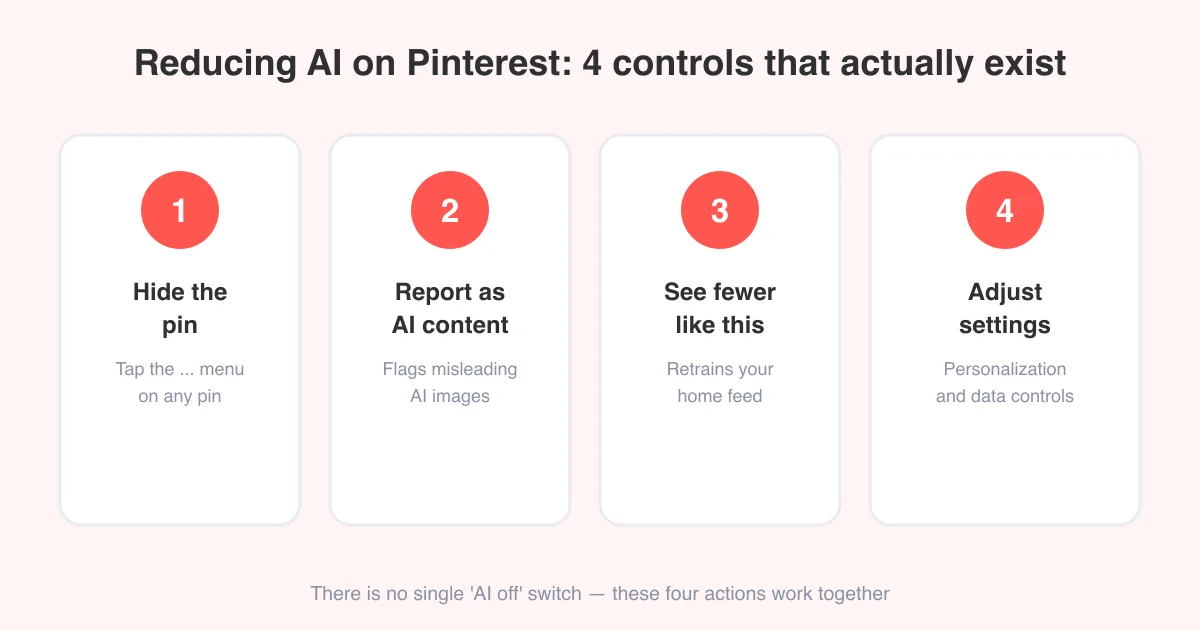
Pinterest doesn't have a single master switch to turn off AI entirely, but you can hide individual AI-generated pins, report them as "AI-generated content," tap "See fewer like this," and adjust your personalization and data settings to cut down on AI-driven recommendations. Combined, these actions train Pinterest's algorithm to show you less AI content over time, though some machine-learning-based personalization can't be fully disabled.
What "AI on Pinterest" actually refers to
"AI on Pinterest" isn't one feature — it's a few different things bundled under the same complaint. Understanding which one is bothering you makes it much easier to fix.
- AI-generated pins: images or videos made with generative tools (often obviously synthetic art, faces, or "too perfect" photos) that show up in search results and your home feed.
- AI-powered personalization: the recommendation system that decides what to show you on your home feed, in "More like this," and in search, based on your activity.
- Generative features inside the app: tools like background editing, image expansion, or shopping-related visual search that use AI models when you actively use them.
- AI labeling: Pinterest applies an "AI-generated content" or "AI-modified" label to some pins so people know what they're looking at.
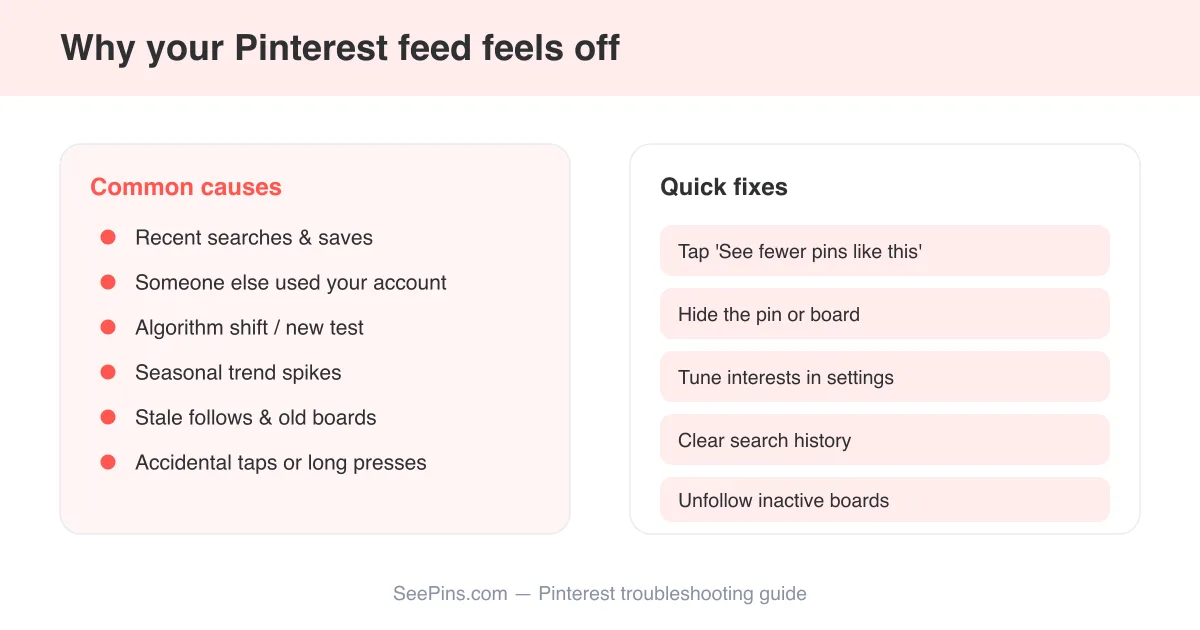
Most people searching for how to "turn off AI" really mean the first two: they're tired of seeing obviously AI-generated images in their feed, or they feel like the algorithm keeps recommending things that miss the mark. If your feed feels off in general, pinterest-showing-irrelevant-images covers the personalization side in more depth.
Why there's no single "turn off AI" button
Set expectations first
Pinterest does not offer one toggle that disables AI across the whole app. Recommendation ranking is core to how the home feed, search, and "More ideas" work, so it can be tuned but not switched off entirely. What you can do is reduce AI-generated pins specifically and adjust how much personalization shapes what you see.
That's an important distinction. You can meaningfully cut down on synthetic-looking AI images and make your feed feel more relevant, but you can't return the app to a purely chronological, non-personalized experience the way some other platforms allow. Exact menu names and toggle wording change between app updates and between the iOS, Android, and web versions, so treat the steps below as a map rather than an exact script.
How to hide and report AI-generated pins
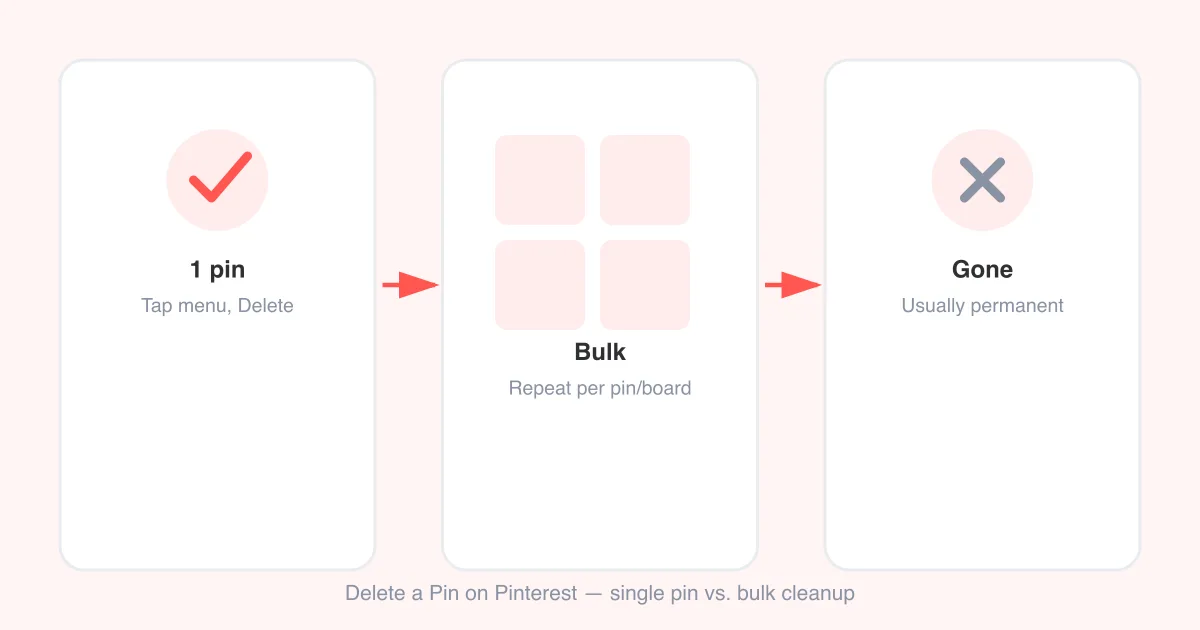
The fastest way to push back on a specific AI image is to act on it directly, the same way you'd handle any pin you don't want to see again — similar to how you'd undo a pin or delete pins you no longer want.
- Open the pin that looks AI-generated (in your home feed, search results, or a board).
- Tap the three-dot menu (•••) in the top corner of the pin.
- Choose "Hide pin" to remove it from your feed immediately.
- If the option is available, choose "Report pin" and select a reason such as "AI-generated content" or "Misleading information."
- Repeat this for a handful of similar pins — one report rarely changes anything, but a consistent pattern does.
If a pin carries an "AI-generated" or "AI-modified" label, that's Pinterest's own transparency system flagging it — you can still hide or report it using the same menu.
Use "See fewer like this" to retrain your feed
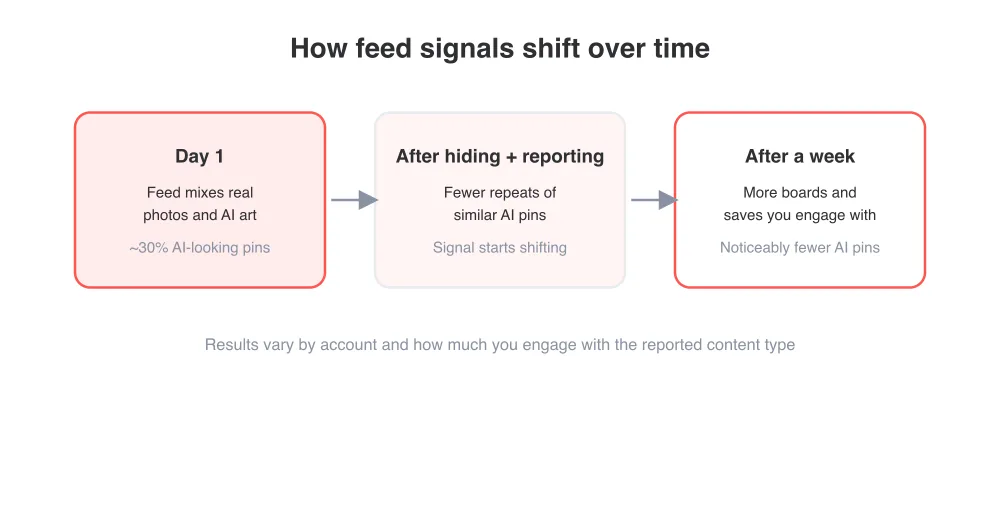
Beyond hiding one pin at a time, Pinterest's "See fewer like this" option targets a whole category — for example, a specific style of AI art, a topic, or a source. It's found in the same three-dot menu as "Hide pin." Using it consistently on AI content is the closest thing to a bulk "reduce AI" control that currently exists.
This is a training signal, not an instant filter. Expect gradual improvement over several days of consistent hiding, reporting, and choosing "See fewer," rather than an immediate clean feed.
Adjust personalization and data settings
Pinterest's recommendation engine (which surfaces both AI and non-AI content) draws on your activity data and, on some accounts, off-Pinterest data shared by partners. You can limit both.
- Open your Pinterest profile and tap the settings icon (gear or your avatar menu, depending on platform).
- Go to "Account settings," then look for a "Social permissions," "Personalization," or "Data" section.
- Turn off options like "Personalization across Pinterest's Services" or "Ads personalization" if you want less tailored content shaping your feed.
- Check "Search and recommendations" settings for any control over search personalization or activity-based suggestions.
- Review connected apps and permissions, and revoke access for anything you no longer use.
These toggles reduce how much of your behavior feeds the recommendation system, which in turn affects how aggressively AI-generated or AI-curated content gets pushed to you. They won't eliminate personalization outright, but they narrow its inputs.
Curate your feed manually for a longer-term fix
Hiding and reporting works reactively. To shape your feed proactively, be deliberate about what you follow, save, and search for.
- Follow specific boards and creators you trust instead of relying only on the algorithmic home feed.
- Save pins from real photographers, brands, or sources consistently — the system weighs saves heavily.
- Avoid clicking into AI art out of curiosity; even a few seconds of dwell time can register as interest.
- Clean up old boards and pins that no longer reflect your interests, similar to the process in how-to-delete-a-board-on-pinterest.
- Use specific search terms rather than broad ones, which tends to surface more curated, less AI-heavy results.
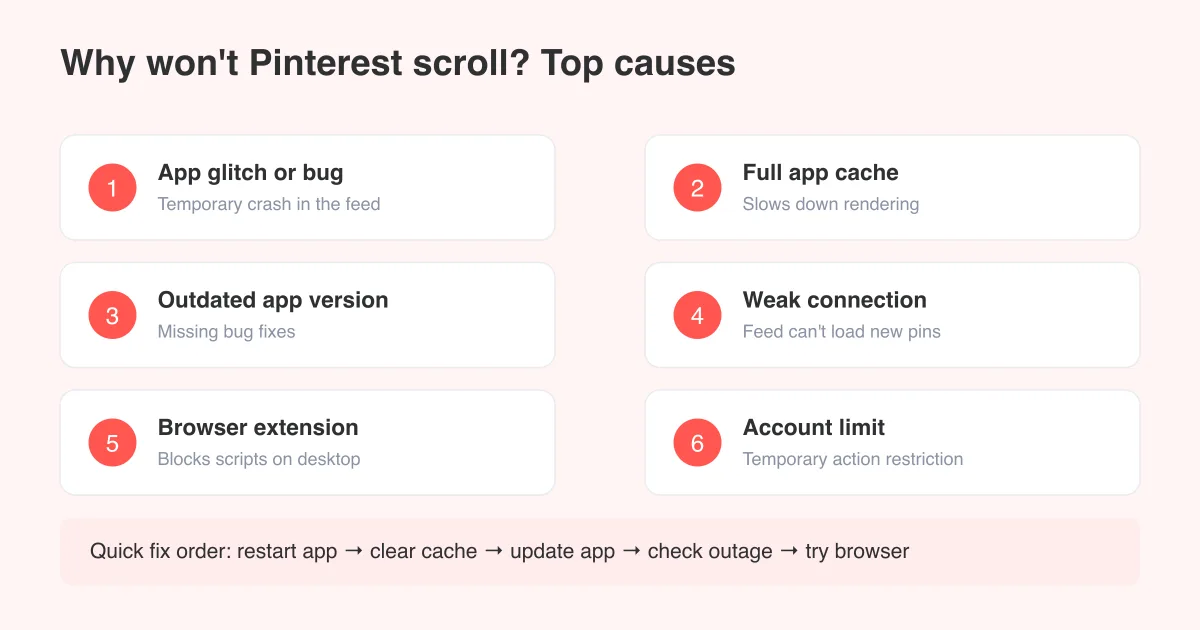
If your feed feels unresponsive to any of this over a longer stretch — not just occasional AI images, but a broader scroll problem — it may be a separate performance issue rather than a content one. See why-cant-i-scroll-on-pinterest for troubleshooting steps.
Limiting AI-powered features you actively use
Separate from the feed, Pinterest offers opt-in generative tools for things like background editing, image variations, or visual search. These aren't things that happen to you passively — you choose to open them. If you'd rather avoid AI entirely in your own workflow, simply don't open those specific editing or generation tools; there's no need to disable anything, since they only activate when tapped.
If you're downloading pins for reference or offline use rather than editing them, SeePins's video downloader, photo downloader, and GIF downloader let you save the original pin content directly without routing it through any AI editing tools.
When to consider a fresh start instead
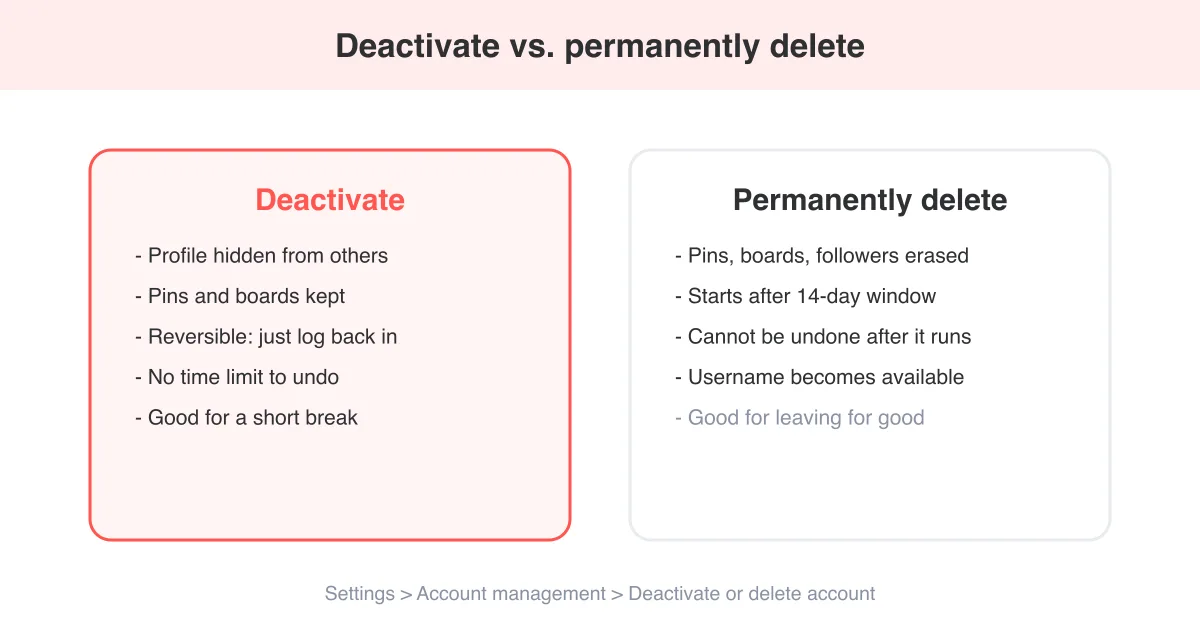
If you've adjusted settings, hidden dozens of pins, and reported repeatedly but your feed still feels dominated by AI content, the underlying issue may be years of accumulated activity data training the algorithm in a direction you no longer want. Two options at that point are starting a new, deliberately curated account, or stepping away from the platform altogether. If you're weighing the latter, how-to-delete-pinterest-account walks through what deleting your account actually involves and what you'd lose access to.
Before you delete anything
Back up boards or pins you care about first. Once an account is deleted, saved pins, boards, and message history are generally not recoverable.
Frequently asked questions
Not entirely. There's no single setting that disables AI across the whole app, since recommendation ranking is core to how Pinterest's feed and search work. You can, however, significantly reduce AI-generated pins by hiding them, reporting them, and adjusting your personalization settings.