Guides
How to Delete Your Pinterest Account (Permanently or Temporarily)
Learn how to deactivate or permanently delete your Pinterest account on mobile and desktop, what happens to your pins, and how long deletion actually takes.
Short answer
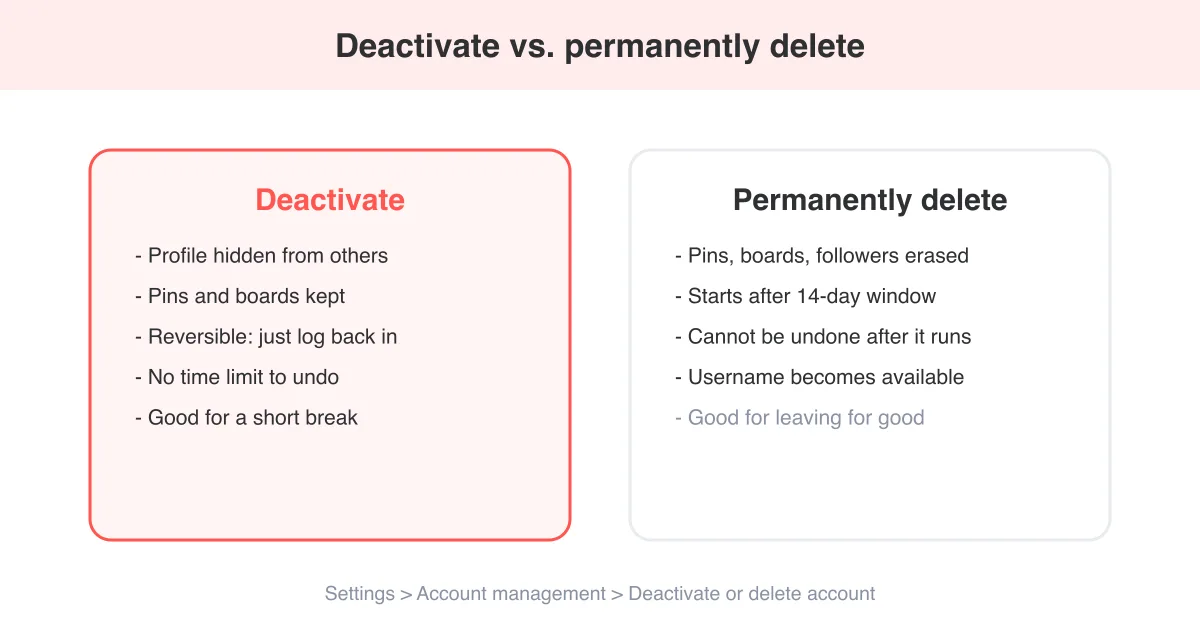
To delete your Pinterest account, go to Settings > Account management > Deactivate or delete account from the app or web, then confirm your password. Pinterest first deactivates your profile (reversible by logging back in), and if you don't return within 14 days it becomes eligible for permanent deletion, which erases your pins, boards, and followers for good. Before you start, download your data and save any pins you want to keep.
Deactivate or delete: what's the difference
Pinterest gives you two distinct options, and it's easy to mix them up. Deactivating hides your profile, pins, and boards from other users but keeps everything intact in the background. Log back in anytime and your account reappears exactly as you left it. Deleting is the permanent path: Pinterest holds your account in a deactivated state for a grace period, and if you never log back in during that window, it moves into permanent deletion, wiping your pins, boards, follower list, and message history for good.
Not sure which you want?
If there's any chance you'll want your saved boards back, choose deactivation. If you're certain, go straight to the delete flow — but back up anything valuable first, since recovery isn't possible once deletion completes.
- Deactivate: reversible, keeps data, hides profile immediately
- Delete: irreversible after the grace period, erases everything
- Both start from the same Settings menu on mobile or desktop
- A business account converts and deletes the same way as a personal one
Before you delete: back up what matters
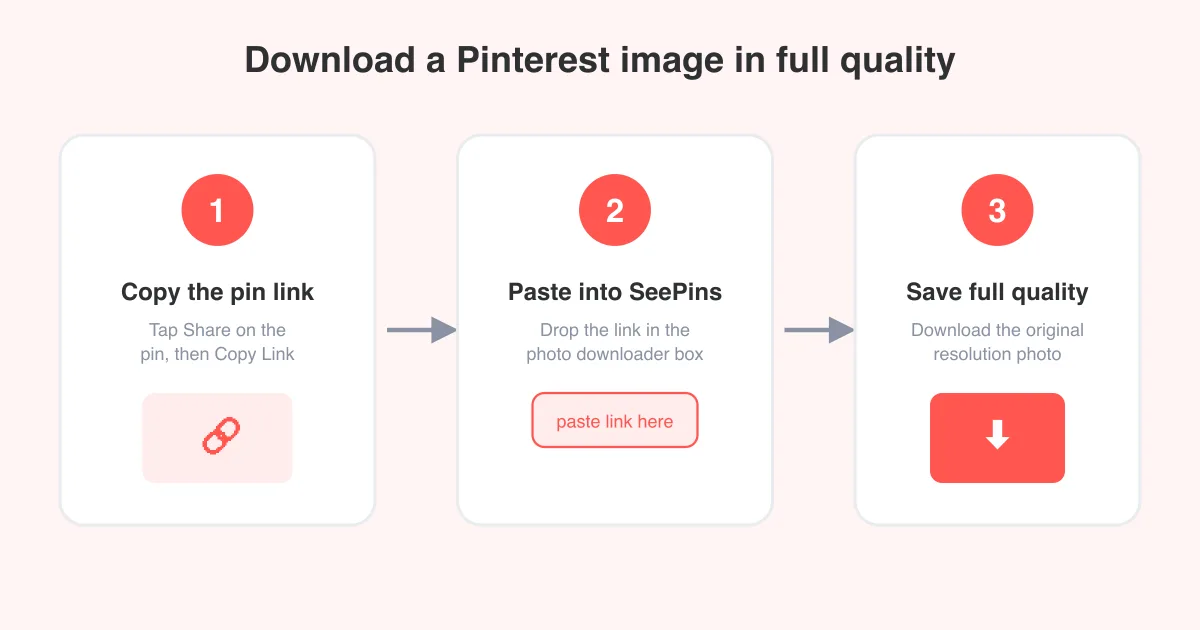
Once deletion finishes, your boards and pins are gone and there's no support ticket that brings them back. Take a few minutes first to save anything you'd miss. If you just need specific photos or graphics off your boards, the Pinterest photo downloader saves full-resolution images straight from a pin URL, no account access required later.
- Open the boards you care about and note which pins you want to keep
- Use the photo downloader to save individual images, or the video downloader for saved video pins
- Request your full data export from Settings > Your data on the web, if you want a complete archive
- Screenshot or export any business analytics you'll need later, since Pinterest Analytics disappears with the account
- Tell close collaborators or shared-board members that the board is about to disappear
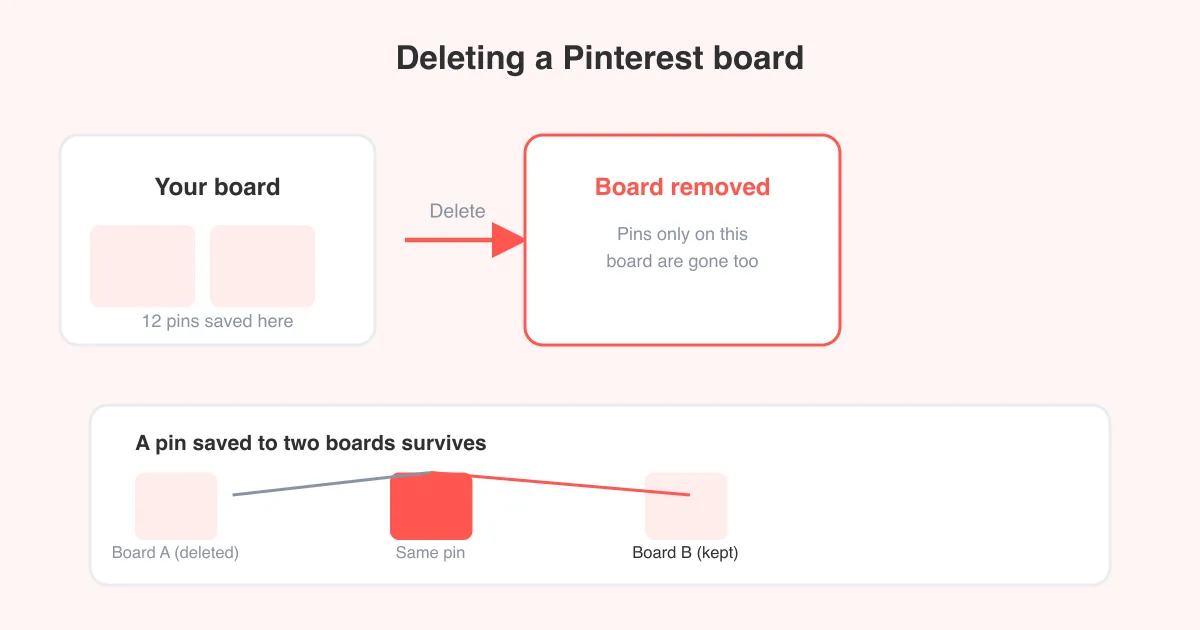
If your goal is really just to clean up specific boards rather than leave the platform, it's worth reading how to delete a board on Pinterest first — you may not need to delete the whole account at all.
How to delete your Pinterest account on mobile
The mobile app (iOS and Android) uses the same settings path, though exact labels can shift slightly between app versions.
- Open the Pinterest app and tap your profile picture in the bottom right
- Tap the menu icon, then tap Settings
- Tap Account management
- Tap Deactivate or delete account
- Choose Continue to permanently delete (or Deactivate for a temporary pause)
- Select a reason from the short survey, then tap Continue
- Enter your password to confirm and tap Delete account
If you signed up through Facebook, Google, or Apple and never set a Pinterest password, the app will prompt you to verify your identity a different way before it lets you proceed.
How to delete your Pinterest account on desktop
The web version puts the same controls in a slightly different place.
- Go to pinterest.com and log in
- Click your profile picture, then click the down arrow and choose Settings
- Click Account management in the left-hand menu
- Click Deactivate or delete account
- Pick Continue to delete permanently or Deactivate for a temporary hold
- Answer the optional reason prompt
- Enter your password and click Delete account to confirm
There is no separate 'email Pinterest support to delete my account' method for most users — the in-app and web flows above are the official route. Support only gets involved for account recovery disputes or if the standard flow is blocked, for example by an unresolved copyright or policy issue.
What happens to your pins, boards, and followers
During deactivation, your profile, pins, and boards vanish from search and from other people's feeds, but nothing is deleted. Followers stay attached to the account and reappear if you reactivate. Group boards you owned become inaccessible to collaborators while you're deactivated.
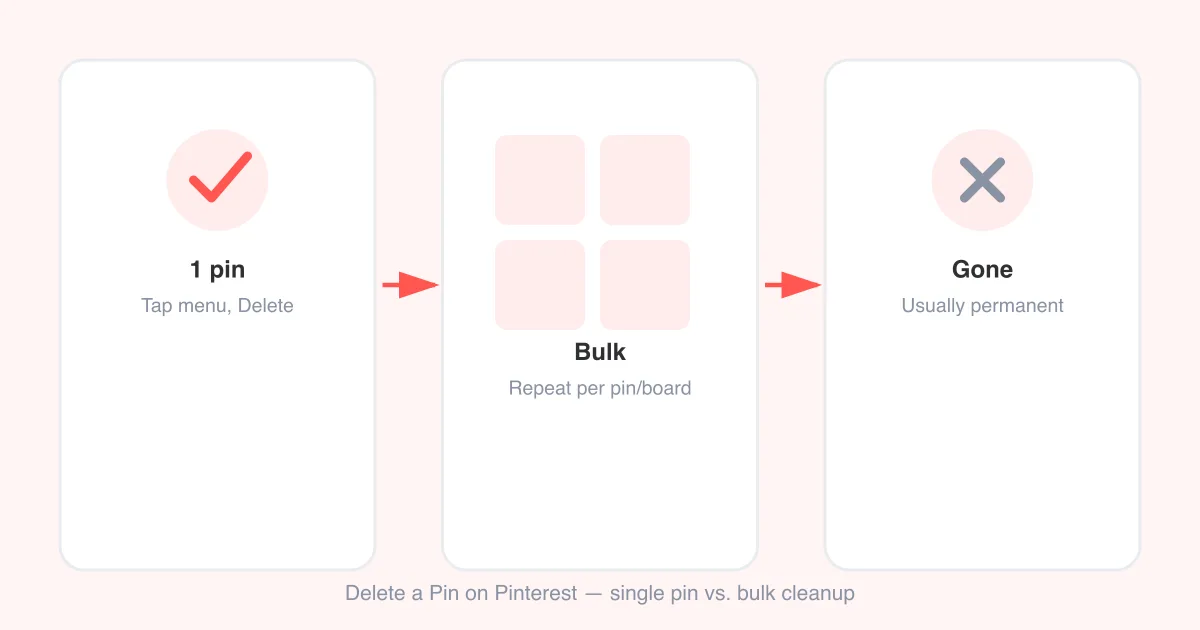
Once permanent deletion completes, pins you created are removed from Pinterest entirely, including copies that were repinned by others in some cases, boards are gone, your follower and following lists are cleared, and your username is released so someone else can claim it. Comments you left on other people's pins are typically anonymized rather than fully removed. If you'd rather just trim specific saves instead of losing everything, see how to delete pins on Pinterest for a lighter-touch option.
How long deletion actually takes
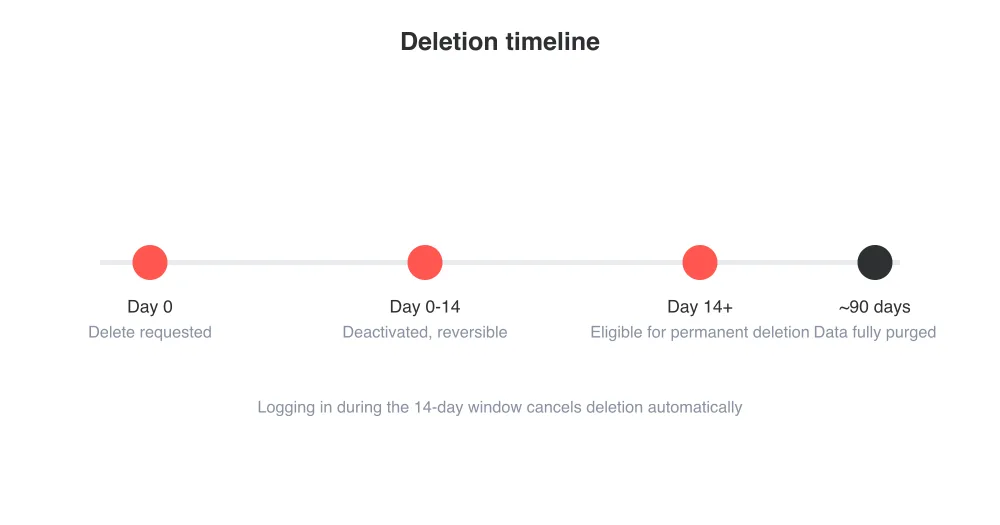
There's a two-stage clock. First, your account sits deactivated for about 14 days — this is the reactivation window, and logging in at any point during it cancels the deletion and restores everything. After that window closes without a login, Pinterest queues the account for permanent removal from its systems, which can take additional time on the backend to fully purge cached data, search indexes, and backups.
- 0-14 days: account is deactivated and fully reversible by logging in
- After 14 days: account becomes eligible for permanent deletion if you haven't returned
- Backend purge: cached copies and search indexing can take longer to clear completely
- Your username: released for others to register only after permanent deletion finishes
How to reactivate a deactivated account
If you're still inside the 14-day window, reactivation is simple: open the app or go to pinterest.com and log in with your usual email and password. Your profile, boards, and followers reappear right away, no extra steps needed. There's no separate 'reactivate' button to hunt for — logging in is the reactivation action itself.
Missed the window?
If the account has already moved into permanent deletion, it cannot be recovered. Contact Pinterest support only if you deleted the account by mistake within the last day or two — even then, recovery isn't guaranteed.
Alternatives to deleting your account
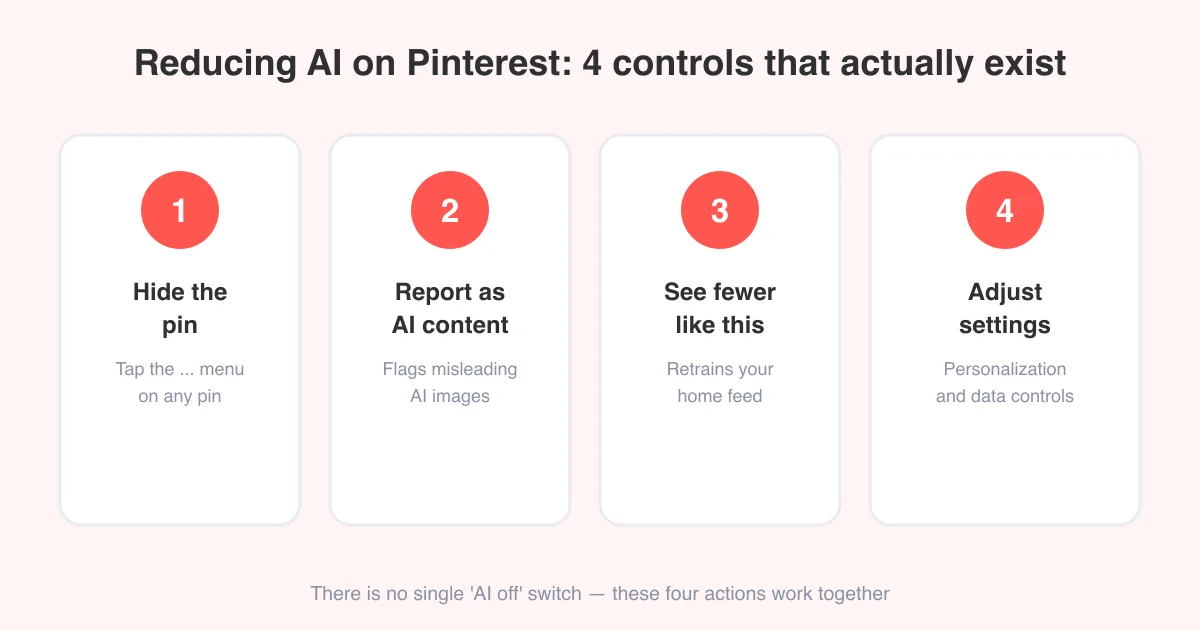
Before you commit to deletion, consider whether a smaller change solves the actual problem. If Pinterest's AI-generated recommendations or automated pin insertions are what's bothering you, you can turn off AI features on Pinterest without touching the rest of your account. If specific boards feel cluttered or outdated, deleting a board is far less drastic than deleting everything. And if you just want to keep a personal archive of pins you love without keeping the account active, download the images and videos you want first, then deactivate temporarily to see how you feel before making it permanent.
Frequently asked questions
No, Pinterest routes every deletion request through the same deactivation stage first. Choosing 'delete' in the settings menu still starts a 14-day reversible period before the account becomes eligible for permanent removal.