Guides
How to Make a Secret (Private) Board on Pinterest
Learn how to create a secret board on Pinterest, hide an existing one, see who can view it, unhide it later, and understand secret board limits.
Short answer
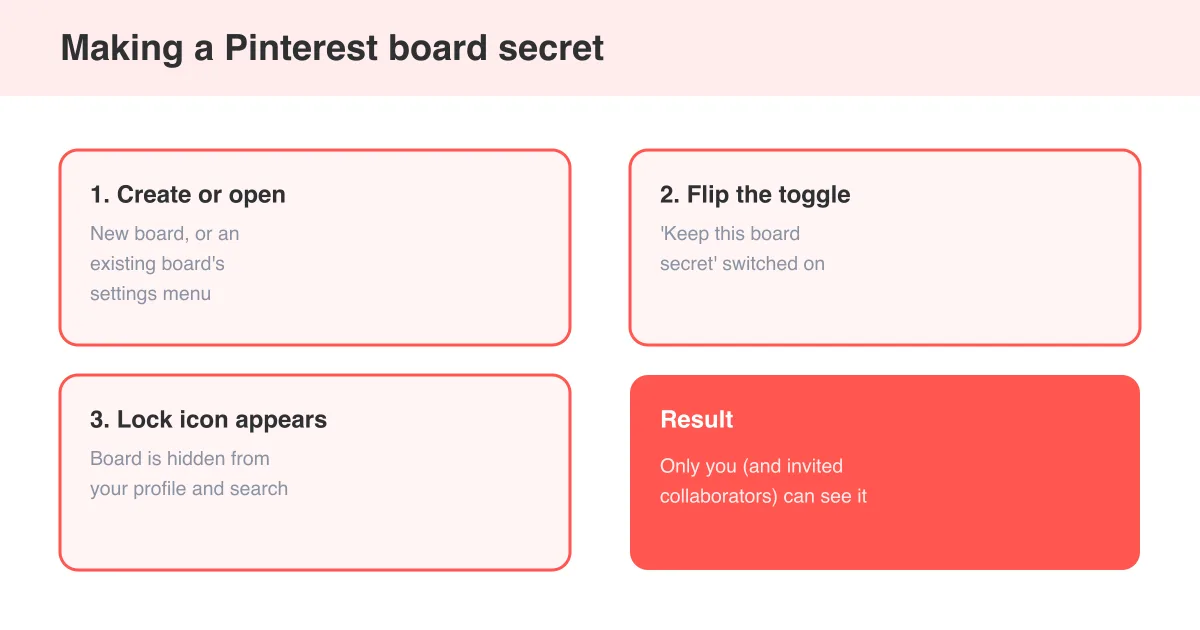
To make a secret board on Pinterest, tap the create/plus icon, choose Board, name it, and switch on the 'Keep this board secret' toggle before saving - or open any existing board's settings and turn on the same toggle. Secret boards (and their pins, including sub-sections) are hidden with a small lock icon and are visible only to you and anyone you specifically invite as a collaborator; you can switch a board back to public any time from board settings.
What a secret board actually does
A secret board is a normal Pinterest board with one setting flipped: visibility. Everything you'd do on a regular board - saving pins, organizing sections, inviting collaborators - still works the same way. The only difference is that a secret board doesn't show up on your public profile, doesn't appear in Pinterest or Google search, and its pins are never recommended in home feeds or related pins. If you haven't created a board before, how to make a board on Pinterest covers the basics that apply here too.
- Secret boards show a small padlock icon next to the board name
- They're excluded from search, feeds, and your public profile grid
- Pins saved to a secret board are also hidden - there's no way to make one pin public while the board stays secret
- You can mix public and secret boards freely on the same profile
- Secret boards are a personal privacy setting, not a paid feature - anyone with a Pinterest account can use them
Good to know
Secret boards are meant for planning things privately - gift ideas, a surprise party, a home project you're not ready to share - not for hiding content that violates Pinterest's guidelines. Community guideline enforcement still applies to secret boards.
How to create a brand-new secret board
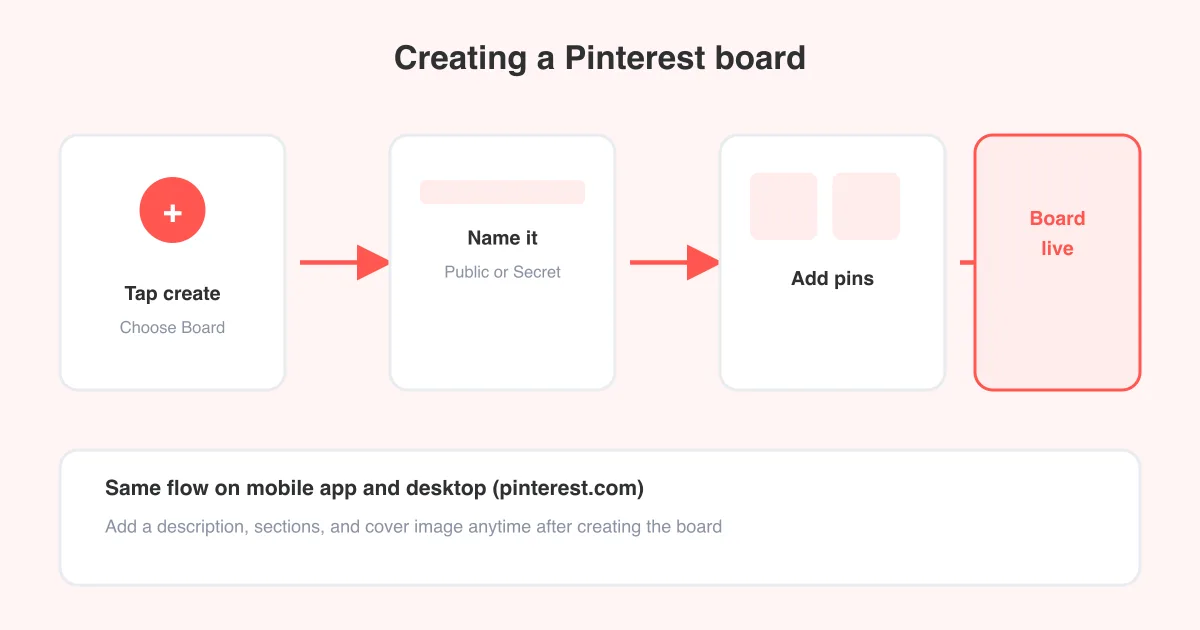
- Open the Pinterest app or website and tap the create/plus icon.
- Select 'Board' from the menu.
- Give the board a name.
- Before saving, switch on the 'Keep this board secret' (or 'Secret') toggle.
- Tap Create or Save - the board is created already hidden, with a lock icon next to its name.
You can also create a secret board on the fly while saving a pin: tap the board dropdown in the save panel, choose 'Create board', name it, and turn on the secret toggle before confirming. Once it exists, you can start pinning to it just like any other board - see how to post on Pinterest for the full save-and-organize flow.
How to make an existing board secret
Already have a public board full of pins you'd rather hide? You don't need to recreate it - just change its privacy setting.
- Open the board you want to hide.
- Tap the settings icon (often a pencil or gear, depending on app version).
- Find the 'Keep this board secret' toggle and switch it on.
- Save your changes.
Exact labels and icon positions shift slightly between the Pinterest app, mobile web, and desktop, and between updates - but every version of board settings has a secret/private toggle in the same general spot.
Who can see a secret board
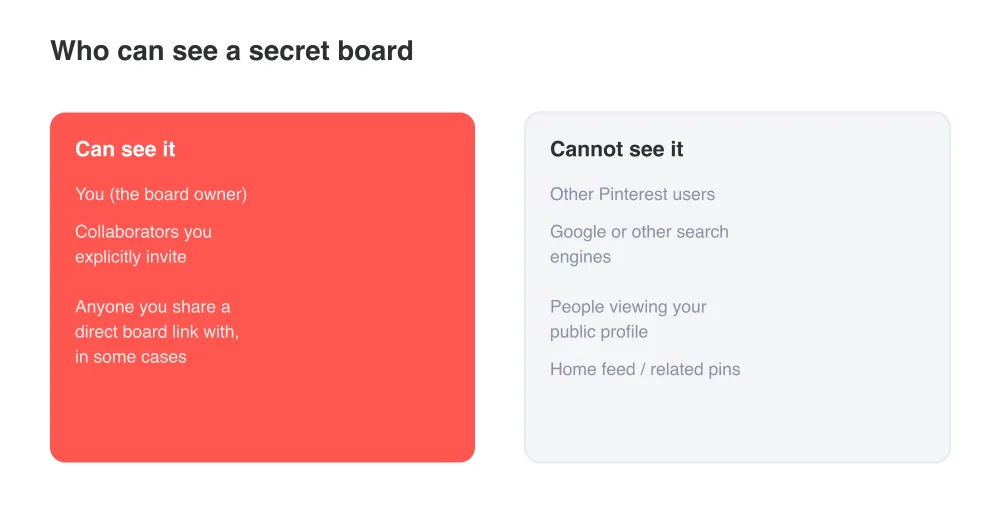
By default, only you can see a secret board. If you add a collaborator - for example a partner planning a trip with you, or friends organizing a group gift - they can see and pin to it too, but only after you've explicitly invited them. Secret boards never show up on your public profile grid, in anyone's search results, or in Pinterest's recommendation feeds, so casual visitors to your profile won't even know one exists.
- Owner: full access, always
- Invited collaborators: full access to view and add pins, but only once invited
- Everyone else: no access, no visibility, board doesn't appear anywhere public
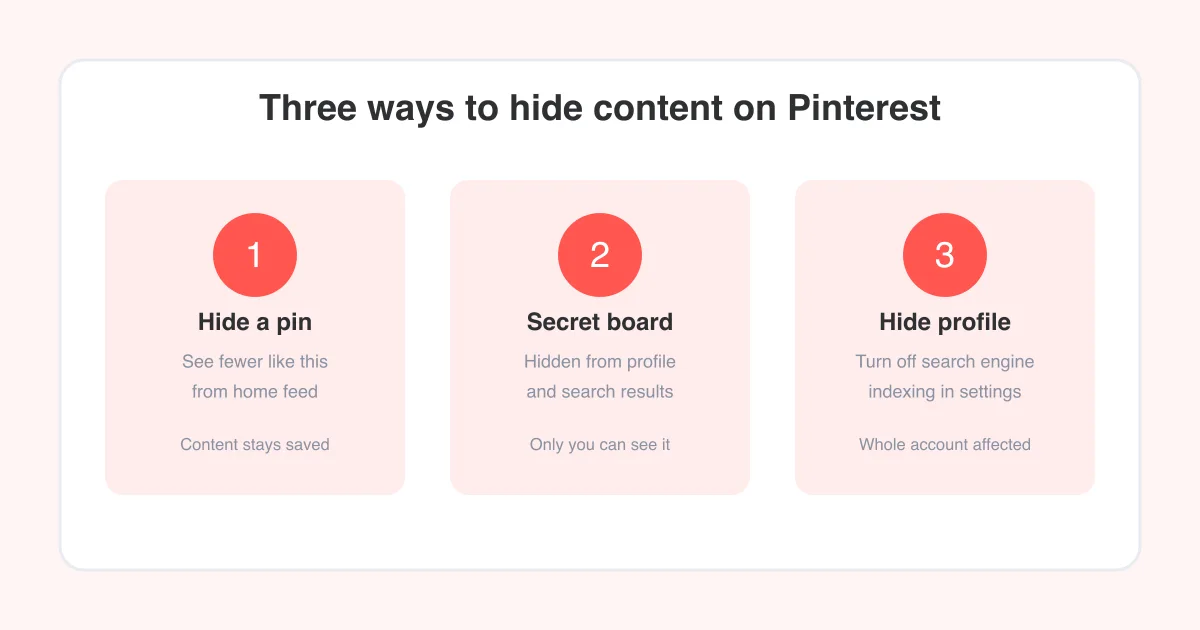
If your goal is closer to hiding a single pin (rather than a whole board) from view, how to hide pins and boards on Pinterest walks through those related options.
Secret sub-sections inside a board
Board sections (the folders you can create inside a board to group pins) inherit the privacy of their parent board automatically - there's no separate secret toggle for an individual section. If the board is secret, every section inside it is secret too. If you want part of a public board hidden while the rest stays visible, the practical workaround is to move those pins into a dedicated secret board instead of a section.
Workaround
Pinterest doesn't support making a single section secret on an otherwise public board. Create a separate secret board for anything that needs its own privacy, and use sections for organization within boards that share the same visibility.
Making a secret board public again
- Open the secret board (look for the lock icon next to its name in your profile).
- Tap the settings icon.
- Switch off 'Keep this board secret.'
- Save your changes.
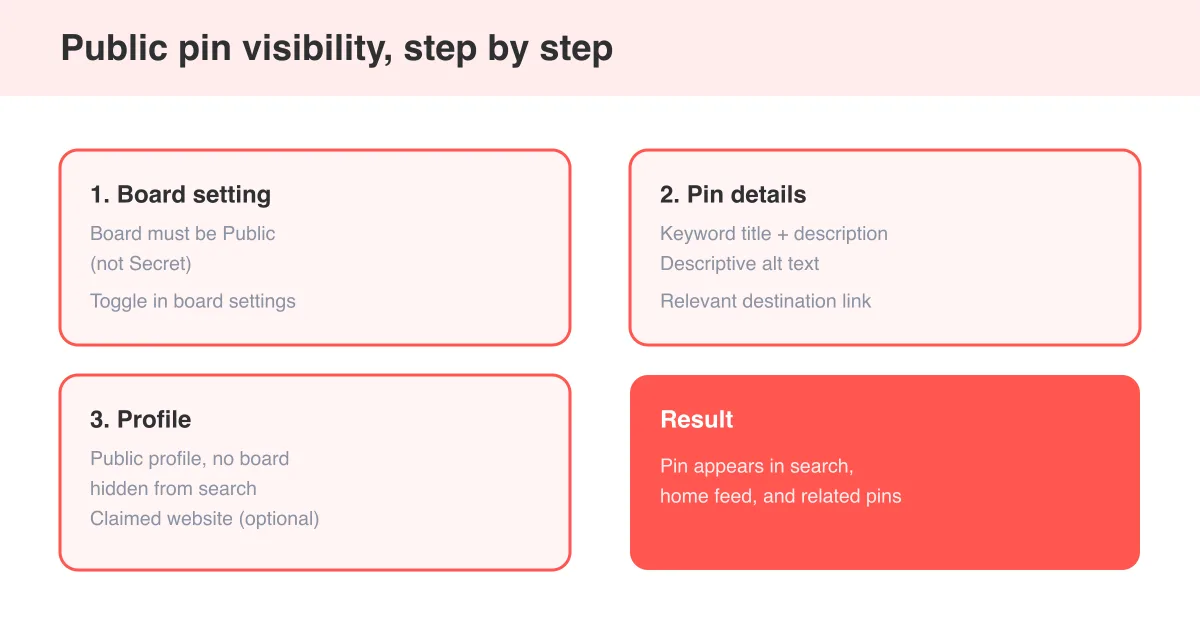
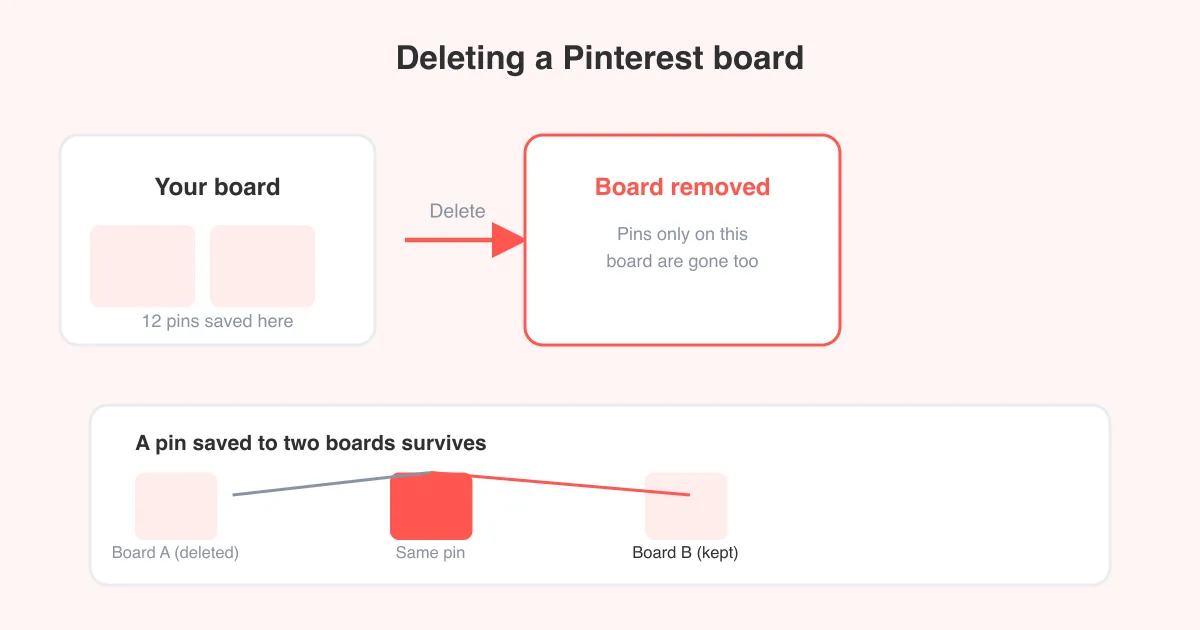
The board and every pin on it become public immediately - no separate step needed for individual pins. If you're weighing whether to make an old board public, keep it secret, or get rid of it entirely, how to delete a board on Pinterest covers the deletion path, and how to post a public pin on Pinterest explains what happens to visibility and search once pins go public.
Secret board limits and things to keep in mind
- There's no cap on how many boards you can mark secret - you can have as many secret boards as regular ones
- Secret boards still count toward your normal boards and pins in your account
- Group boards can be made secret too, but every collaborator on the board can see it, so it's only as private as the group you've invited
- Sharing a direct link to a pin or board can sometimes let a non-collaborator view it, so treat secret as private-by-default rather than link-proof
- Community guideline enforcement (spam, copyright, prohibited content) applies to secret boards the same as public ones
Frequently asked questions
Create a new board or open an existing one's settings, then switch on the 'Keep this board secret' toggle and save. A lock icon appears next to the board name once it's hidden.
Sources