Guides
How to Post a Public Pin on Pinterest (So Anyone Can Find It)
Learn how to post a public pin on Pinterest so it shows up in search and feeds, fix a pin stuck on a secret board, and optimize it for discovery.
Short answer
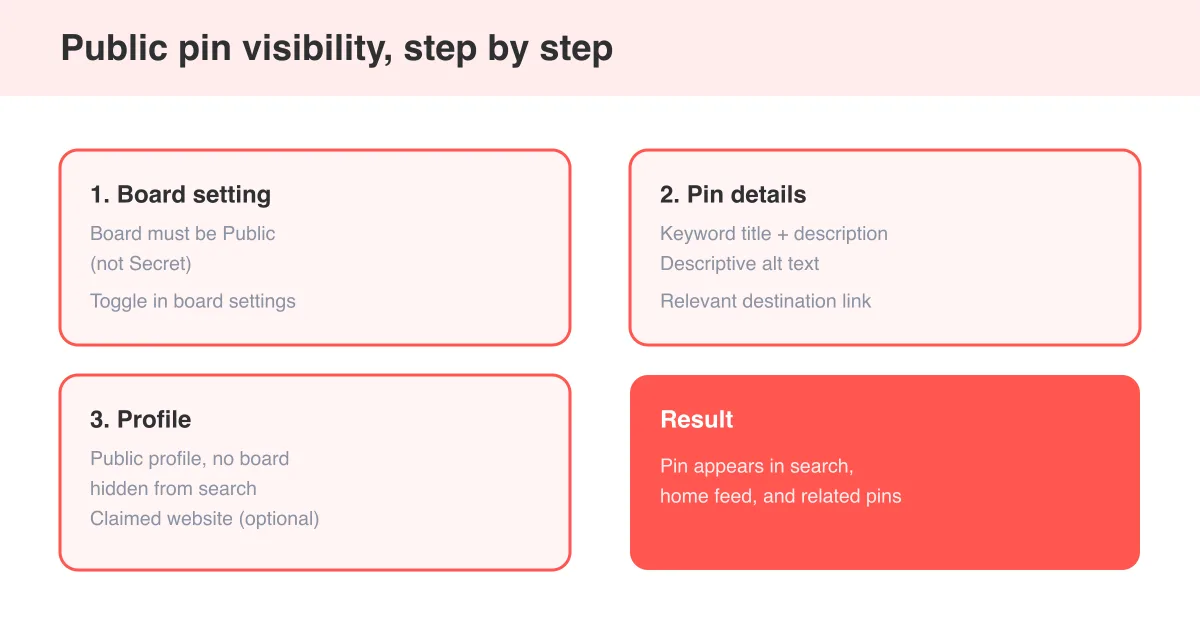
To post a public pin on Pinterest, save it to a board that is not marked 'secret' - public boards and their pins are visible to everyone and can appear in search, home feeds, and related pins. If a pin is not showing up for others, check that both the pin and its board are public, then give the pin a clear, keyword-rich title and description so Pinterest's search can actually find and recommend it.
Public boards vs. secret boards
Every pin on Pinterest inherits its visibility from the board it lives on. A public board and its pins can be seen by anyone, indexed by search engines, and surfaced in Pinterest's own search and recommendations. A secret board is private - only you (and anyone you've invited to collaborate) can see it, and its pins never appear in search, feeds, or your public profile.
- Public board: visible to everyone, searchable on Pinterest and Google, can be recommended in feeds
- Secret board: hidden with a small lock icon, visible only to you and invited collaborators
- Pins take on the privacy of the board they're saved to - there's no separate 'public pin' toggle
- You can have a mix of public and secret boards on the same profile
Quick check
If your pin isn't showing up for other people, look at the board first. A padlock icon next to the board name means it's secret, and nothing saved there will be discoverable no matter how good the title and description are.
How to post a new pin as public
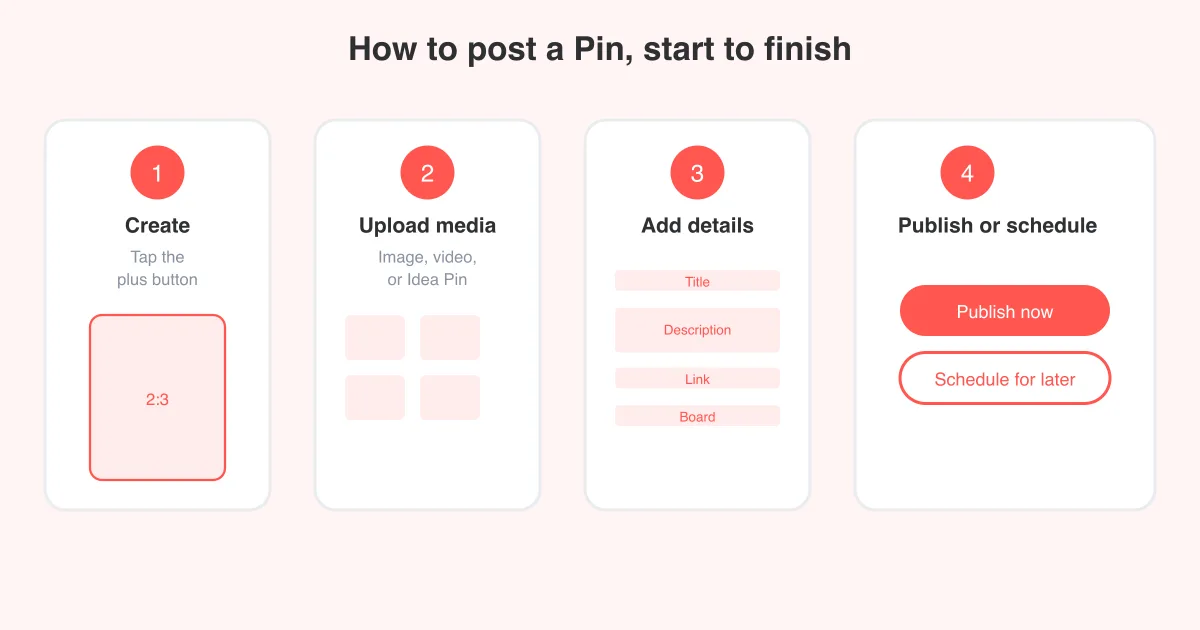
- Open the Pinterest app or website and tap the create/plus icon to start a new pin.
- Upload your image or video, or add a link if you're pinning from a website.
- Add a clear, descriptive title and a helpful description (more on optimizing these below).
- In the board selector, choose an existing public board, or create a new board and leave the 'Keep this board secret' toggle switched off.
- Review the destination link and tags, then tap Publish or Save.
That's the whole process - as long as the board you choose isn't secret, the pin is public the moment you publish it. For a fuller walkthrough of creating and formatting pins, see how to post on Pinterest.
Moving a pin from a secret board to a public one
If you already pinned something to a secret board and want it discoverable, you don't need to recreate it - you can move it.
- Open the pin you want to make public.
- Tap the three-dot menu (or the edit/pencil icon) on the pin.
- Select 'Move' or 'Edit', then choose 'Change board'.
- Pick a public board from the list, or create a new public board on the spot.
- Save the change - the pin now takes on the public board's visibility.
Exact menu labels (Move, Edit pin, More options) shift slightly between the Pinterest app and website and between updates, but the option to change a pin's board is always available from the pin's own menu.
You can also flip an entire board's privacy instead of moving individual pins: open the board, go to its settings, and turn off 'Keep this board secret.' Every pin on that board becomes public at once. If you're deciding whether to keep, hide, or remove old boards altogether, how to delete a board on Pinterest covers that process too.
SEO for pins: title, description, and keywords
Making a pin public only gets it in front of Pinterest's algorithm - it doesn't guarantee anyone finds it. Pinterest is part search engine, so the words you use matter as much as the image itself.
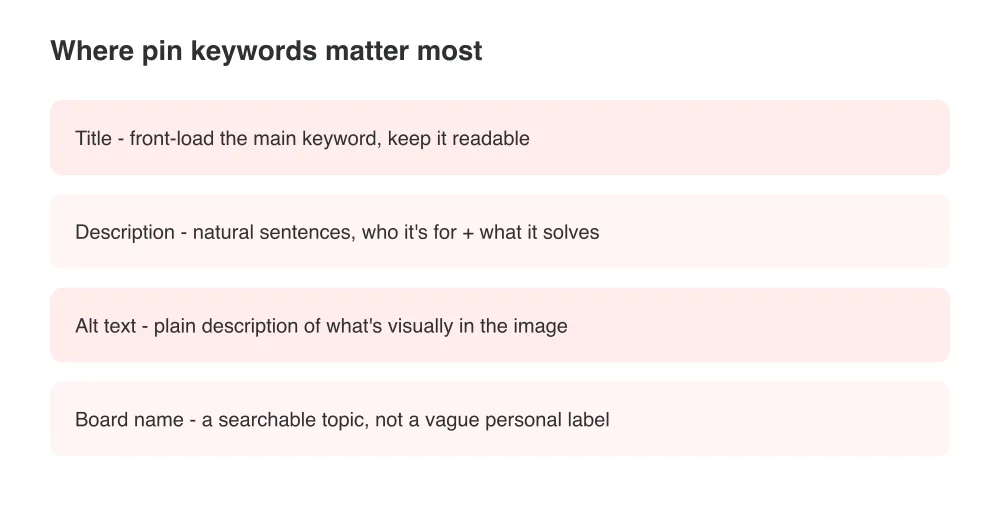
- Title: put your main keyword near the start, keep it under 100 characters, and make it read like a real headline, not a keyword stuffed list
- Description: write 2-3 natural sentences covering what the pin is, who it's for, and the keyword phrases people would actually search
- Alt text: describe the image content plainly (for example, 'red velvet cake on a white plate with fresh raspberries') - it helps accessibility and gives Pinterest more context to index the pin
- Destination link: point to a live, relevant page - broken or unrelated links hurt how much Pinterest recommends a pin
- Board name: name boards with searchable topics rather than vague or personal labels, since board titles feed into search too
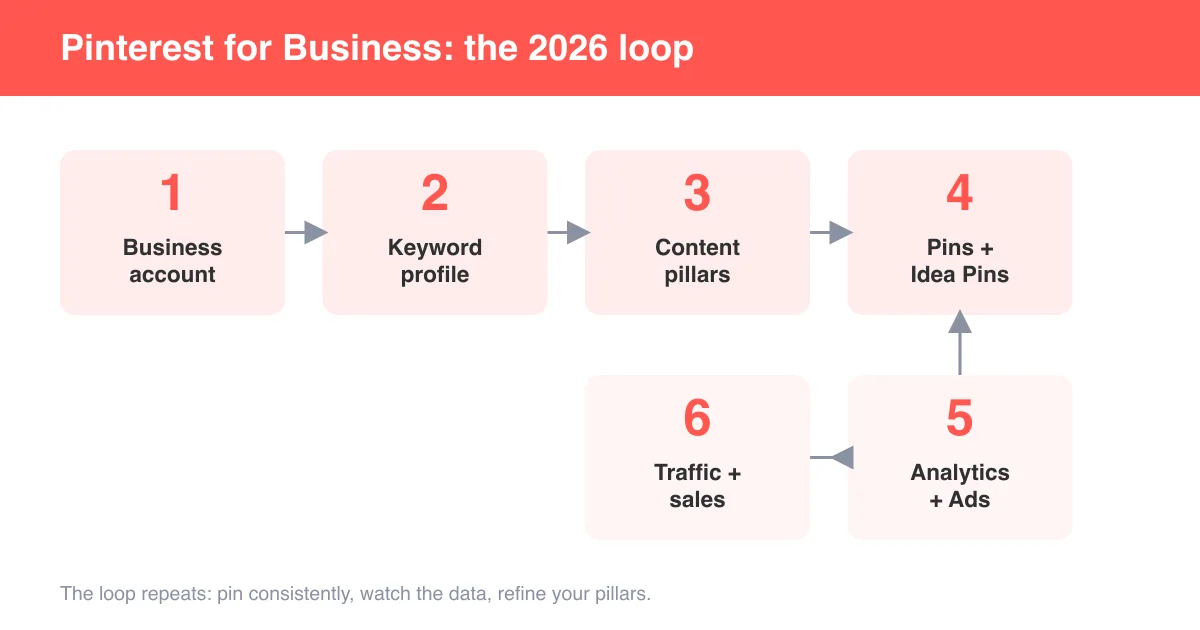
If your goal is growing an audience rather than just making one pin visible, pair good pin SEO with a full content plan - see how to use Pinterest for business for a broader strategy.
Making your whole profile discoverable
A public pin on a public board still needs a discoverable profile behind it. Check these settings so nothing quietly blocks your reach:
- Profile visibility: in Settings, confirm your account isn't set to hide your profile from search engines
- Business account: a Pinterest business account unlocks analytics and ads, which can help you understand what's actually getting found - see how to add a business account on Pinterest
- Claimed website: claiming your site attributes pins made from your content back to your profile and can boost trust signals
- Consistent activity: profiles and boards that pin regularly tend to get shown more often than dormant ones
Note
New pins can take some time to show up in search after publishing - this is normal while Pinterest indexes the content, not a sign something's broken.
Troubleshooting: pin still not showing up
- Confirm the board is public, not secret (check for the lock icon).
- Confirm your account/profile itself isn't set to private or hidden from search.
- Search for the pin's exact title in Pinterest search to see if it's indexed yet - give it a day or two if it's brand new.
- Make sure the pin wasn't removed for violating guidelines - Pinterest usually notifies you if this happens.
- Check that the destination link works and isn't flagged as spam, which can suppress distribution.
If you're troubleshooting a different visibility issue, like a suddenly quiet feed rather than one pin, why can't I scroll on Pinterest and Pinterest showing irrelevant images cover related feed problems.
Frequently asked questions
Save or move the pin to a board that isn't marked secret. Public boards and every pin on them are visible to everyone and can appear in Pinterest search and feeds.