Guides
How to Make a Board on Pinterest (Step by Step)
How to make a board on Pinterest on mobile and desktop, name and describe it, choose public or secret, add sections and pins, and organize boards for SEO.
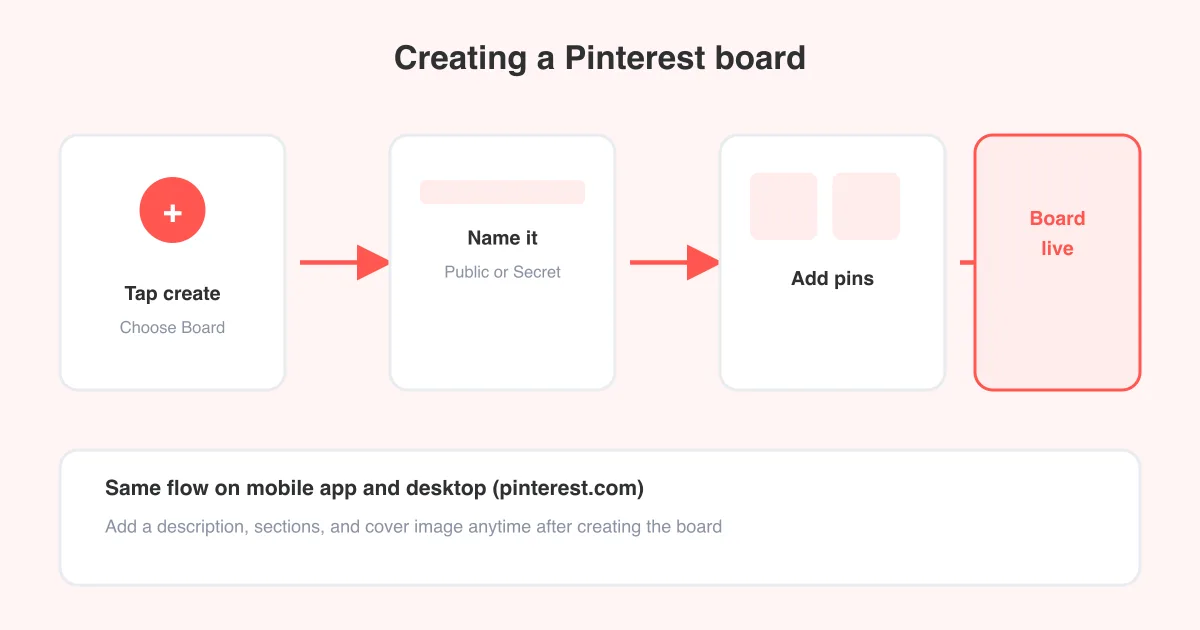
Short answer
To make a board on Pinterest, tap the + icon, choose Board, give it a clear name, pick who can see it (public or secret), and tap Create. From there you can add a description, drop it into sections, and start saving pins. The whole process takes under a minute on mobile or desktop, and you can rename, reorganize, or change its privacy anytime — see how to make a secret board on Pinterest if you want it hidden from the start.
Before you create a board
A Pinterest board is just a themed collection of pins — think of it as a folder for ideas around one topic, like 'Small kitchen renovation' or 'Weeknight dinners.' You can make as many boards as you want, and every pin you save has to land in at least one board.
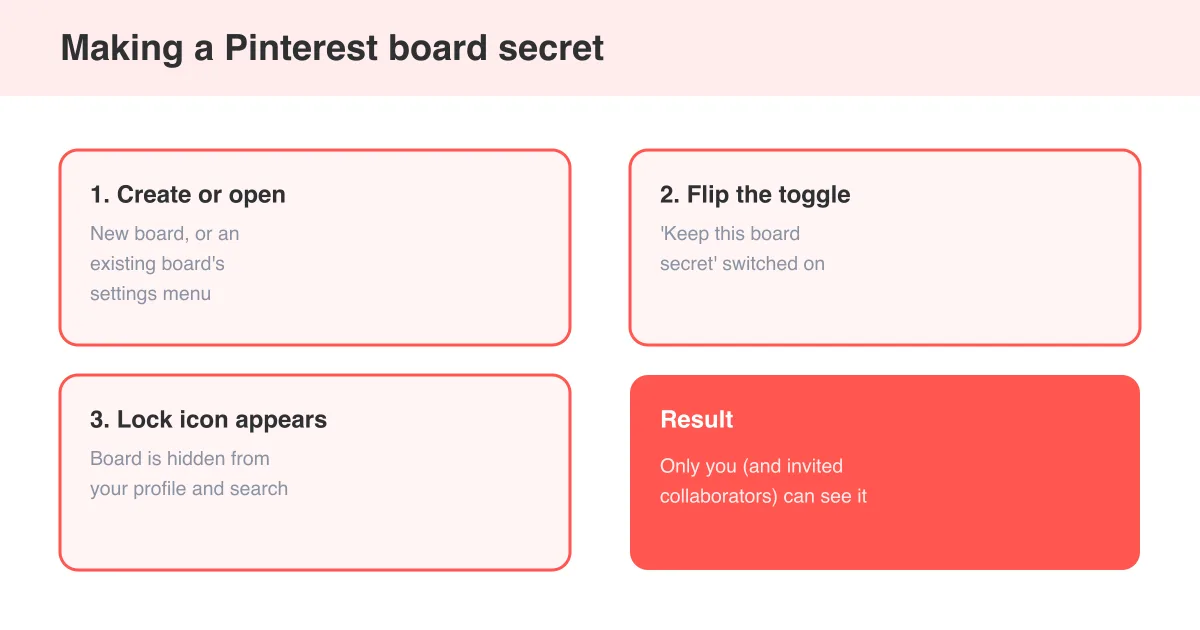
Before you create one, decide two things: what the board is really about (narrower topics organize and search better than vague ones), and who should see it. If you're planning something private — a surprise party, a gift list, a personal project — you'll want it hidden from your profile, which is covered in how to make a secret board on Pinterest.
Building the board for content you don't own?
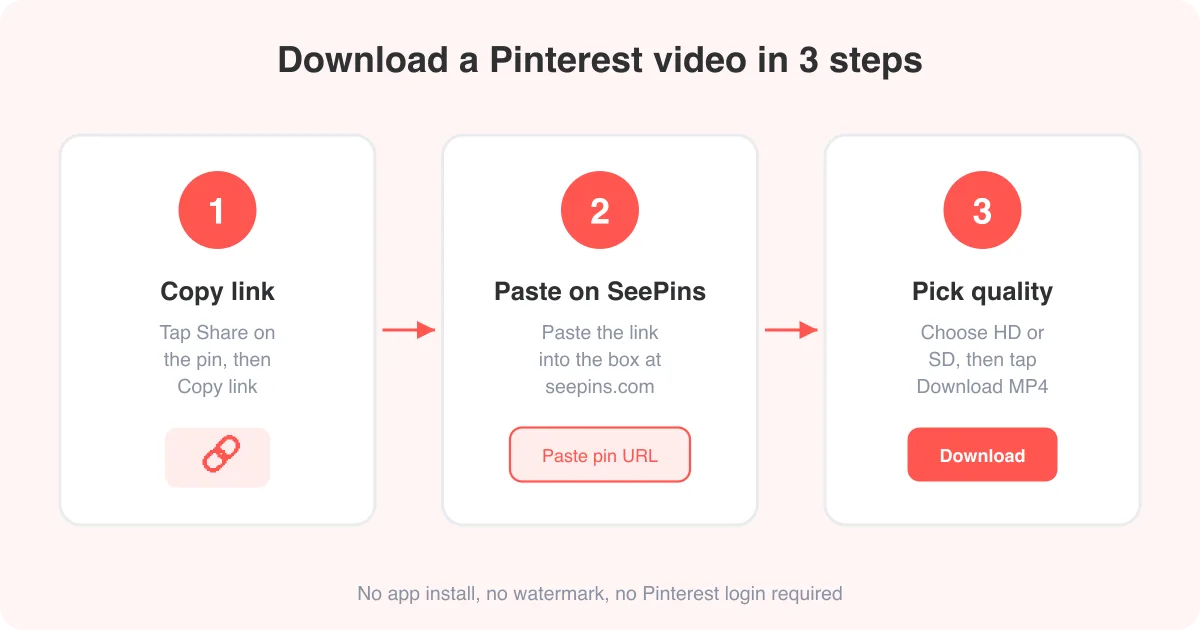
If you're pulling together reference images or videos to save locally, our Pinterest photo downloader and video downloader grab the full-size file from any pin link so you have your own copy alongside the board.
How to make a board on the Pinterest app (iOS and Android)
- Open the Pinterest app and tap the + (plus) icon, usually at the top or bottom of the screen.
- Select Board from the menu that appears.
- Type a clear, descriptive name for the board.
- Choose the privacy setting: leave it public (visible to everyone) or toggle it to secret.
- Tap Create.
- Your new board opens empty — start adding pins right away, or come back to it later from your profile.
You can also create a board on the fly while saving a pin: tap the save button on any pin, then tap Create board instead of picking an existing one. This is the fastest way to start a new board mid-scroll.
How to make a board on Pinterest.com (desktop)
- Log in at pinterest.com and click your profile picture, then Profile.
- Click Create and choose Board (or click the + button in the boards section of your profile).
- Enter a name for the board.
- Set it to public or secret.
- Click Create.
Just like on mobile, you can also spin up a board directly from the save panel: click Save on any pin, then click Create board in the dropdown instead of selecting an existing one.
Naming, describing, and setting up your board
Once a board exists, open its Edit board panel (pencil icon or three-dot menu) to fill in the details that make it easier to browse and easier to find:
- Name — keep it short and specific ('Bathroom tile ideas' beats 'Home stuff'). Specific names double as searchable keywords.
- Description — a sentence or two describing what the board is about; this text is indexed by Pinterest search and by Google.
- Category — Pinterest may suggest a category based on your pins; picking one helps distribution.
- Cover image — choose one of the board's pins (or upload a photo) as the board's visual thumbnail.
- Privacy — toggle between public and secret at any time from this same panel.
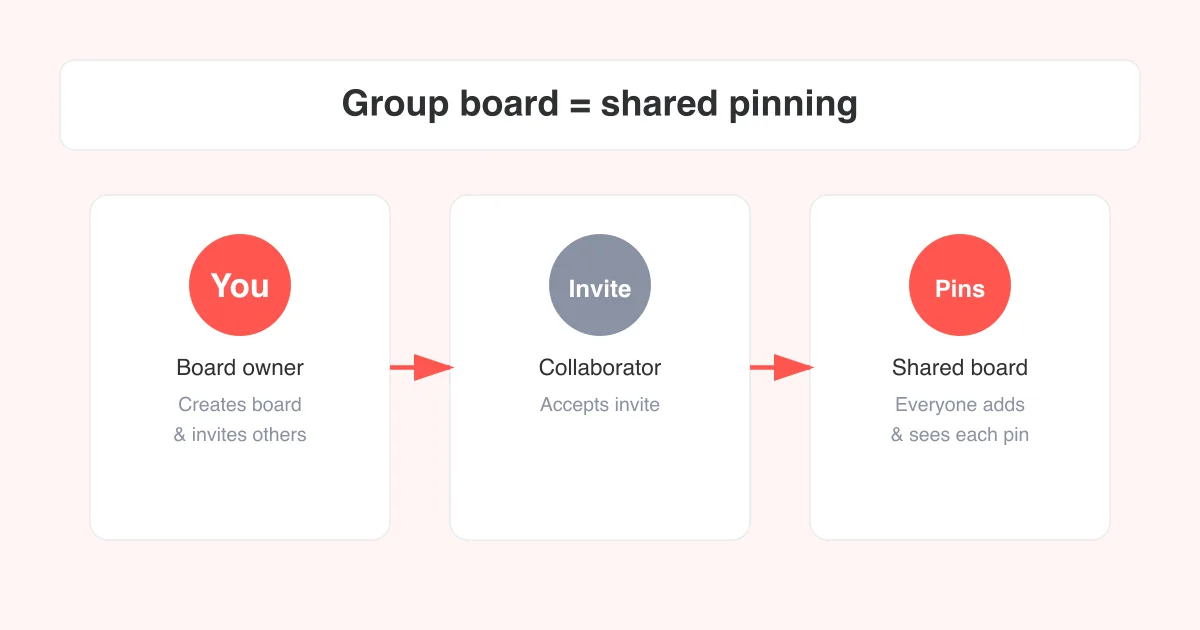
- Collaborators — invite other people to add pins to the board, turning it into a shared or group board.
If you want several people contributing to one board on purpose, see how to create a group board on Pinterest for the invite steps.
Public boards vs. secret boards
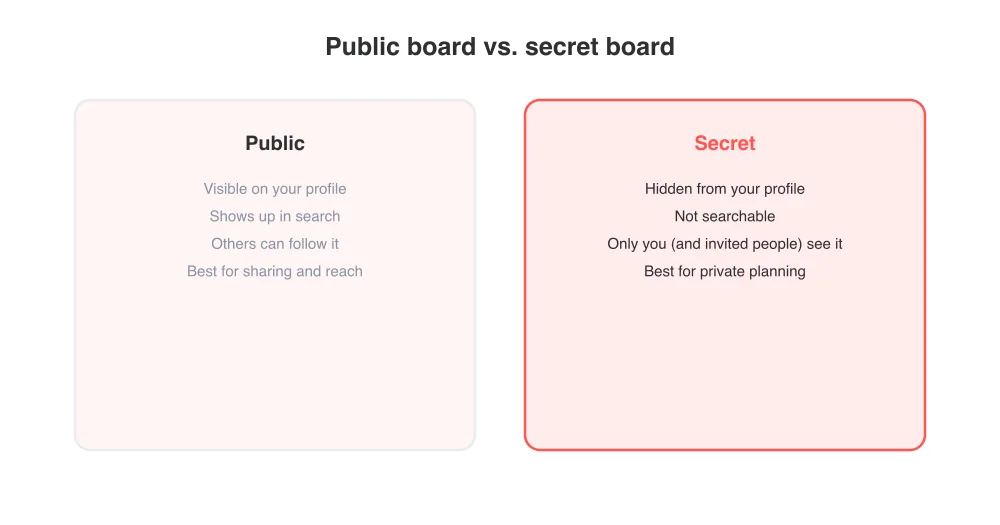
Public boards are what most people picture when they think of Pinterest: anyone can find them via search, view your pins, and follow the board for updates. Secret boards are invisible to everyone except you and anyone you've explicitly shared them with — Pinterest won't show them on your profile or in search results at all.
You're not locked into your choice at creation. Open the board's edit settings anytime and flip the privacy toggle. For the full walkthrough on secret boards specifically — including how sharing and inviting others works — see how to make a secret board on Pinterest.
Adding sections to organize a board
Sections let you split one board into sub-topics without creating separate boards. A 'Wedding' board, for example, could have sections for 'Dresses,' 'Flowers,' and 'Venues.'
- Open the board.
- Tap or click Add section below the board's cover/header.
- Name the section.
- Drag existing pins into the section, or add new pins directly to it going forward.
Sections are a good middle ground: they keep a broad board browsable without fragmenting your content across many small boards that are each harder to find and grow.
Adding pins to your new board
A board is only useful once it has pins in it. There are a few ways to fill one up:
- Save while browsing — tap the save icon on any pin you see in your feed or search results, then pick your board from the list.
- Save from the web — use the Pinterest browser extension or the site's share button to save images straight from other websites.
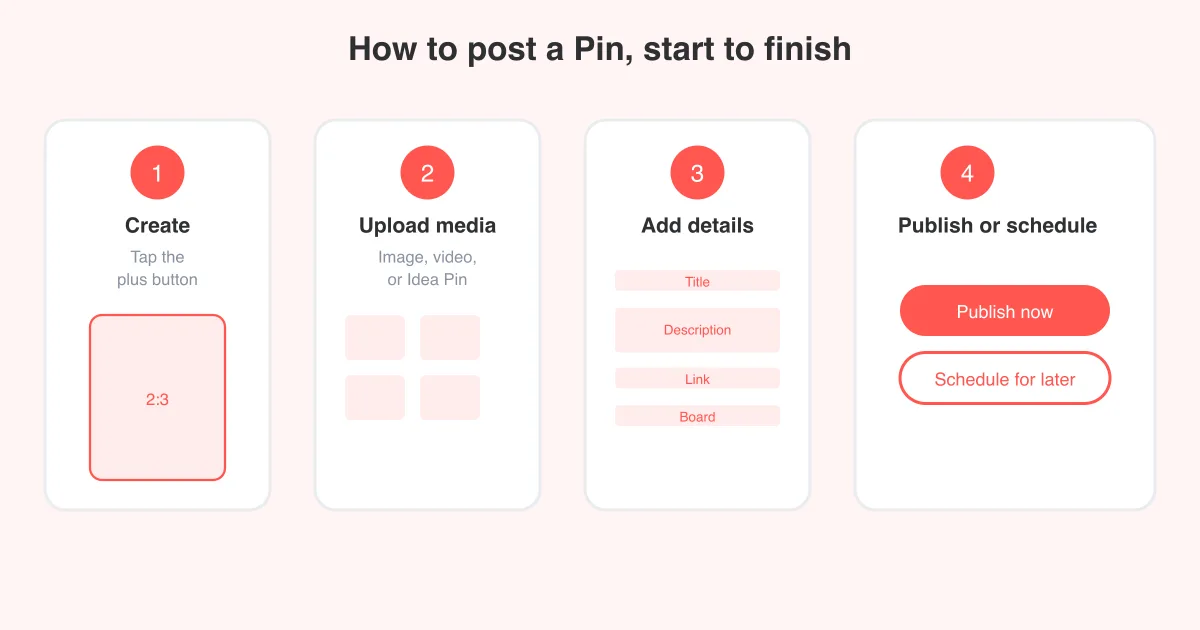
- Upload your own — create a new pin from a photo or video on your device and assign it to the board.
- Move existing pins — open a pin already saved elsewhere, tap Move, and reassign it to the new board.
If you're actively saving and posting content yourself rather than just curating others' pins, how to post on Pinterest covers creating and publishing a pin from scratch.
Best practices for board organization and SEO
Boards are searchable content
Pinterest treats board names, descriptions, and even pin content as search signals — for its own search and for Google. A board named clearly and described in a sentence is far more discoverable than an empty board with a vague, one-word title.
- Use specific, keyword-rich names ('Vegan meal prep for beginners' instead of just 'Food').
- Write a real description for every public board — don't leave it blank.
- Group closely related boards logically, and use sections instead of spinning up near-duplicate boards.
- Keep boards focused: a board that mixes unrelated topics performs worse in search than several tightly themed ones.
- Pin consistently to active boards rather than abandoning them after the first few saves — steady activity helps a board's visibility.
- Archive boards you no longer maintain instead of leaving them stale and cluttering your profile.
If you're building boards around a Pinterest business account for marketing, pair these habits with how to use Pinterest for business for a fuller content strategy.
Frequently asked questions
Tap the + icon, choose Board, give it a name, pick public or secret, and tap Create. The same flow works on desktop by clicking Create, then Board.
Sources