Guides
How to Create a Group Board on Pinterest & Invite Collaborators
Learn how to create a group board on Pinterest, invite collaborators, manage roles, and use shared boards to grow your reach and following.
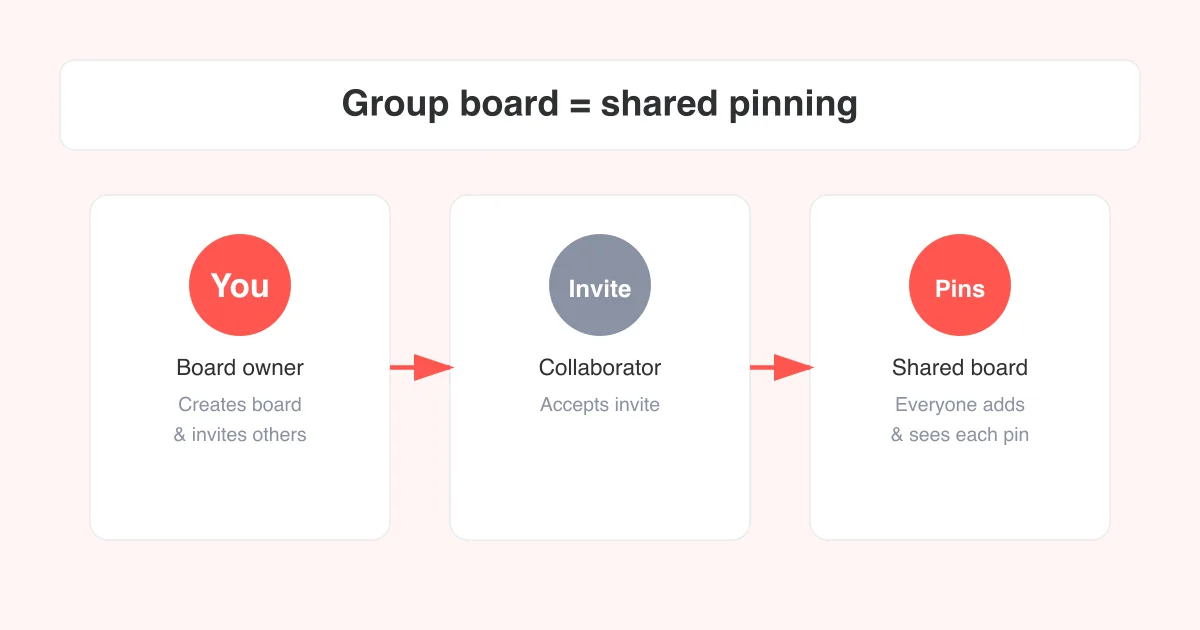
Short answer
To create a group board on Pinterest, make a new board (or open an existing one), tap the person-plus icon, then search for and invite people by name or share a direct invite link. Once they accept, collaborators can add their own pins to the board alongside yours. Group boards work like regular boards with one difference: multiple people can contribute pins, which is a simple way to widen a board's reach and mix in fresh content.
What is a group board on Pinterest?
A group board (Pinterest sometimes calls it a shared board) is a normal board that has more than one contributor. The person who creates the board is the owner, and the owner can invite other Pinterest users as collaborators. Once someone accepts, their pins on that board show up for everyone who follows it, right alongside the owner's pins.
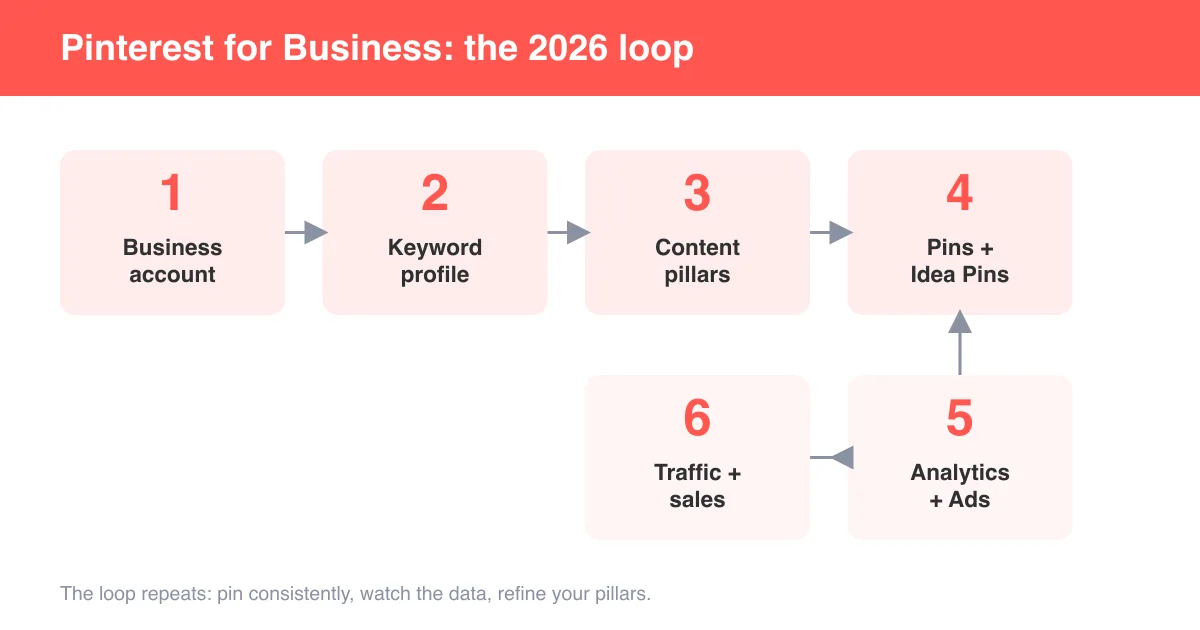
Group boards are popular with bloggers, small businesses, and communities because they multiply reach: if five collaborators each have their own following, a single board can be discovered by all five audiences instead of just one. They're also a common tactic used when learning how to use Pinterest for business.
How to create a board and invite collaborators
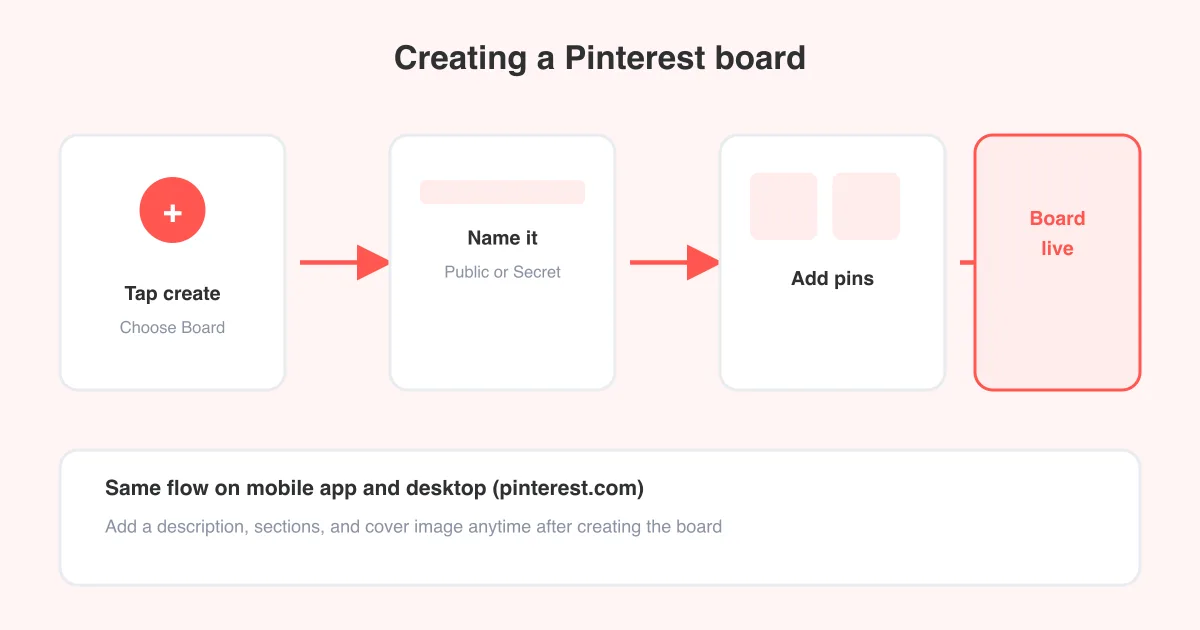
- Open the Pinterest app or go to pinterest.com and log in.
- Tap the + (plus) icon and choose Board, or open an existing board you own.
- Give the board a clear, descriptive name and save it.
- Open the board, then tap the person with a plus sign icon (usually near the top of the board, next to the edit or share options).
- In the search box, type the name, username, or email of the person you want to invite.
- Tap their profile to send the invite, or tap Share a link / Copy invite link if you want to send it outside the app (message, email, group chat).
- Repeat for anyone else you want to add — Pinterest allows multiple collaborators on a single board.
Exact labels vary
Pinterest updates its app design regularly, so the icon or menu wording for adding collaborators can differ slightly between iOS, Android, and desktop, and between app versions. Look for a person icon, a share icon, or a menu labeled "Collaborators" near the board's cover photo.
How to accept a group board invite
If someone invites you to collaborate, you'll typically get a Pinterest notification or a message with a link.
- From a notification: tap it, then tap Accept to join the board as a collaborator.
- From a shared link: open the link, log into your Pinterest account, and tap the option to join or follow as a collaborator.
- Once accepted, the board appears in your profile's boards list and you can start adding pins to it just like your own boards.
Roles and permissions on a group board
Group boards have two roles: the owner (the person who created the board) and collaborators (people invited to it). The table below breaks down what each can typically do.
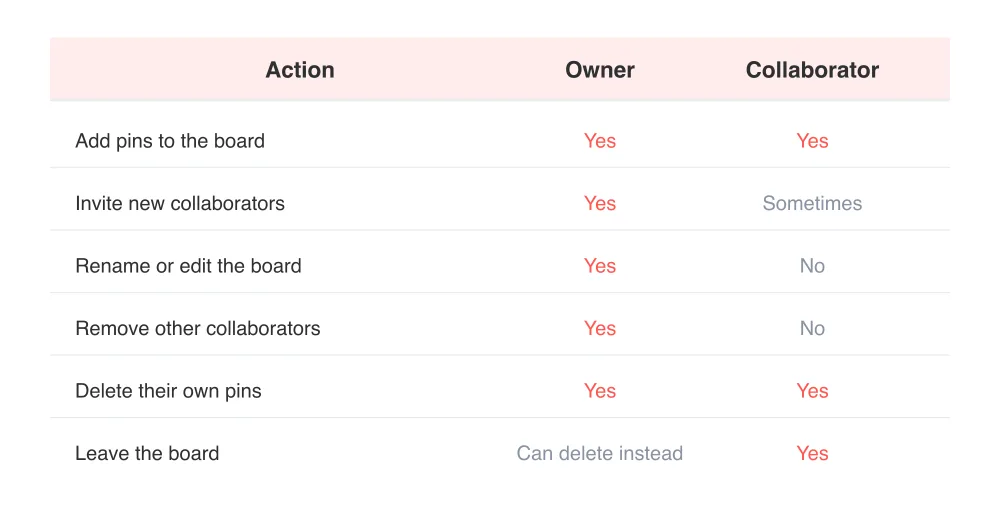
Whether a collaborator can invite others is usually controlled by a setting the owner sets when creating or editing the board, so don't assume — check the board's settings if you need that ability.
How to leave a group board or remove a collaborator
If you're a collaborator and want out: open the board, tap the three-dot menu or the settings icon, and look for Leave board. Confirming removes your pins' visibility as a contributor but usually leaves your own saved pins on your profile.
If you're the owner and want to remove someone: open the board, tap the collaborators icon, find the person, and tap Remove or the minus icon next to their name. This doesn't delete the pins they already added unless you remove them separately, similar to the process for deleting pins or deleting a board entirely.
Group board etiquette
- Only pin content that fits the board's stated topic — off-topic pins get boards muted or collaborators removed.
- Avoid pinning the same link repeatedly in a short window; spread contributions out.
- Follow any rules listed in the board description (many owners state a pin ratio, like one of your own pins per one repin).
- Credit original sources and avoid pinning low-quality or duplicate content.
- Be responsive if the owner reaches out about spam, broken links, or off-topic pins.
Quality over quantity
Pinterest's algorithm favors boards with engaged, on-topic content. A group board full of unrelated pins can hurt visibility for every collaborator, not just the person who added them.
Using group boards to grow your reach
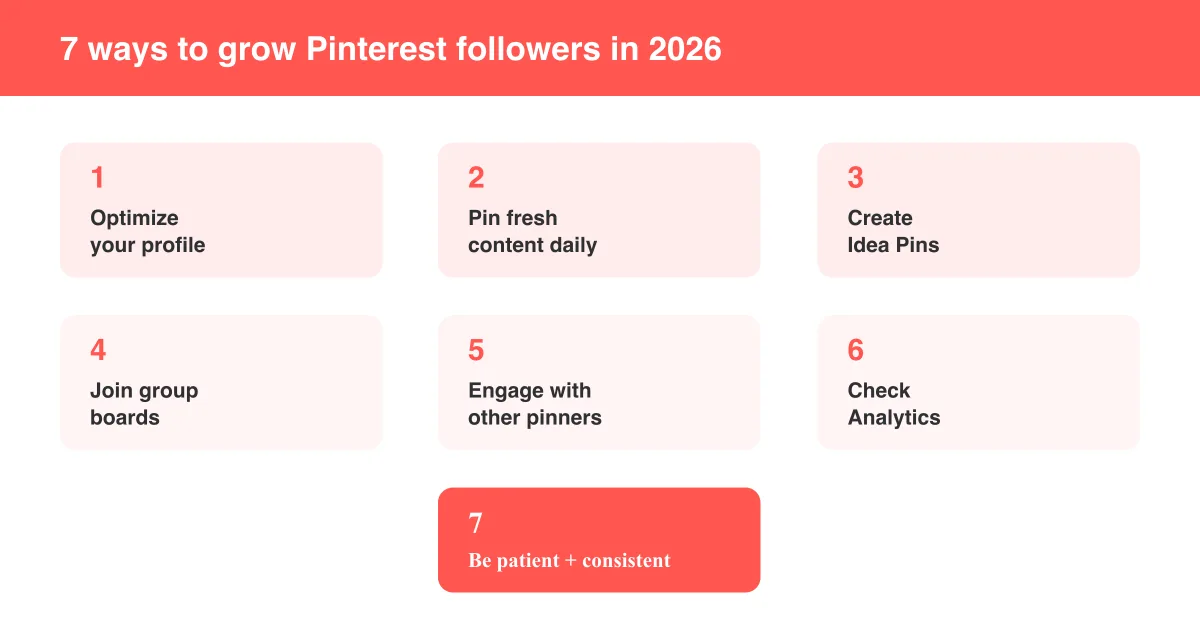
Group boards can help you reach new audiences because each collaborator's followers may see the board's pins in their feed. To make the most of this: join or create boards in your niche, pin consistently, and pair the strategy with other growth tactics like getting more followers on Pinterest. Businesses often use a mix of owned boards and a few well-run group boards as part of a broader plan for using Pinterest for business.
If you want to save inspiration you find on a group board for offline reference or a moodboard, SeePins' image downloader and video downloader let you grab public pin media directly from a link — handy for archiving standout examples before you plan your own pins.
Frequently asked questions
It's a board with more than one contributor. The owner creates it and invites collaborators, who can then add their own pins alongside the owner's.
Sources