Guides
How to Look Up Someone on Pinterest (Search by Name or Username)
Learn how to look up someone on Pinterest using the search bar and the People filter, search by exact name vs. username, and find a working profile URL.
Short answer
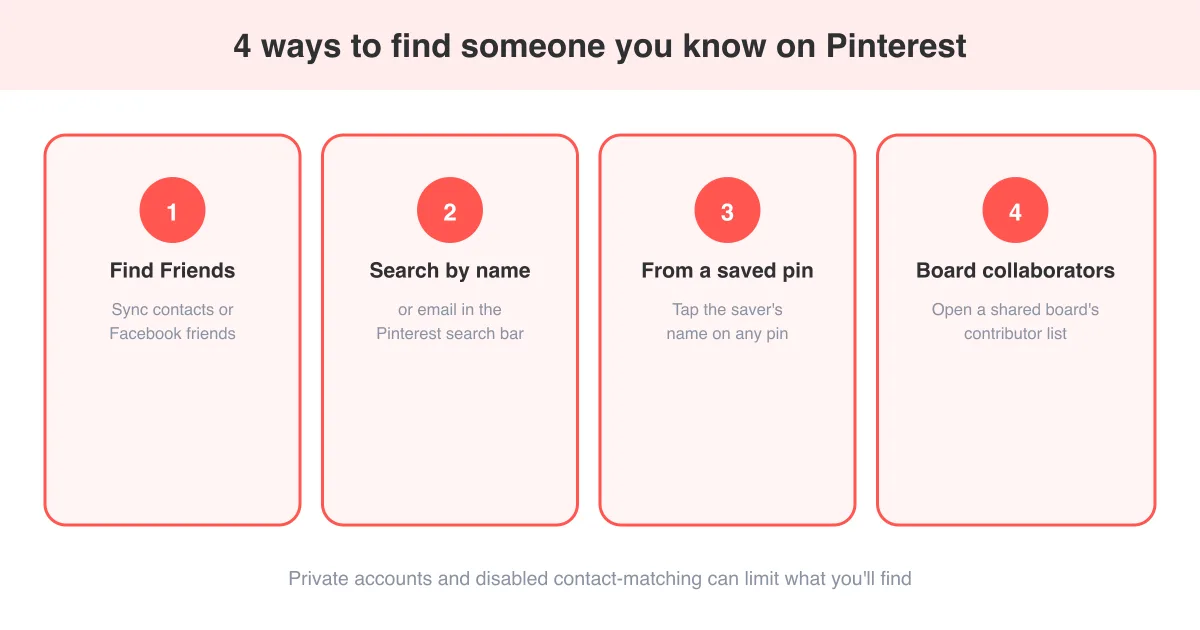
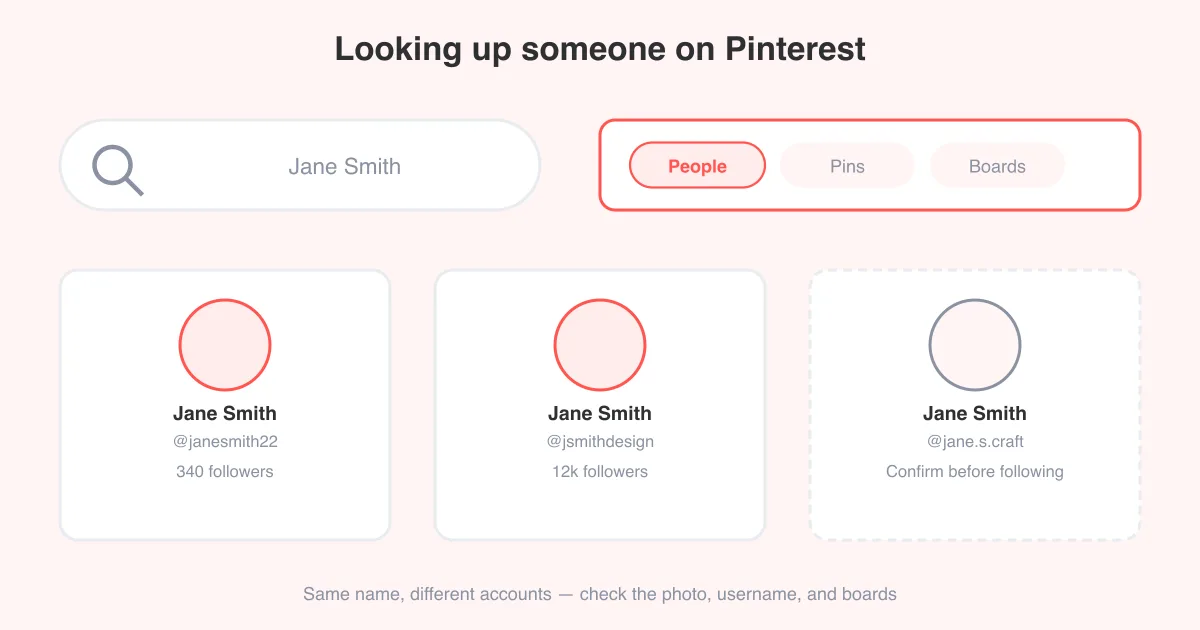
To look up someone on Pinterest, tap the search icon, type their name or username, then switch the results to the People (or profiles) filter to see matching accounts instead of Pins and boards. If several accounts share the same name, look at their profile photo, follower count, and boards to confirm you have the right person, or try their exact username instead. For a broader approach when search alone doesn't work, see how to find a person on Pinterest.
The fastest way to look someone up
Pinterest's search bar looks for Pins and boards by default, so a plain name search often buries the person you want under unrelated content. The fix is to run the search, then tap into the People (sometimes labeled Profiles or Accounts) filter that appears alongside Pins, Boards, and Videos in the results.
- Open the Pinterest app or go to pinterest.com and log in.
- Tap or click the search icon (usually a magnifying glass).
- Type the person's name or username into the search bar.
- Below the search bar, select the People or Profiles filter tab.
- Scroll through the matching accounts and tap the one that looks right.
Filter labels can vary
Depending on your app version and platform, the filter row might say People, Profiles, or Accounts. If you don't see a dedicated tab, try tapping directly on a matching profile that appears in the mixed results instead.
Searching by full name vs. exact username
A full name search casts a wide net and works well when you're not sure how someone set up their account. A username search is much narrower and works best when you already know (or can guess) the handle, since Pinterest usernames are unique.
- Full name search: good for browsing several possible matches, but expect duplicates if the name is common.
- Exact username search: type the handle directly, sometimes with an @ symbol, to jump straight to one account if it exists.
- Partial username or nickname: useful when you only remember part of a handle, though it may return several similar results.
- Combine both: if a name search returns too many people, add a detail you know about them (a business name, city, or hobby) to the same search to narrow it down.
If you already have an email address for the person instead of a name, that's a different lookup path — see how to find a person on Pinterest for other ways to search when a name alone isn't enough.
Finding and confirming a profile URL
Every Pinterest profile has its own URL built from the username, typically in the format pinterest.com/username. Once you land on the account through search, you can grab this link directly from your browser's address bar or, in the app, from a share option on the profile page.
- Open the profile from your search results.
- On desktop, copy the URL straight from the browser address bar.
- On mobile, look for a share icon on the profile (often three dots or an arrow icon) and choose 'Copy link' or 'Share profile'.
- Paste the link somewhere safe, like a notes app, so you can return to the exact profile later.
A profile URL is the most reliable way to bookmark the right person, especially if several accounts share the same display name — the username in the URL is unique even when the name isn't.
Confirming you found the right person
Common names routinely return multiple Pinterest accounts, so it's worth double-checking a profile before assuming it belongs to the person you're looking for.
- Compare the profile photo to a photo you already know is theirs.
- Check the bio for details like a location, business name, or website that matches what you know about them.
- Look at the boards and saved Pins — topics like a wedding, a specific hobby, or a small business often confirm identity quickly.
- Check follower and following counts against what you'd expect (a brand-new account with zero activity is less likely to be an established person you know).
- If a linked website or social handle is shown on the profile, it's often the fastest confirmation of all.
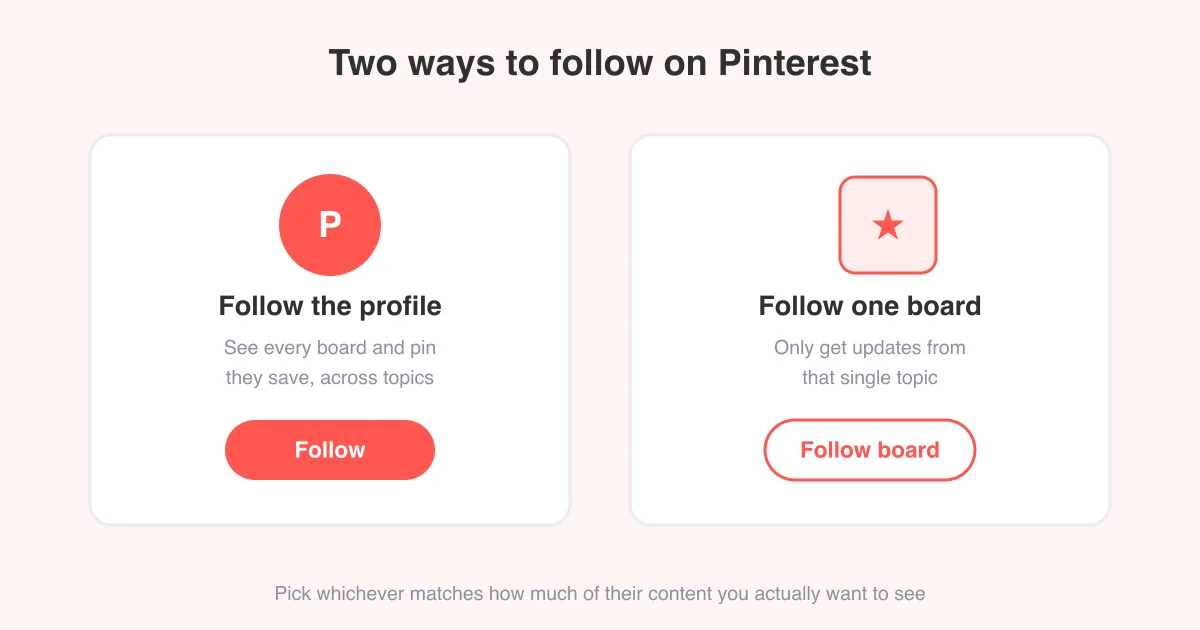
Once you've confirmed the right profile, following it is straightforward — walk through how to follow someone on Pinterest for the exact steps.
Why some accounts are hard to find
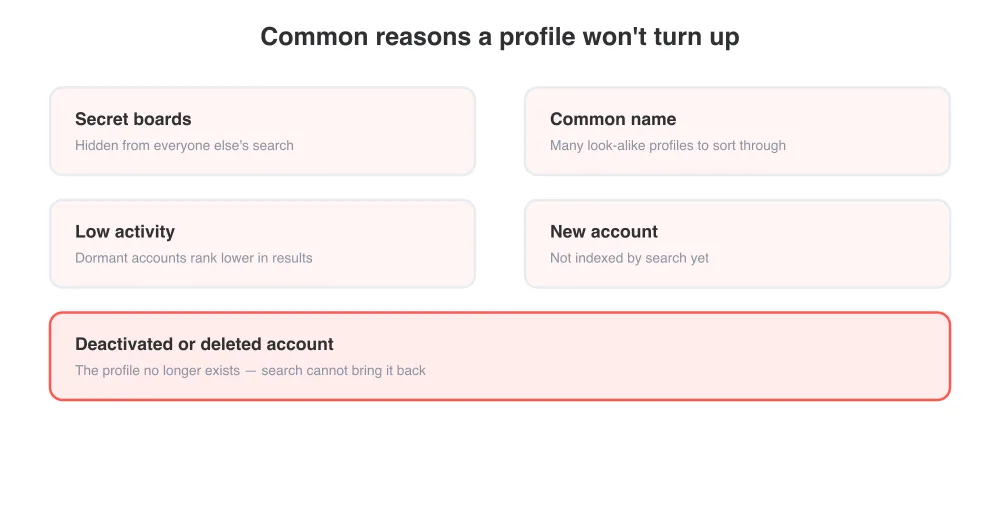
Not every search comes up empty because you're doing something wrong — several normal account settings and Pinterest's own limits can keep a profile from surfacing.
- Secret boards: boards marked secret don't show up in anyone else's search results, even if the account itself is public.
- Private or limited discoverability settings: some accounts adjust visibility settings that reduce how easily they appear in search.
- Common names: a very common first and last name can return dozens of look-alike profiles, making the right one easy to miss.
- Inactive or dormant accounts: profiles with little to no activity rank lower in search and may take extra scrolling to find.
- Recently created accounts: a brand-new profile can take some time before it's fully indexed in Pinterest's search.
- Deactivated or deleted accounts: if the profile no longer exists, no amount of searching will bring it back.
Tips to narrow down a stubborn search
- Try the full name first, then switch to any username variation you can think of (initials, nicknames, business name).
- Add a location, employer, or hobby keyword alongside the name if the first search returns too many people.
- Check whether the person has shared a Pinterest link on another platform, like an Instagram bio or a website footer, since that link goes straight to their exact profile.
- If you know their email address, that opens a different search path entirely — see how to find a person on Pinterest for that method.
- As a last resort, ask a mutual contact if they can share the profile link directly.
Respect privacy settings
If someone's account is genuinely hard to find, it may be intentional. Avoid trying to work around privacy settings — stick to publicly available search and profile information.
Frequently asked questions
Tap the search icon, type their name or username, then switch to the People or Profiles filter in the results so you see matching accounts instead of Pins and boards.
Sources