Guides
How to Change Your Username on Pinterest
Learn how to change your Pinterest username and display name on mobile and desktop, plus the rules, availability tips, and what changing it affects.
Short answer
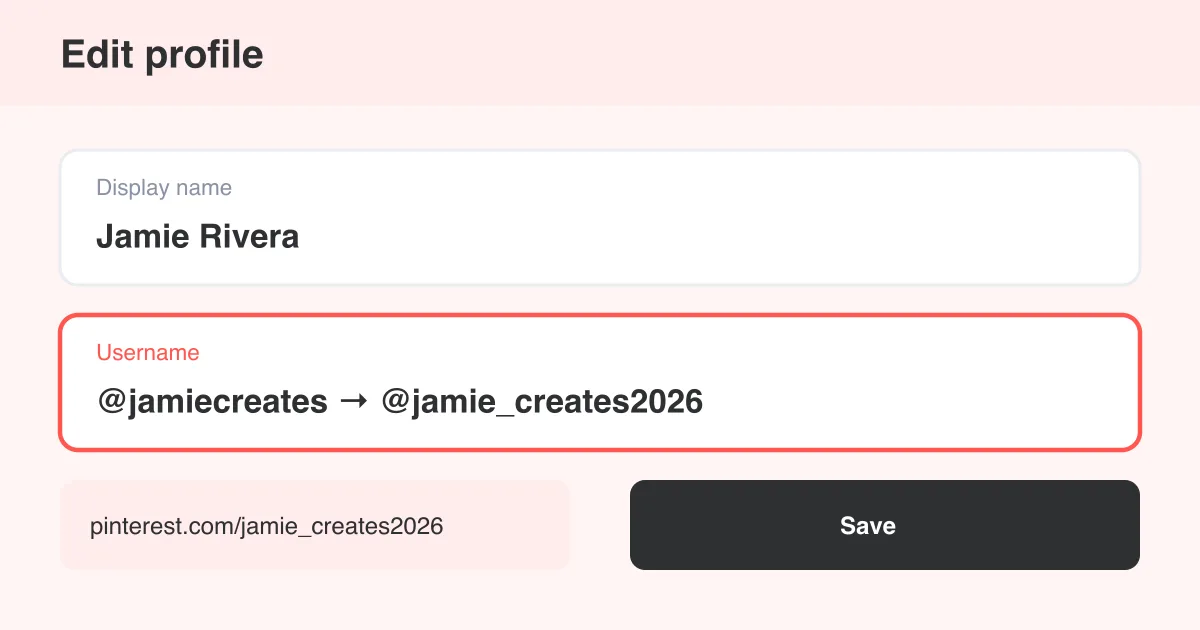
To change your Pinterest username, go to Settings > Edit profile, tap your username field, type a new one, and save — Pinterest checks availability instantly and updates your profile URL right away. Your display name is a separate field you can edit the same way, and both can be changed as often as you like as long as the username you want is available.
Display name vs. username: what's the difference
Pinterest gives every account two separate identity fields, and mixing them up is the most common source of confusion. Your display name is the friendly text shown above your pins (like "Jamie Rivera") and can include spaces, emojis, and special characters. Your username is the unique handle that forms your profile URL — pinterest.com/yourusername — and can only use letters, numbers, and underscores.
- Display name: shown on your profile and pins, purely cosmetic, no uniqueness requirement
- Username: forms your profile link, must be unique across all of Pinterest, used for @mentions
- Both are editable independently from the same Edit profile screen
- Changing your username changes your profile URL immediately — old links stop working
Quick tip
If you only want your name to look different on pins, change the display name. Only touch the username if you need a new pinterest.com/ link — for example, to match a rebrand or a new business account name.
How to change your username on the mobile app
- Open the Pinterest app and tap your profile picture in the bottom-right corner
- Tap the menu icon (three lines) in the top-right, then tap Settings (or the gear icon)
- Tap Edit profile
- Tap the Username field and delete the current text
- Type your new username — Pinterest checks availability as you type and shows an error if it's taken
- Tap the checkmark or Done, then tap Save at the top of the screen
Exact labels and icon positions vary slightly by app version and platform (iOS vs. Android), but the Edit profile flow is consistent. If you don't see an error message but the field won't save, the username is likely already in use by another account.
How to change your username on desktop
- Log in to pinterest.com and click your profile picture in the top-right corner
- Select Settings from the dropdown menu
- On the Edit profile page, click into the Username field
- Clear the existing username and type the new one you want
- Click Save at the bottom of the page
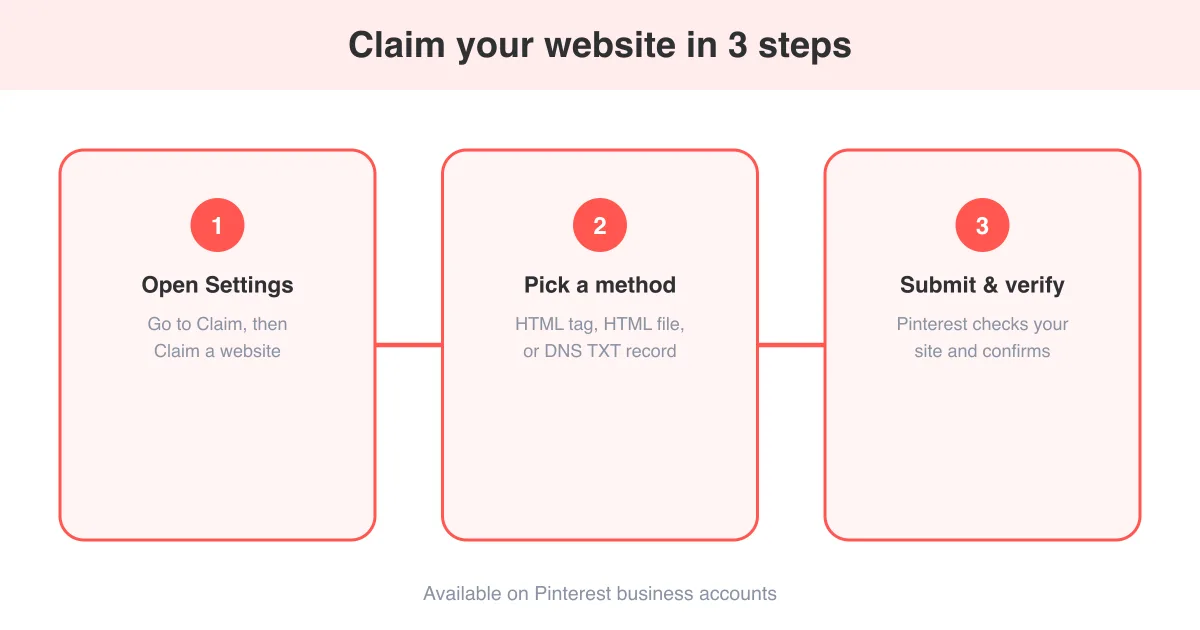
Desktop is often the easier place to do this since you can see your full profile preview update in real time. It's also a good time to double-check your bio and website link while you're in Settings, especially if you've already claimed your website on Pinterest and want the branding to match.
Username rules and availability
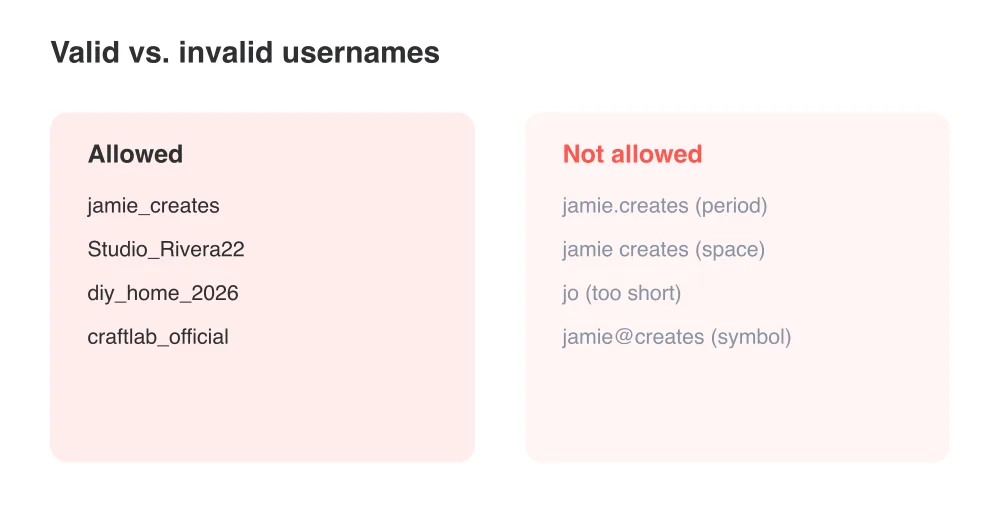
- 3–30 characters long
- Letters, numbers, and underscores only — no spaces, periods, or special symbols
- Must be unique — Pinterest will not let you save a username that's already claimed
- Case doesn't create uniqueness — Jamie_Creates and jamie_creates are treated as the same username
- Pinterest may reject usernames that impersonate brands or public figures
What changing your username affects
Because your username builds your profile URL, changing it has a few ripple effects worth planning for. Your old pinterest.com/oldusername link stops working the moment you save the new one, so anyone who bookmarked it or shared it will hit a dead link instead of your profile.
- Any links you've shared elsewhere (bio links, business cards, ads) will need updating
- @mentions in old comments and pins keep the old text but no longer link to your profile
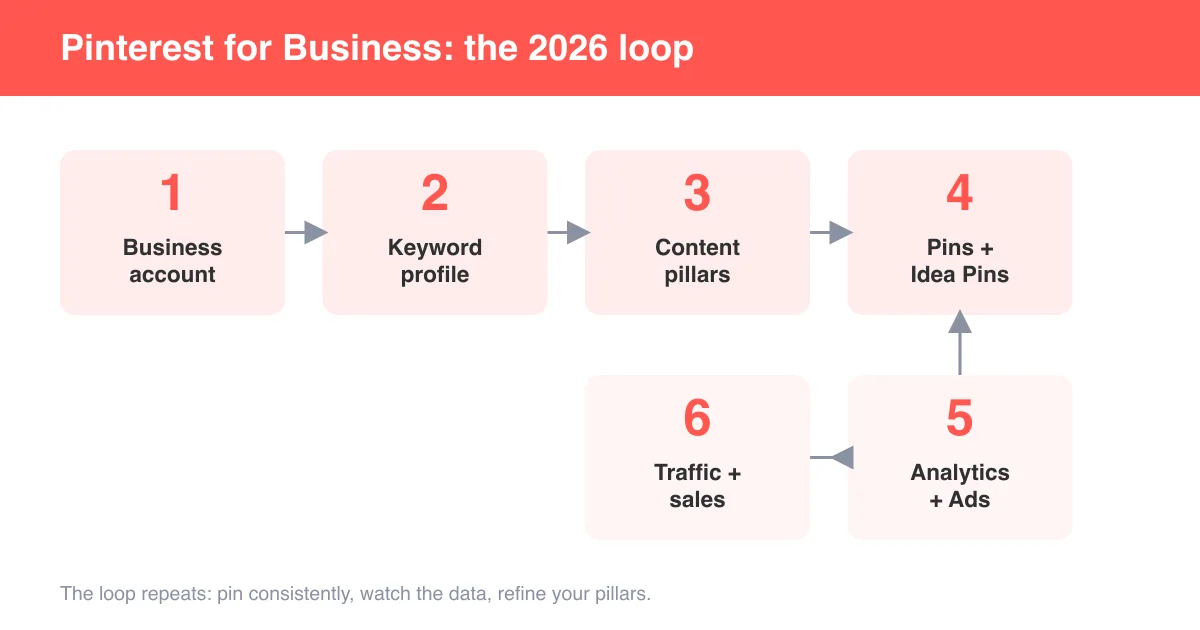
- If you run a business account, update your rich pins and any claimed website references to the new profile link
- Followers and boards are unaffected — only the URL and handle change
Before changing your username, update your Pinterest link anywhere it's published — your Instagram bio, email signature, or website footer — so visitors don't land on a broken page.
How often can you change it
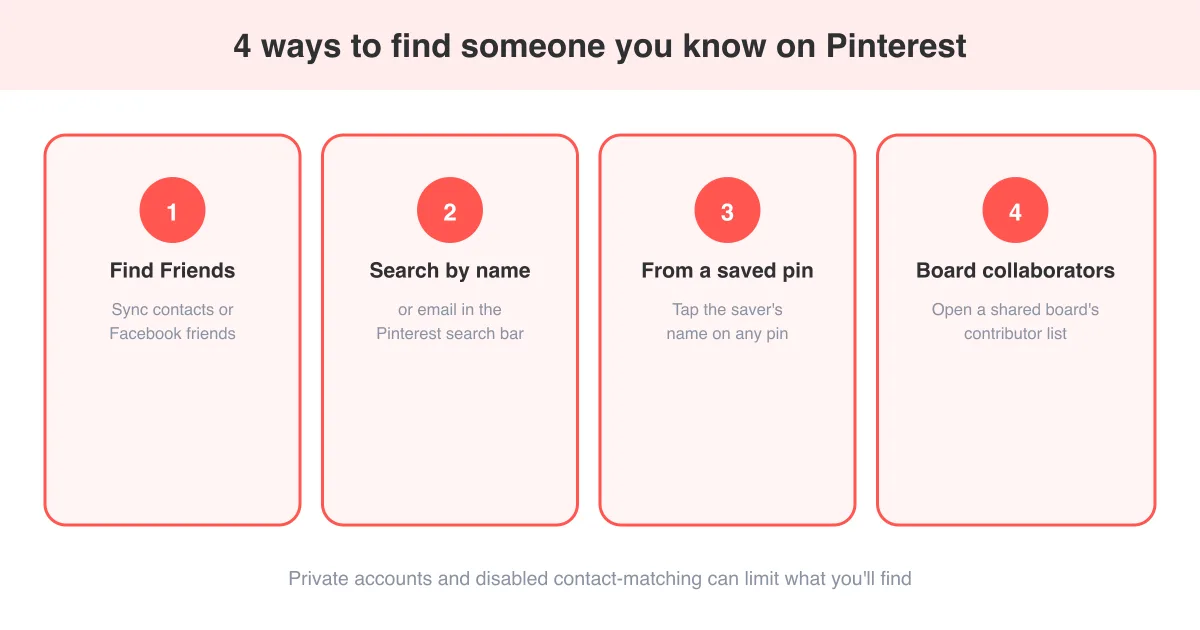
Pinterest doesn't publish a strict cooldown period for username changes — you can generally update it as often as you like, as long as the new username you want is currently available. That said, changing it frequently makes it harder for people to find you on Pinterest, so it's best treated as an occasional change rather than a routine one.
Frequently asked questions
Yes. The username and display name are separate fields in Edit profile, and you can update either one independently.
Sources