Business
How to Claim Your Website on Pinterest
Learn how to claim your website on Pinterest with an HTML tag, HTML file, or DNS TXT record, plus how to fix a failed claim and claim Instagram or Etsy.
Short answer
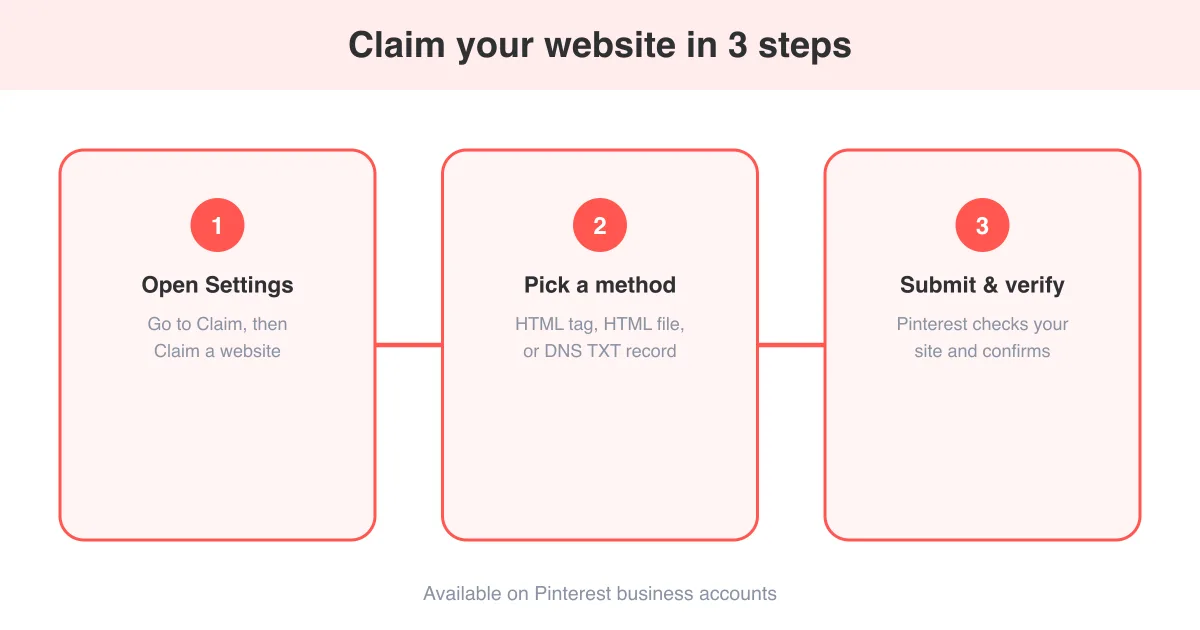
You claim a website on Pinterest from a business account by going to Settings, then Claim, then Claim a website, and verifying ownership with an HTML tag, an uploaded HTML file, or a DNS TXT record. Once verified, every pin saved from your domain shows your profile photo and follow button, and you unlock analytics for content other people pin from your site. It usually takes a few minutes, though DNS changes can take longer to propagate. For related setup steps, see how to enable rich pins on Pinterest.
Why claim your website on Pinterest
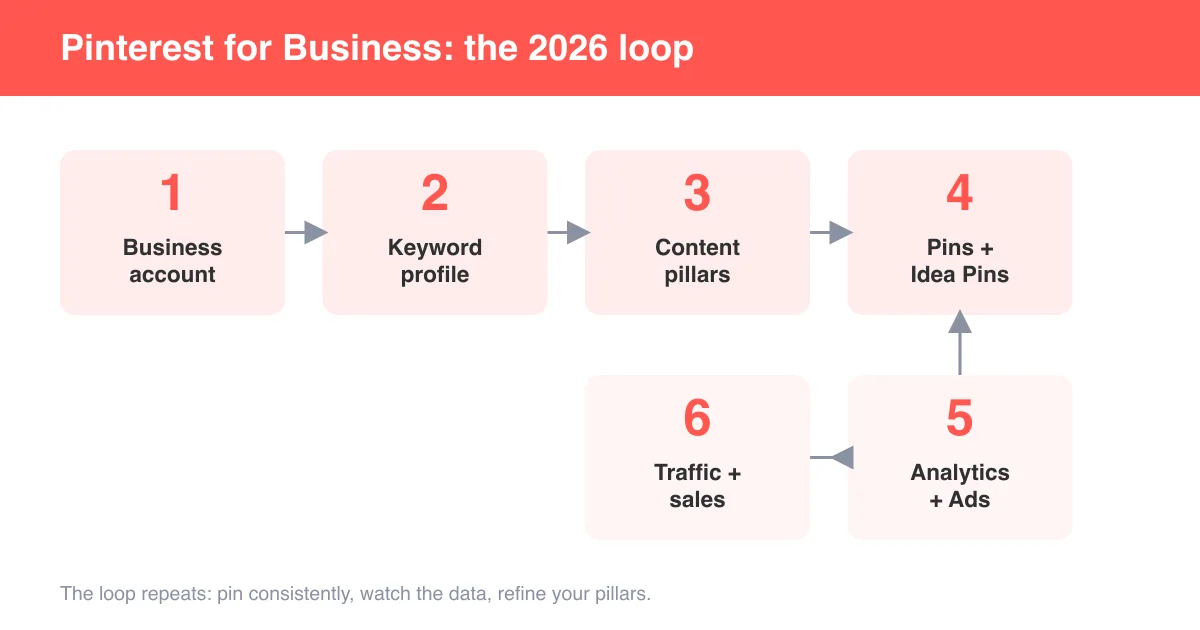
Claiming your website tells Pinterest that a domain belongs to you, which links every pin made from that site back to your profile — even pins other people save. It's one of the core steps in how to use Pinterest for business, alongside setting up a business account and enabling rich pins.
- Your profile photo and follow button appear on every pin from your domain
- Analytics show impressions, saves, and outbound clicks for pins from your site, including ones you didn't create yourself
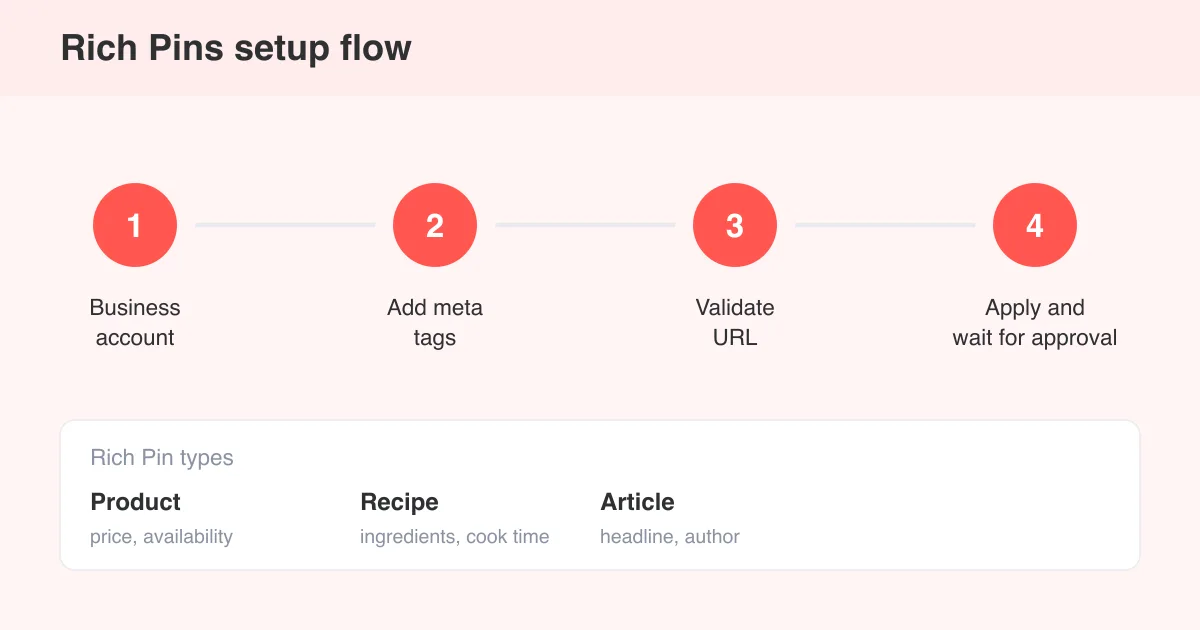
- It's a prerequisite for Rich Pins, which pull in extra product, article, or recipe details automatically
- It signals attribution and authenticity, which can help your content surface in relevant search results
Business account required
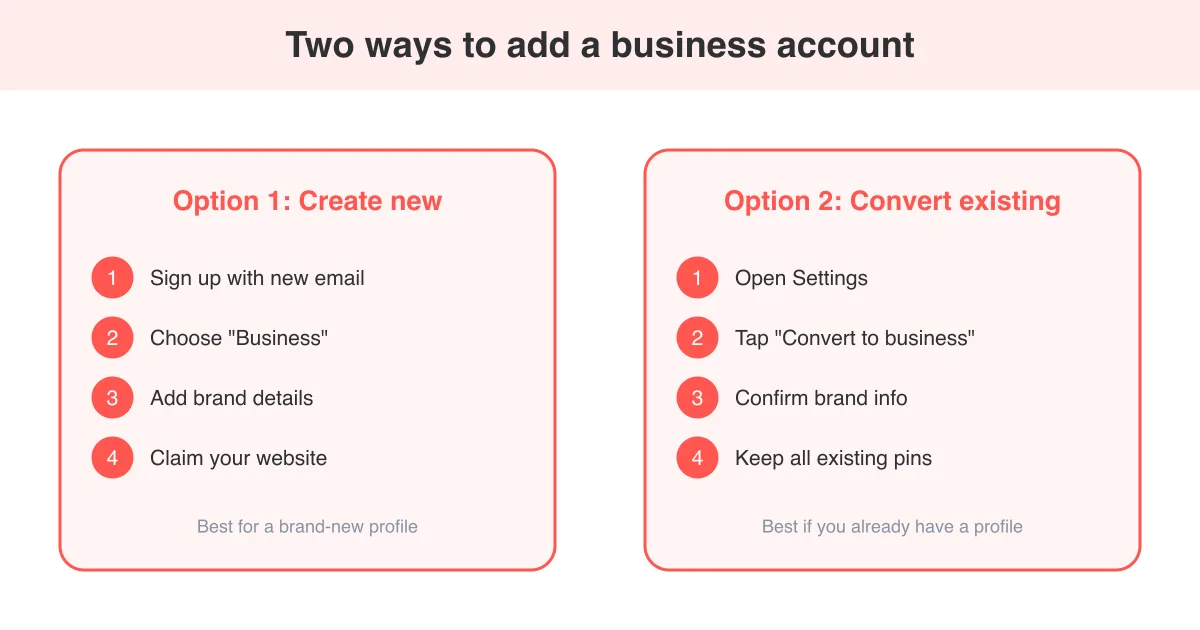
Website claiming is a business-account feature. If you're on a personal profile, convert it or add a business account first — see how to add a business account on Pinterest.
Three ways to verify ownership
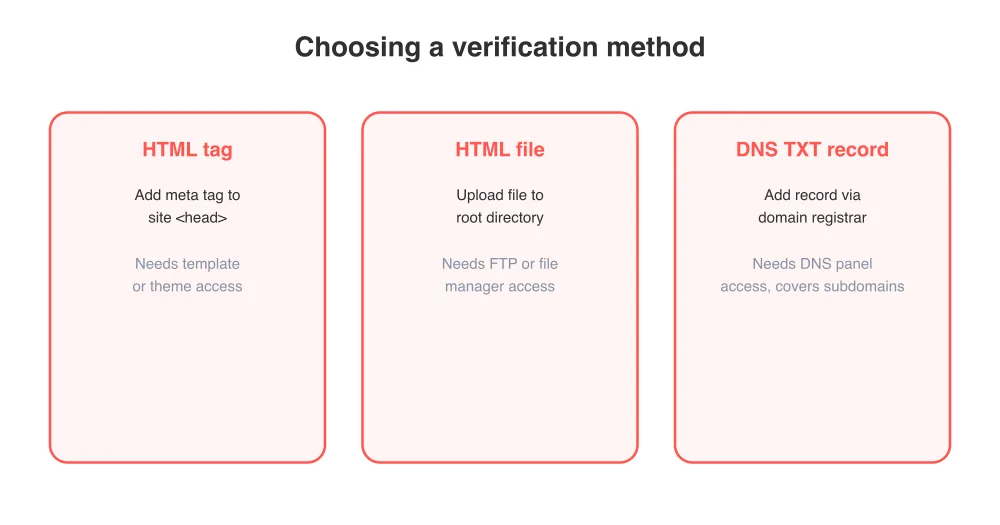
Pinterest offers three verification methods. Which one works best depends on how much access you have to your site's code versus its hosting or domain settings.
- HTML tag — add a small meta tag Pinterest gives you into the <head> section of your site's homepage. Best if you can edit your site's template or theme.
- HTML file upload — download a small verification file from Pinterest and upload it to your site's root directory. Best if you have file/FTP access but not template access.
- DNS TXT record — add a TXT record through your domain registrar or DNS provider. Best if you manage many subdomains or can't easily edit site files.
All three methods prove the same thing — that you control the domain — so pick whichever is easiest to access. You don't need to do more than one.
Step-by-step: claim your website
The flow below works from either the app or desktop, since Pinterest keeps the claim wizard on the same path across the mobile site, apps, and pinterest.com. Exact labels can vary slightly by app version.
- Log in to your Pinterest business account.
- On desktop, click your profile photo, then Settings. On mobile, tap your profile icon, then the settings gear.
- Select "Claim" from the settings menu, then "Claim a website."
- Enter your website's URL exactly as it appears in your browser (including https://).
- Choose HTML tag, HTML file, or DNS TXT record, then follow the instructions Pinterest displays for that method.
- Add the tag, file, or record to your site or DNS settings, then return to Pinterest and click Submit.
- Wait for verification. HTML tag and file uploads are often confirmed within minutes; DNS changes can take longer while records propagate.
Claiming Instagram, Etsy, and other accounts
Beyond websites, Pinterest also lets business accounts claim other platforms you own, like Instagram and Etsy shops, from the same "Claim" menu in Settings.
- Instagram — connect your Instagram account so new posts can automatically appear as pins on a dedicated board
- Etsy — link your shop so your listings can be pinned with pricing and availability attached
- Each claimed account gets attribution similar to a claimed website: your profile shows up on related pins
Keep it consistent
Claim accounts and domains you actively use for content. Claiming something you rarely post to just adds clutter to your settings without much benefit.
Troubleshooting a failed website claim
If Pinterest can't verify your site, work through these common causes before resubmitting.
- Site builders or page caching can strip out custom head tags — check the live page source, not just your editor, to confirm the tag is actually rendering
- The uploaded HTML file must sit at the exact root path Pinterest expects (yourdomain.com/pinterest-xxxx.html), not inside a subfolder
- DNS TXT records can take anywhere from a few minutes to 48 hours to propagate depending on your provider
- Double-check you entered the URL with the correct protocol and www/non-www format, since Pinterest treats those as distinct
- Clear the specific verification file or tag conflicts left over from a previous failed attempt before retrying
If verification still fails after checking these, try a different method — for example, switch from HTML tag to DNS TXT record if you have registrar access.
What to do after your website is claimed
Once verification succeeds, your claim is permanent unless you remove it. From here, turn on Rich Pins to sync extra metadata, and check Pinterest Analytics regularly to see which pages people are pinning from your site.
- Enable rich pins for your content type (article, product, or recipe) in the Rich Pins validator.
- Review analytics weekly for your top-performing claimed content.
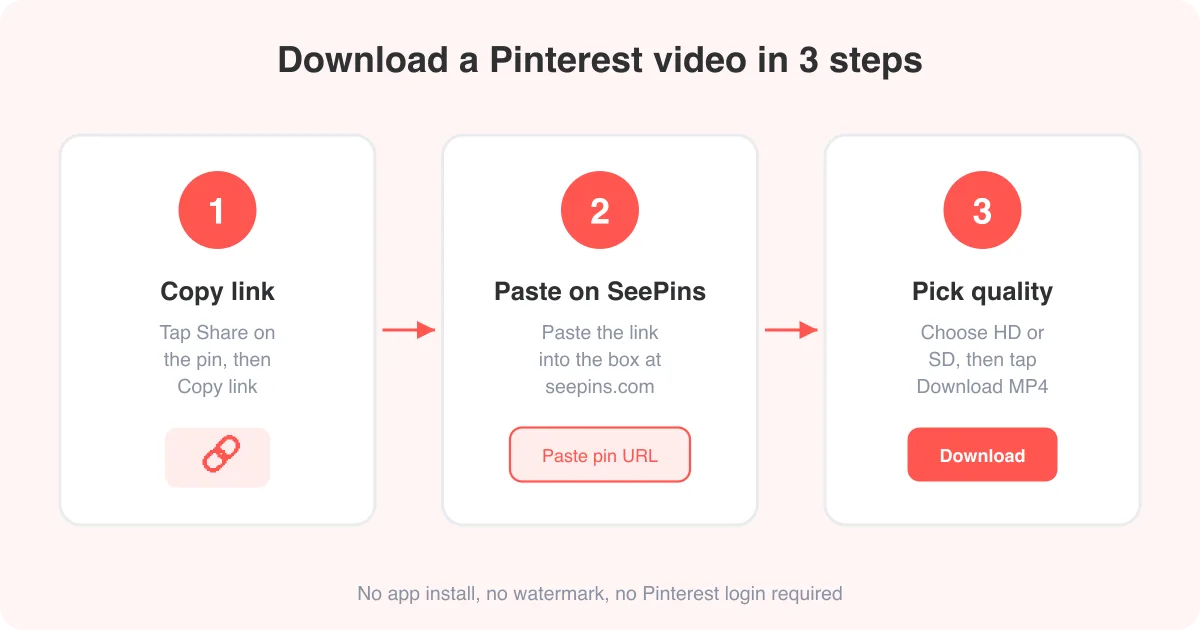
- Keep saving inspiration for future content with a Pinterest video downloader or photo downloader for your own reference boards.
Frequently asked questions
Yes. Website claiming is only available on Pinterest business accounts, not personal profiles.
Sources