Business
How to Enable Rich Pins on Pinterest
Learn how to enable Rich Pins on Pinterest step by step: add Open Graph meta tags, apply through the Rich Pins Validator, and troubleshoot common errors.
Short answer
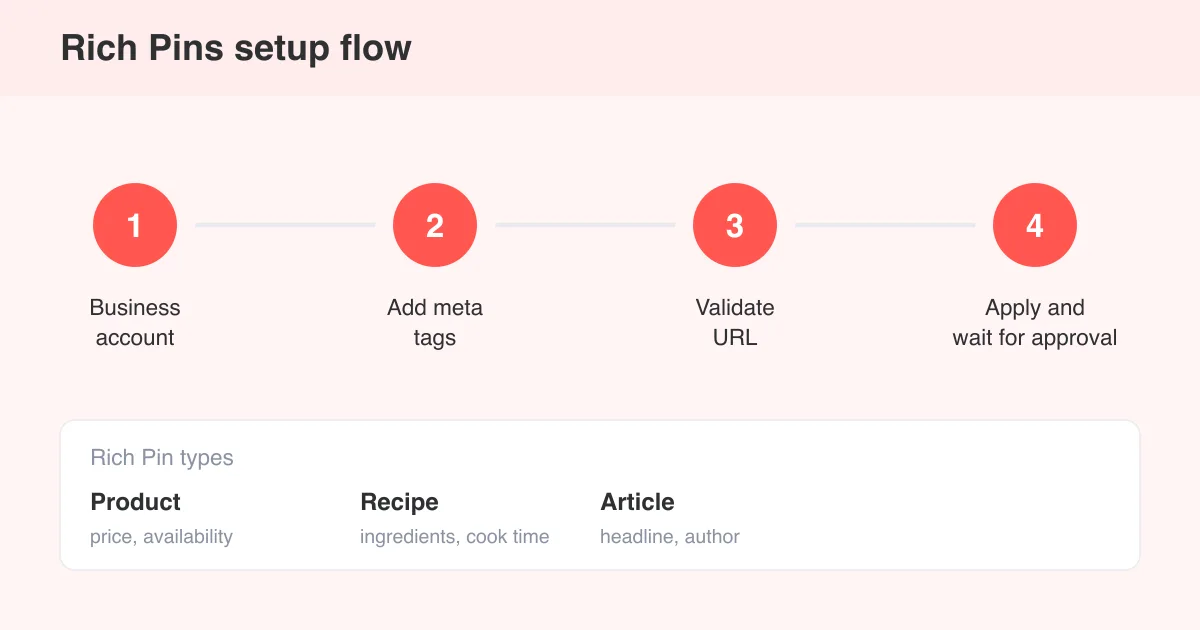
To enable Rich Pins on Pinterest, add the required Open Graph meta tags to your website's pages, then submit one of those URLs to the Rich Pins Validator to apply for Rich Pins. Once approved, every pin saved from your site automatically pulls in extra details like product price, recipe ingredients, or article headlines. You'll need a Pinterest business account and a verified website before you start.
What Rich Pins are
Rich Pins are pins that automatically sync extra information from your website directly onto the pin itself, instead of relying on whatever caption was typed when the pin was saved. Because that data pulls live from your site's metadata, it stays accurate even if the caption gets edited or the pin is re-saved by someone else.
- Product Rich Pins — show real-time price, availability, and product title
- Recipe Rich Pins — show ingredients, cook time, serving size, and dietary info
- Article Rich Pins — show the headline, author, and a short description
If you run a Pinterest for Business account and drive traffic from a blog, shop, or recipe site, Rich Pins are one of the simplest ways to make your pins more useful and more clickable in the feed.
Prerequisites before you start
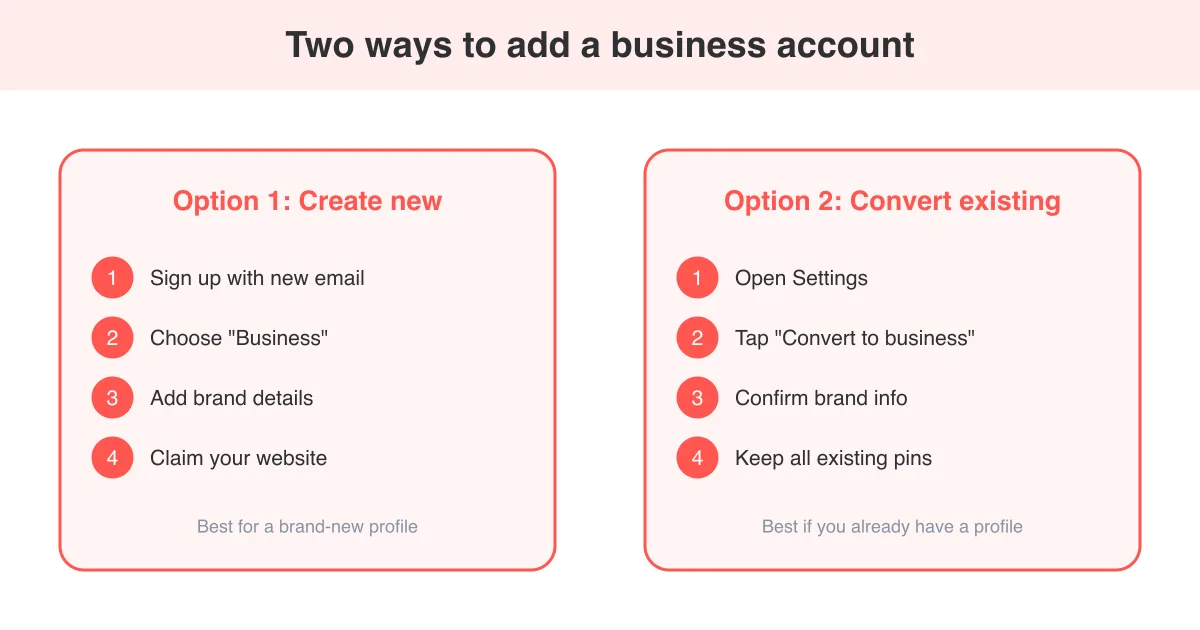
- A Pinterest business account (convert a personal account in Settings, or see how to add a business account on Pinterest)
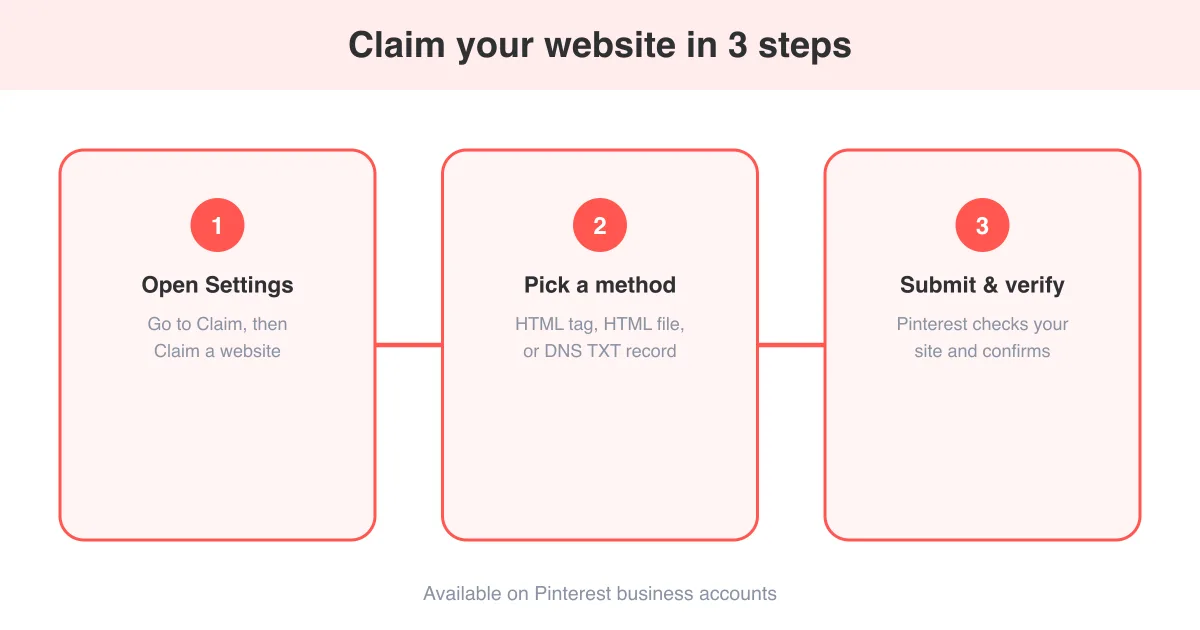
- A claimed website so Pinterest can confirm you own the domain — see how to claim your website on Pinterest
- Access to your site's HTML `<head>`, or a plugin/CMS setting that lets you add meta tags
- At least one live page that already has the correct Open Graph (or Schema.org) markup for the Rich Pin type you want
Rich Pins run on Open Graph tags
Rich Pins read the same og: meta tags used by Facebook and other platforms for link previews, plus a few Pinterest-specific and Schema.org tags for products and recipes. If your site already has solid Open Graph markup, you're most of the way there.
Step 2: Validate a URL with the Rich Pins Validator
- Go to the Rich Pins Validator tool (linked from the Pinterest Help Center)
- Paste in the full URL of one live page that has the meta tags in place
- Click Validate
- Pinterest checks the page and shows a preview of how the Rich Pin will look if the tags are read correctly
- If validation succeeds, click Apply now to submit your domain for Rich Pins
Approval isn't instant — it can take anywhere from a few minutes to a couple of days. Once your domain is approved, Rich Pins apply retroactively and automatically to every qualifying page on that domain, not just the one you validated.
How the extra data appears on a pin
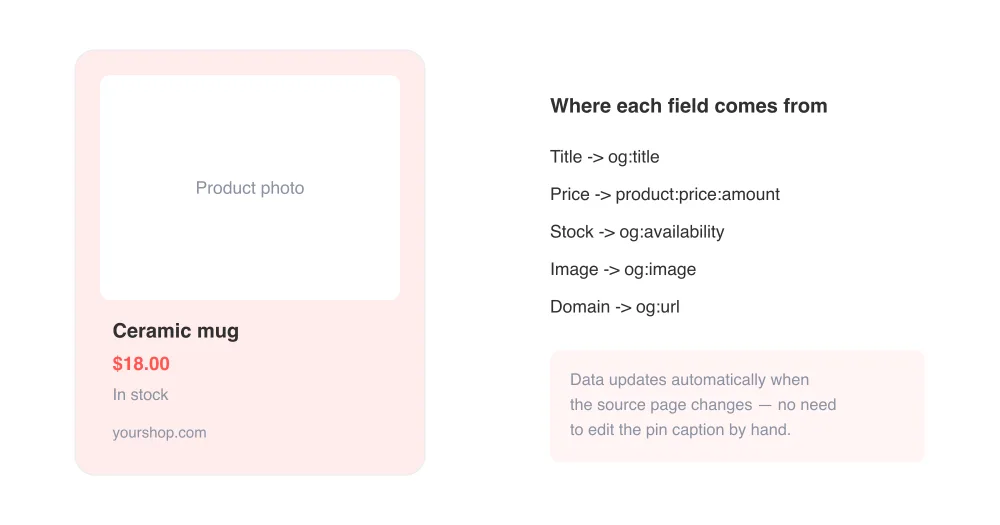
Once approved, saved pins from your site display the extra metadata beneath the image, and your site name and profile appear near the top of the pin close-up. This applies whether someone saves the pin from your site directly or re-pins it from someone else's board.
Troubleshooting common issues
- Validator says tags are missing — view the page source and confirm the `og:` tags are in the actual HTML `<head>`, not injected only after JavaScript runs, since some crawlers can't read client-rendered tags
- Approved but data isn't showing — Pinterest can cache old page data; try re-validating the URL to force a refresh
- Recipe fields are blank — double-check your Schema.org Recipe markup with a structured data testing tool; Pinterest is stricter about exact field names than Open Graph
- Price or stock status is wrong — confirm the values update dynamically on your page and aren't hardcoded in a template
- Domain not claimed — Rich Pins require site ownership verification first; revisit how to claim your website on Pinterest if the apply step fails
Exact validator screens and button labels can shift slightly between Pinterest's web and app versions, so the flow above may look a little different depending on when you set it up.
Why Rich Pins are worth setting up
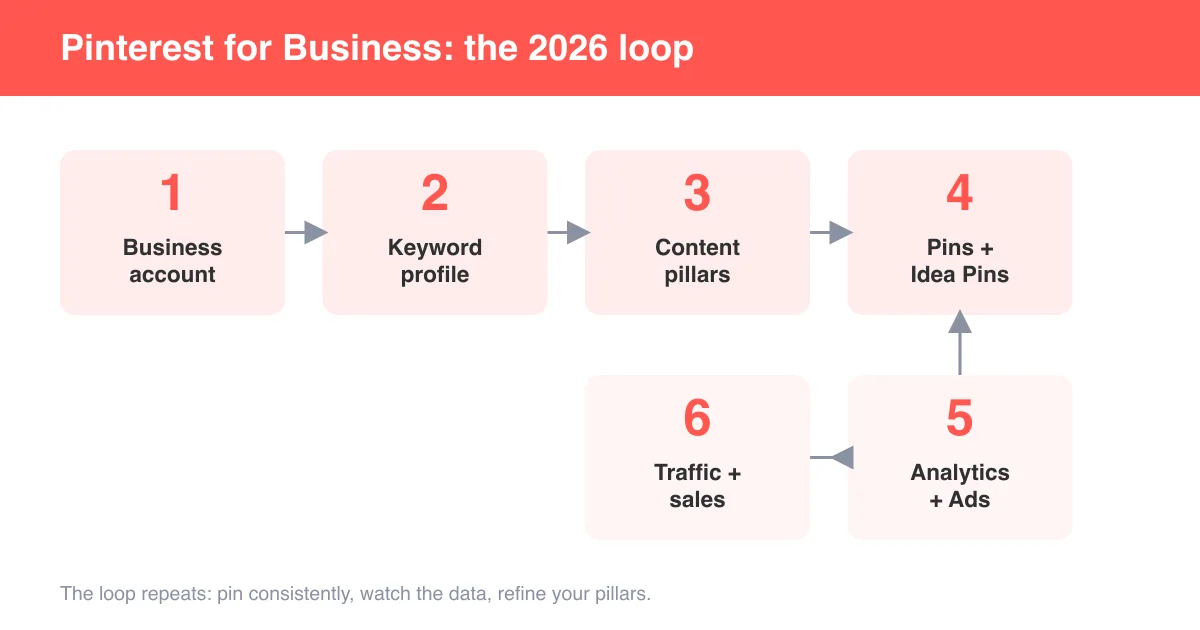
Rich Pins give users more context before they click, which tends to mean higher-quality traffic back to your site. They also make your brand more visible, since your site name and logo appear on every Rich Pin, reinforcing recognition as your content spreads. If you're actively growing a presence on the platform, pairing Rich Pins with a consistent posting habit — see how to use Pinterest for business — helps your content stand out in a crowded feed.
Frequently asked questions
Rich Pins are pins that automatically show extra details pulled from your website's metadata, such as product price, recipe ingredients, or article headlines, and keep that information updated over time.
Sources