Tips
How to Get Rid of Ads on Pinterest (Reduce Promoted Pins)
Pinterest is ad-supported, so you can't remove ads entirely, but you can hide promoted pins, turn off ad personalization, and reduce how many you see.
Short answer
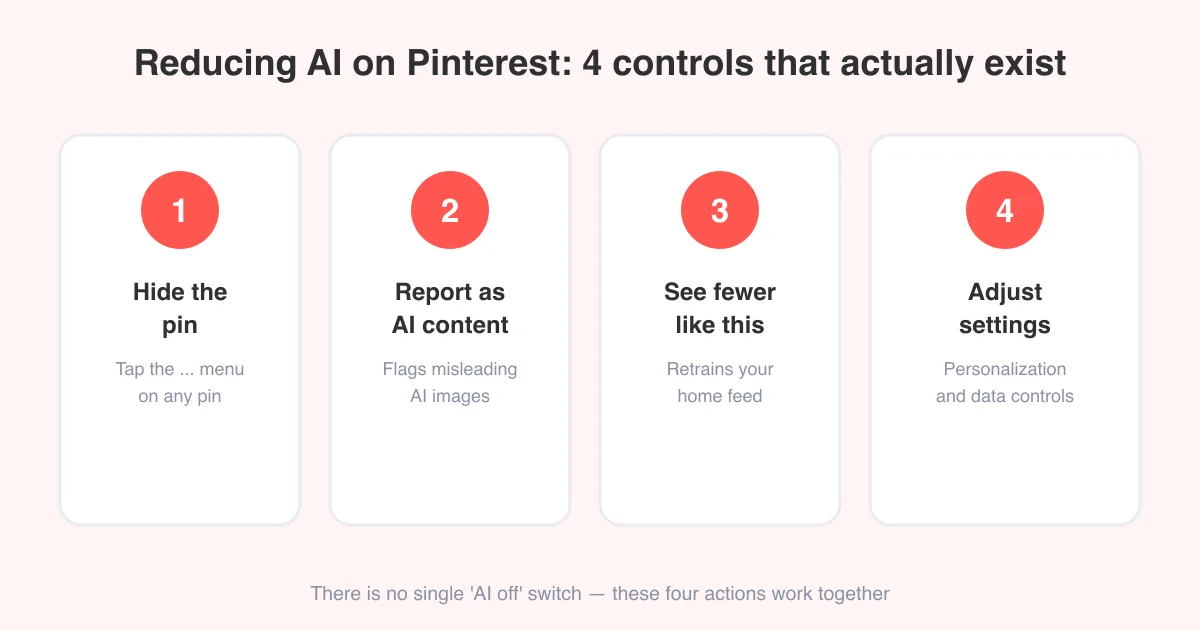
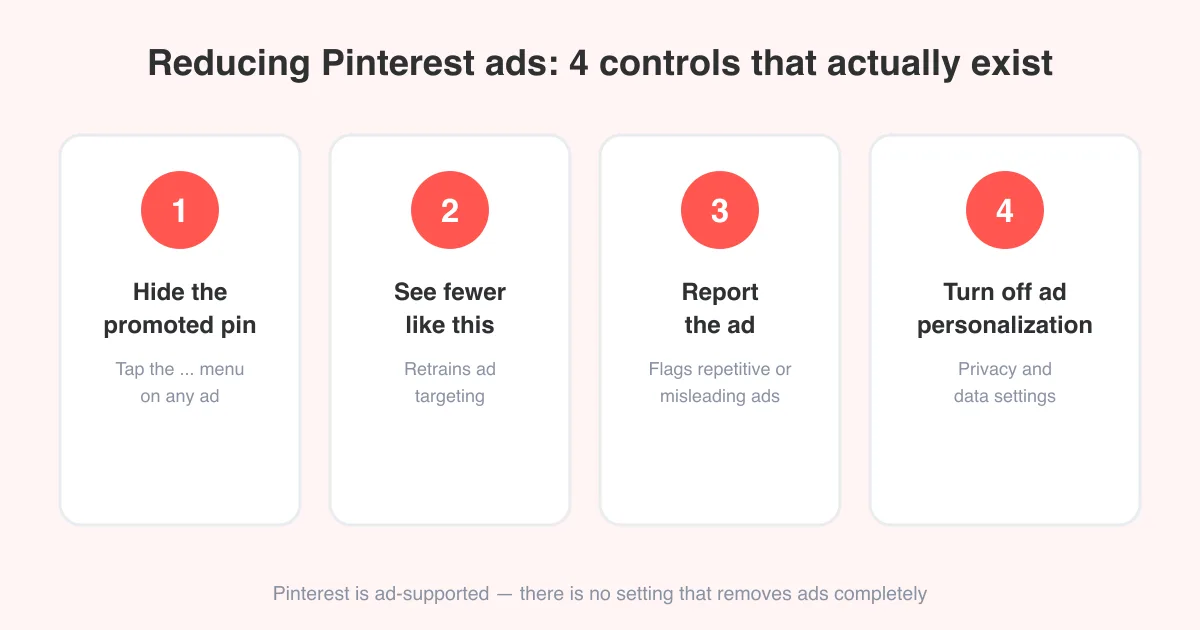
You can't fully remove ads from Pinterest since the app is ad-supported, but you can meaningfully reduce them by hiding each promoted pin, tapping "See fewer like this," reporting ads that feel repetitive or misleading, and turning off ad personalization in your privacy and data settings. Doing all four consistently is the closest thing to an "ads off" experience Pinterest currently offers.
Can you actually remove ads from Pinterest?
No — not completely. Pinterest is a free, ad-supported platform, and promoted pins are woven directly into the home feed, search results, and related pins, the same way ads appear on most free social apps. There is no premium, ad-free tier and no single setting that switches ads off.
Set expectations first
What you can control is how relevant and how frequent the ads feel. Hiding, reporting, and turning off ad personalization won't make Pinterest ad-free, but consistent use of these tools noticeably cuts down on repetitive or off-topic promoted pins over time.
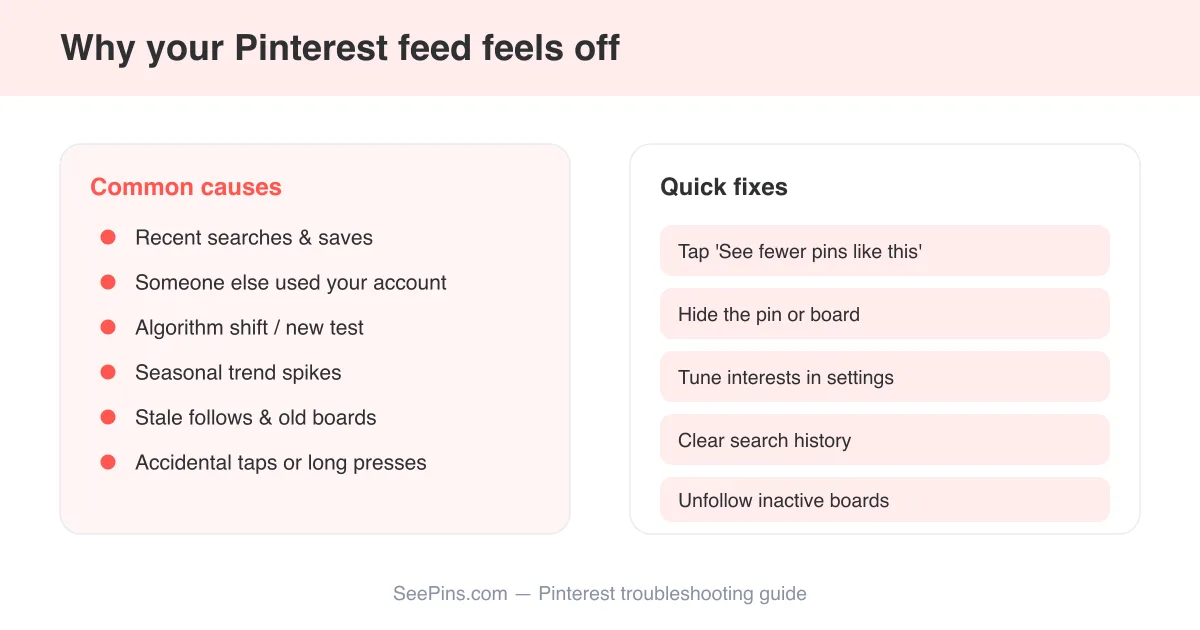
If your bigger complaint is that the feed overall feels off — not just ads, but regular pins too — that's usually a personalization issue rather than an ads-specific one. See why Pinterest keeps showing irrelevant images for that side of the fix.
Hide and report an individual promoted pin
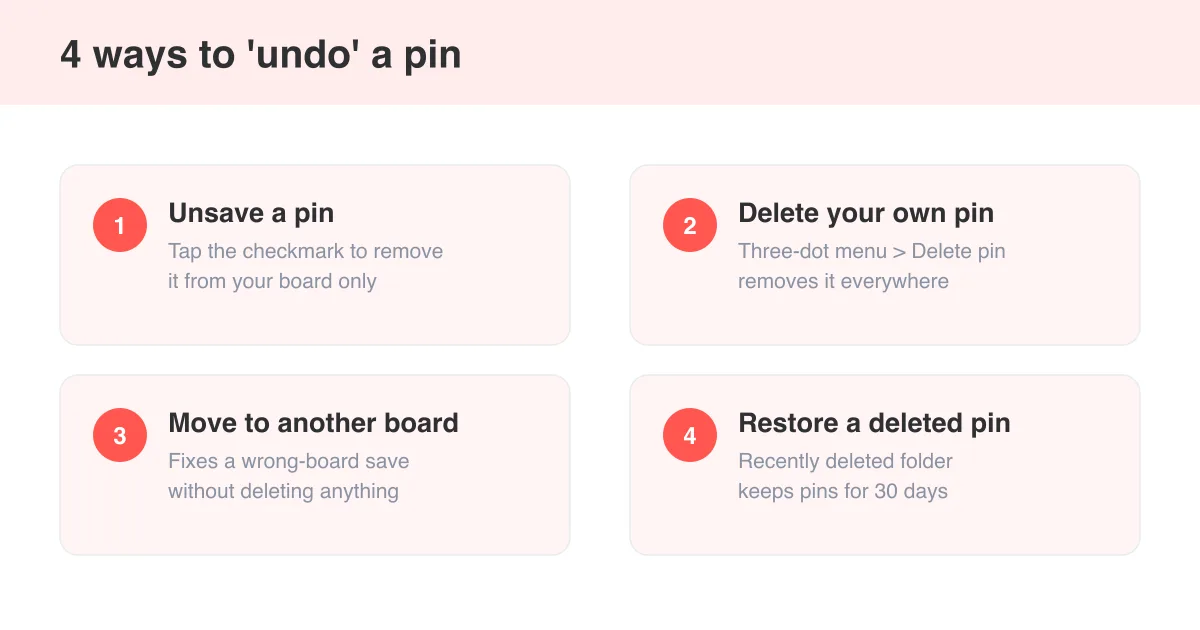
The quickest way to react to an ad you don't want to see is to act on it directly, the same way you'd act on any pin you'd rather not see again, similar to how you'd undo a pin you saved by mistake.
- Find the promoted pin in your home feed or search results (it's labeled "Promoted" near the pin description).
- Tap the three-dot menu (•••) in the corner of the pin.
- Choose "Hide ad" or "Hide pin" to remove it from your feed right away.
- If offered, select "Report ad" and pick a reason such as "Repetitive," "Not relevant," or "Misleading."
- Repeat for a few similar ads — one hide rarely shifts anything, but a consistent pattern trains the system faster.
Exact wording ("Hide ad" versus "Hide pin," the exact reasons listed) can vary by app version and platform, since Pinterest updates its menus periodically.
Use "See fewer like this" to reduce a whole category of ads
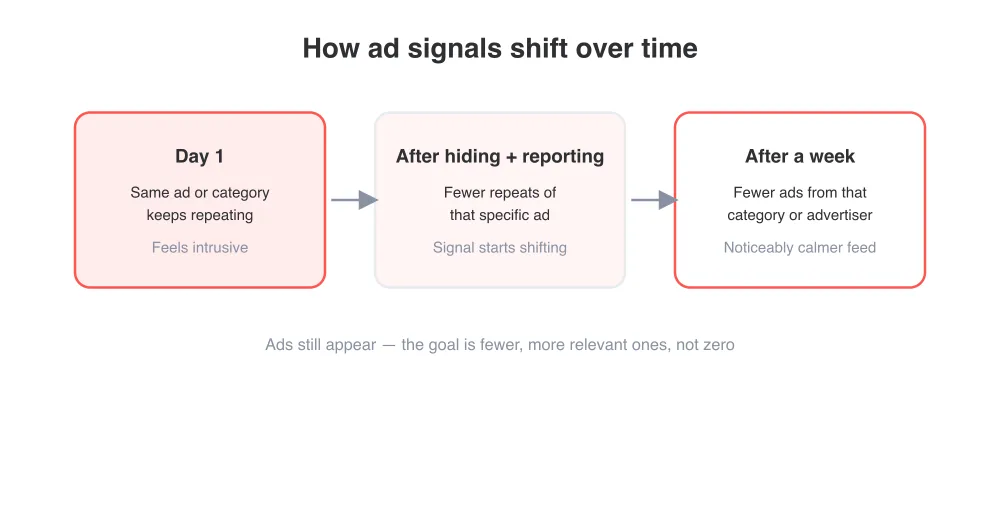
"See fewer like this," found in the same three-dot menu, targets a broader category rather than one single ad — for example, a specific advertiser, product type, or ad style. Using it consistently on ads that annoy you is the closest thing to a bulk control for reducing promoted content.
This is a training signal, not an instant filter. Expect the ad mix to improve gradually over several days of consistent hiding and reporting, not an immediate change.
Turn off ad personalization in your settings
Pinterest personalizes which ads you see using your activity on the app and, in some cases, data shared by advertising partners. You can limit both of these inputs from your account settings.
- Open your Pinterest profile and go to Settings (gear icon or your avatar menu, depending on platform).
- Tap "Social permissions" or "Privacy and data," depending on your app version.
- Find the option for "Personalized ads across the web and apps you use" and turn it off.
- Check for a separate "Ad data partners" or similar toggle and disable it if you'd rather not share off-Pinterest browsing data with advertisers.
- On the web, you can also review and adjust these controls from your browser at pinterest.com under Settings > Privacy and data.
Turning off ad personalization means Pinterest relies less on your behavior and off-platform data to choose which ads to show. It doesn't reduce the total number of ads in your feed, but it does make the ones you see less tailored (and for many people, less repetitive and less unsettling).
Browser-level options for using Pinterest on desktop
If you mainly browse Pinterest on desktop, general browser privacy settings can reduce ad tracking across the web, including on Pinterest, though they won't remove Pinterest's own promoted pins from the feed itself.
- Enable your browser's built-in tracking protection (available in most modern browsers) to limit cross-site ad tracking.
- Clear cookies periodically if you want to reset how heavily your browsing history is tied to ad targeting.
- Avoid signing into Pinterest through a browser where you're also signed into many shopping or social accounts, which can feed more data into ad networks.
- Remember that ad blockers may affect site functionality on pinterest.com, since some scripts overlap with core features.
These are general web-privacy habits rather than Pinterest-specific settings, so they help with tracking more broadly but won't change how many promoted pins appear inside the app itself.
When ads feel like a symptom of a bigger problem
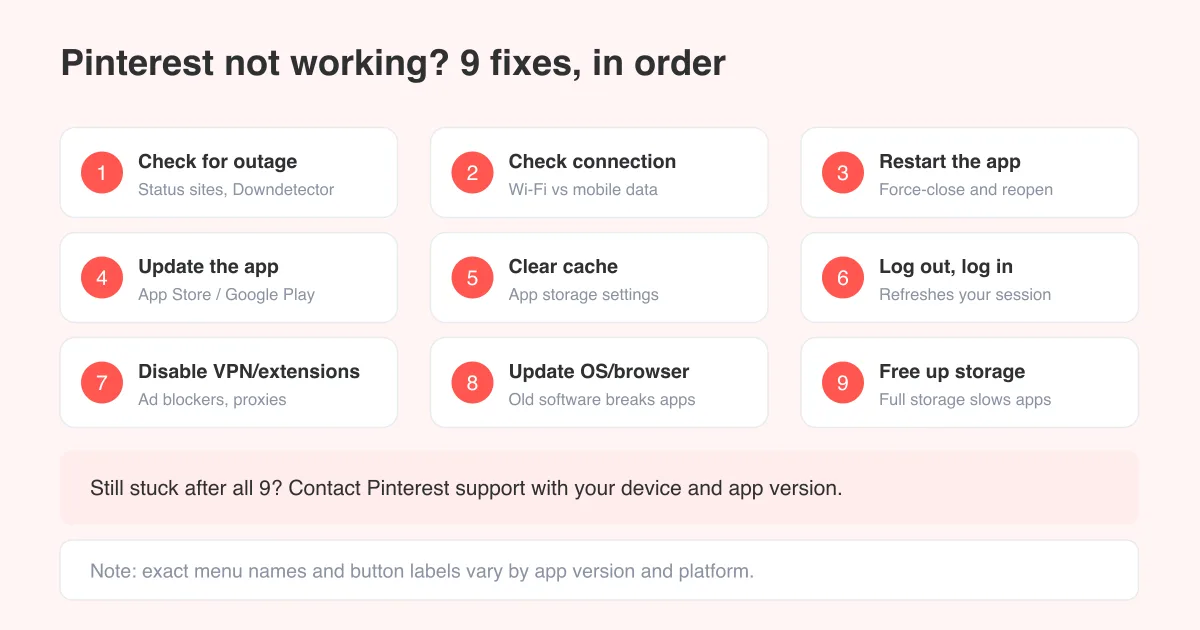
Sometimes what looks like "too many ads" is really a broader feed or performance issue. If ads seem to dominate because regular pins aren't loading properly, or the app feels sluggish and repetitive across the board, that may point to a different underlying issue. Check why Pinterest isn't working if the whole app feels glitchy, not just ad-heavy.
If you just want to save specific pin content — a promoted pin's video, image, or GIF — without engaging further with the ad itself, SeePins's video downloader, photo downloader, and GIF downloader let you grab the original media directly, without repeatedly reopening the ad in the app.
A realistic goal
Aim for "fewer and more relevant ads," not "no ads." Combining hide, report, See fewer like this, and turned-off ad personalization is the most effective realistic setup Pinterest currently supports.
Frequently asked questions
No. Pinterest is a free, ad-supported platform with no ad-free tier, so promoted pins will always appear somewhere in your feed, search results, or related pins. You can reduce their frequency and relevance, but not eliminate them entirely.
Sources