Guides
How to Make an Idea Pin on Pinterest
Learn how to create a Pinterest Idea Pin step by step: add multiple pages, video or photos, text overlays, stickers, and tags, then publish it right.
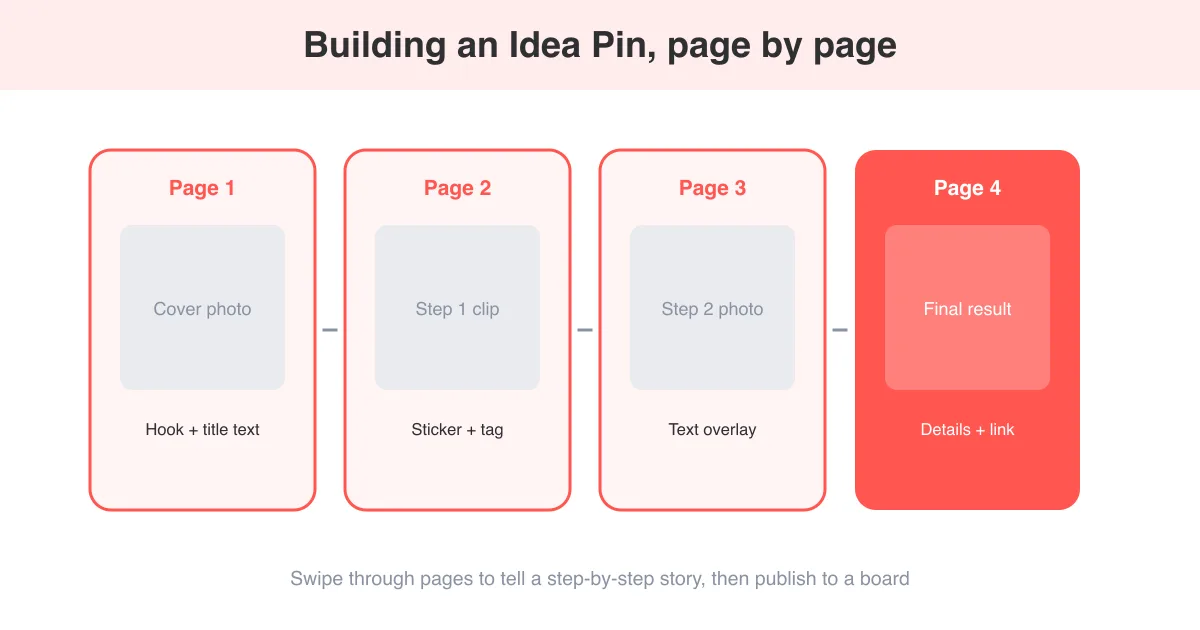
Short answer
To make an Idea Pin on Pinterest, tap the create button in the app, choose Idea Pin (or the multi-page pin format), add photos or video clips across several pages, then layer on text, stickers, and product or topic tags before publishing to a board. Idea Pins are Pinterest's multi-page, story-style format built for tutorials, recipes, and step-by-step content rather than a single static image. Feature names and menu locations shift with app updates, so check how to post on Pinterest if a button looks different than described here.
What is an Idea Pin?
An Idea Pin is Pinterest's multi-page, story-style pin format. Instead of one static image or a single video, it lets you combine several pages of photos and video clips into one swipeable pin, then layer text, stickers, voiceover, and tags on top. It's built for content that unfolds in steps, like recipes, tutorials, outfit breakdowns, and behind-the-scenes looks, and it lives alongside regular pins on your profile and in boards. Unlike a standard image pin, an Idea Pin can't link out to an external URL, so any calls to action point back to your Pinterest profile, boards, or the details you write in the pin itself.
Names change, format stays similar
Pinterest has referred to this format as "Story Pins" and "Idea Pins" at different points, and the exact button label can vary by app version and region. The core idea (multi-page, tag-friendly, no outbound link) has stayed consistent.
Before you start: what you'll need
Idea Pins are created in the Pinterest mobile app, not on desktop, so have your phone ready with the Pinterest app updated to the latest version.
- Photos or short video clips for each page (shot in the app or imported from your camera roll)
- A rough outline of the steps or pages you want to show, since planning ahead makes editing faster
- A board to publish to, or plan to create one during the process
- Any product links or topic keywords you want to tag for discoverability
How to create an Idea Pin step by step
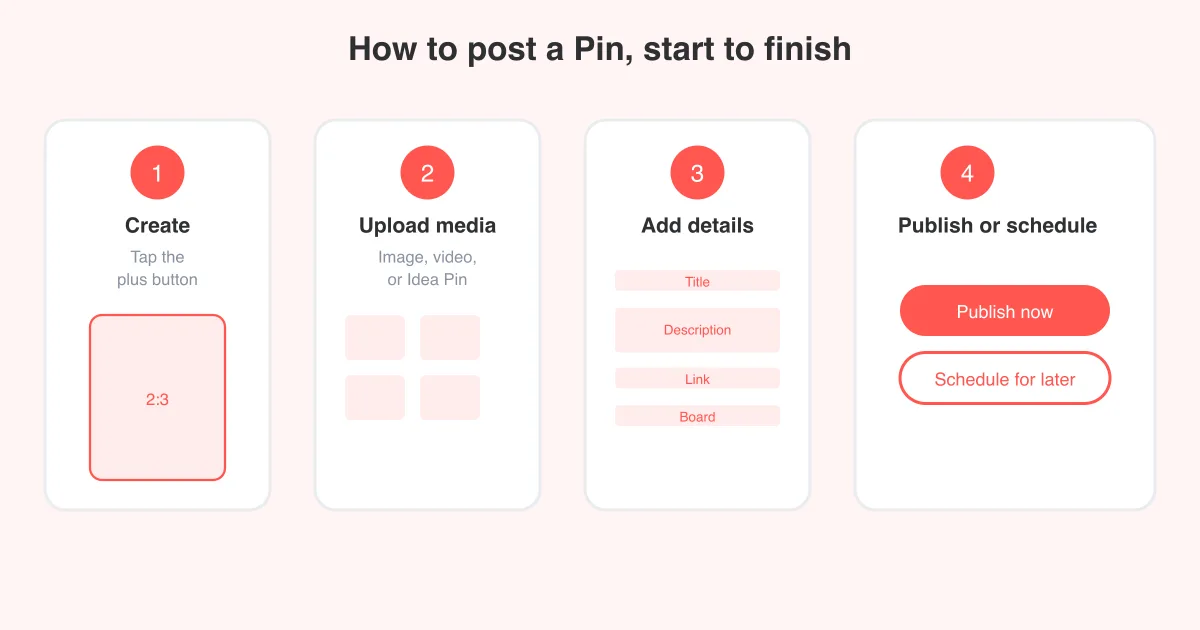
- Open the Pinterest app and tap the plus (create) button, usually found at the bottom of the screen or on your profile tab.
- Select the option for a multi-page or Idea Pin, as opposed to a single photo or video pin.
- Add your first page: record a video clip directly in-app, take a photo, or import existing media from your camera roll.
- Tap the plus icon within the editor to add another page, and repeat until you've built out every step of your idea.
- Reorder pages by dragging them in the page-strip at the bottom of the editor if the sequence needs adjusting.
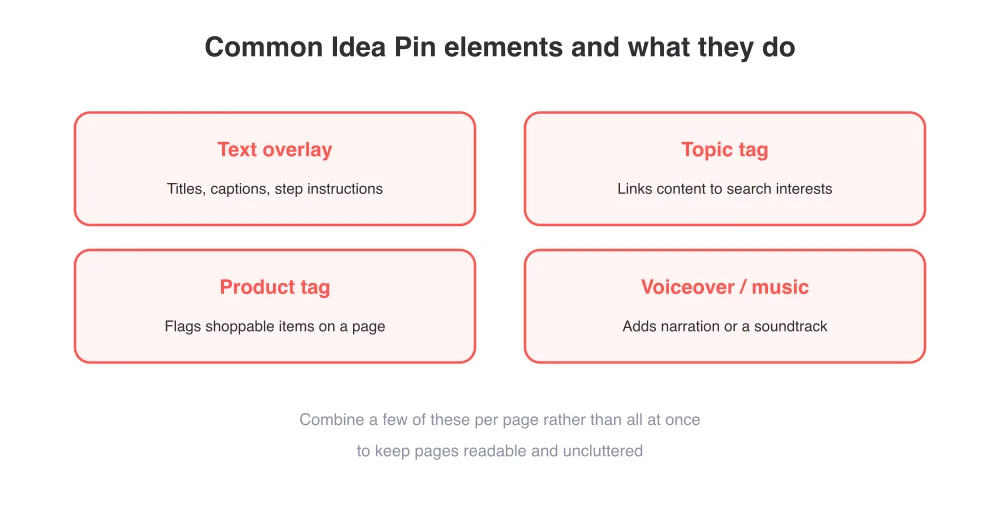
- On each page, add text overlays for titles, captions, or step instructions, choosing font, size, and placement.
- Add stickers, such as product tags, topic tags, or interactive elements, to make pages more engaging and tie content to searchable topics.
- Include background music or a voiceover if you want audio, then preview the whole pin by swiping through it.
- Write an overall title and description for the pin, including relevant keywords so it surfaces in Pinterest search.
- Choose the board to save it to (or create a new one), then tap Publish.
Exact icon positions and labels for adding pages, stickers, or tags shift between app updates, so if a button isn't where this guide describes, look for a similarly labeled option nearby.
Using stickers, text, and tags effectively
Stickers and tags are what make Idea Pins more interactive and discoverable than a plain slideshow. Product tags let you flag items shown in a page, topic tags connect your content to Pinterest's search and recommendation system, and text stickers can highlight a key instruction without cluttering the whole frame.
Idea Pins vs. standard pins
The biggest practical difference is that standard pins (whether image or video) can link directly to an external website, while Idea Pins generally cannot, which matters if you're driving traffic off Pinterest. Idea Pins are also built for multi-page storytelling and richer in-app editing, while a standard pin is a single piece of media with a title, description, and destination link.
- Standard pins support an outbound link; Idea Pins are designed to keep viewers browsing within Pinterest
- Idea Pins support multiple pages per pin; standard pins are one image or one video
- Idea Pins have built-in text, sticker, and tagging tools; standard pins rely on the title and description fields
- Both formats can be saved to boards, liked, and commented on the same way
If you're deciding between formats for a specific post, how to post on Pinterest covers the basics of standard pin creation for comparison.
Photo, video, and sizing tips
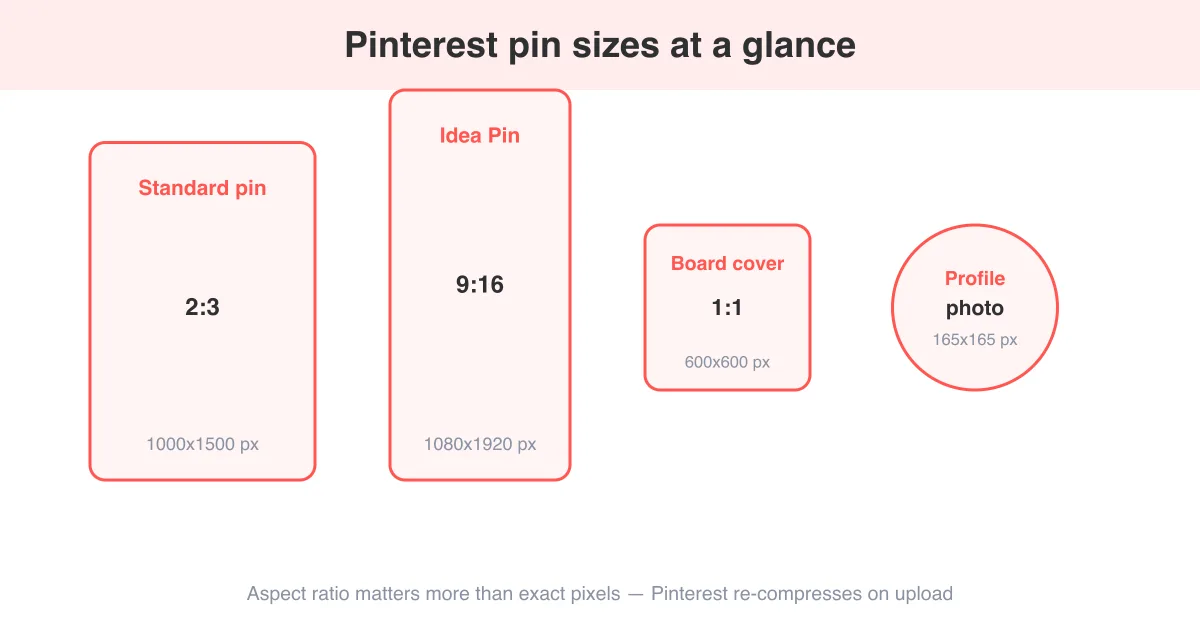
Idea Pins are optimized for a vertical, full-screen format similar to Stories, so shoot photos and video in portrait orientation rather than landscape or square. For exact recommended dimensions and aspect ratios across pin types, check the Pinterest image sizes guide before you start shooting.
Keep clips short
Short, focused clips per page tend to hold attention better than one long unedited video, since viewers swipe through pages at their own pace.
Best practices for engaging Idea Pins
- Open with a strong cover page: a clear title and eye-catching first image or clip decide whether people keep swiping
- Break content into logical steps, one idea per page, rather than cramming everything onto one or two pages
- Use text overlays sparingly so pages stay readable at a glance
- Tag relevant topics and products so the pin surfaces in related searches and shopping surfaces
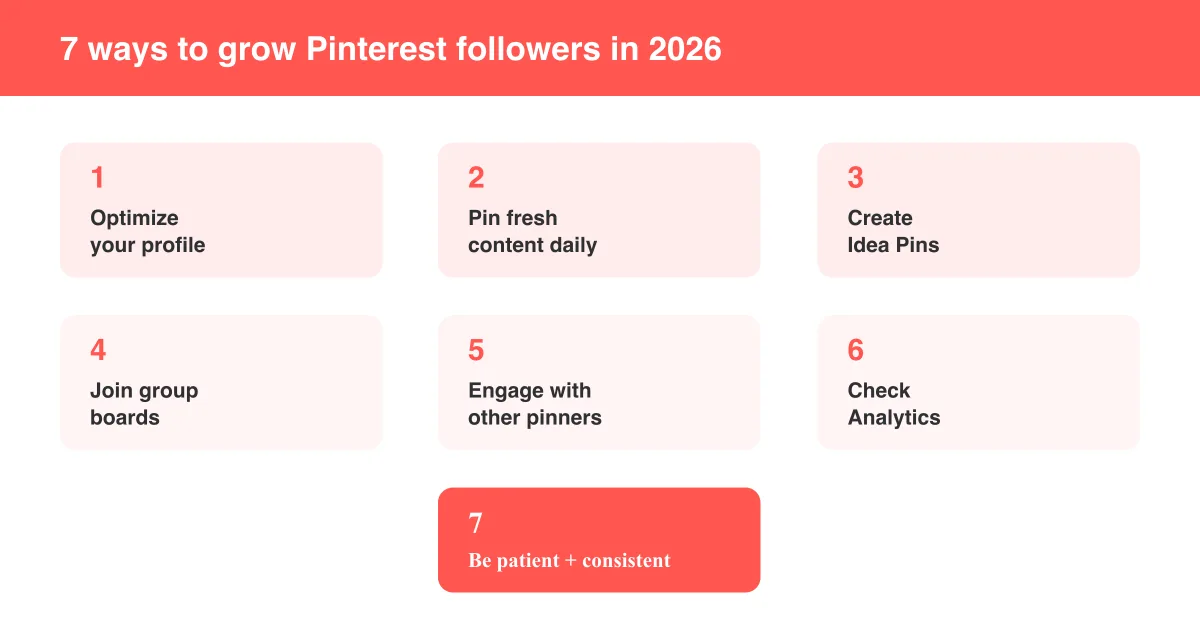
- Post consistently and track which topics and formats perform best in your profile analytics
- Cross-promote by mentioning your Idea Pins in board descriptions or other pins
Consistent, well-tagged Idea Pins also tend to help with discovery over time, which pairs well with efforts to get more followers on Pinterest.
Publishing and what happens next
Once you tap Publish, your Idea Pin saves to the board you chose and appears on your profile like any other pin. You can typically view analytics on it (impressions, saves, and outbound engagement where applicable) from your profile or business dashboard, and most versions of the app allow edits to text, stickers, or tags after publishing, though editing photos or video clips themselves may be more limited once live.
If you don't see an edit option, or a step in this guide doesn't match your app, Pinterest periodically renames or relocates features. The Pinterest how-to hub rounds up related guides if something looks different.
Frequently asked questions
No, Idea Pins are created in the Pinterest mobile app. You can view published Idea Pins on desktop, but the creation and editing tools are mobile-only.
Sources