Business
How to Schedule Pins on Pinterest (Native & Tools)
Learn how to schedule pins on Pinterest using the native Pin builder's built-in scheduler, plus when to use third-party tools like Tailwind for bulk planning.
Short answer
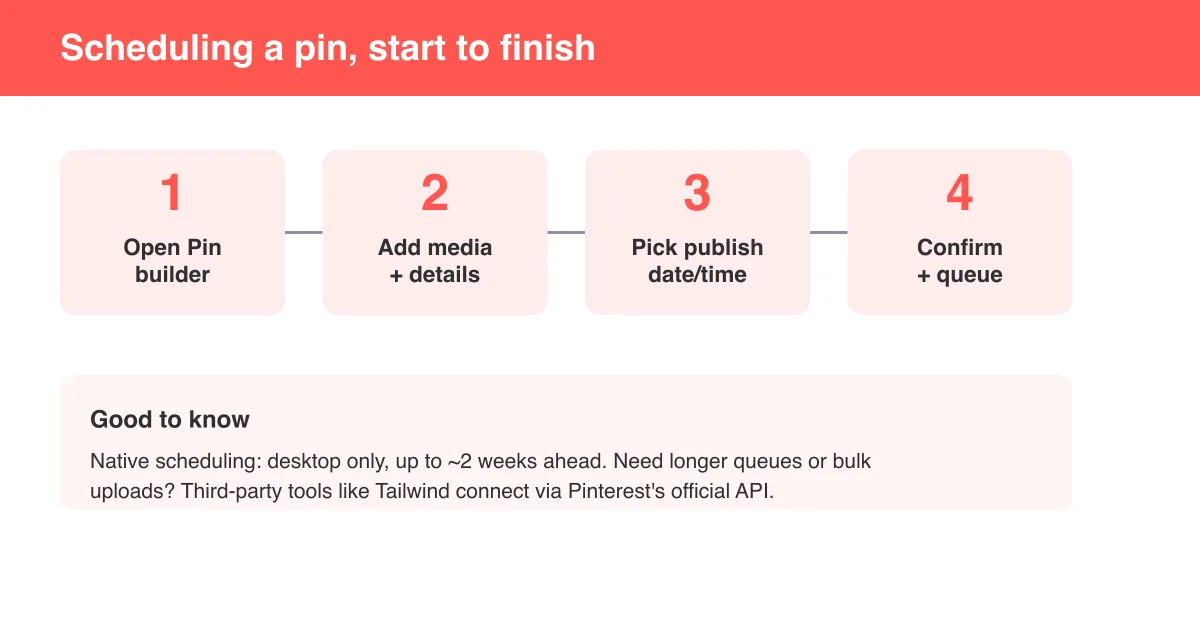
To schedule pins on Pinterest, open the Pin builder on desktop, upload your image or video, fill in the title, description, and link, then use the publish-date option to pick a future date and time (Pinterest supports scheduling up to about two weeks ahead). For bulk scheduling further out, longer queues, or advanced analytics, third-party tools like Tailwind connect to your account through Pinterest's official API. Native scheduling is free and built in, but it's currently a desktop-only feature, not available in the mobile app.
How to schedule a pin natively (step by step)
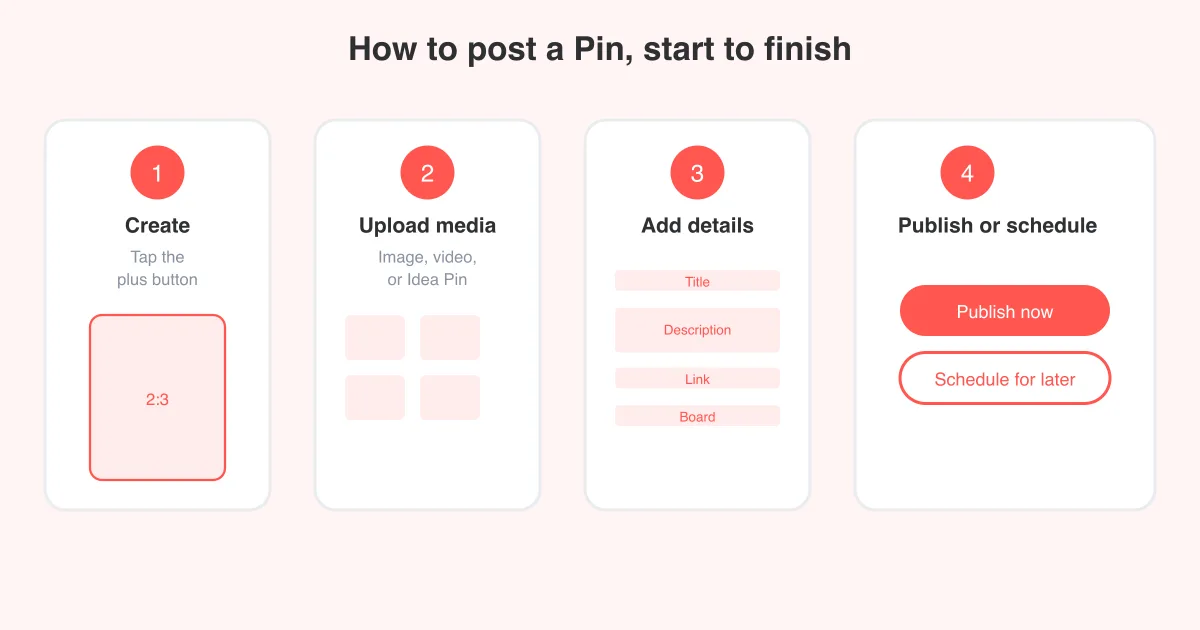
Pinterest's own Pin builder includes a built-in publish-date picker, so you don't need a third-party app just to queue up a single pin or a small batch. This is the fastest option if you're already comfortable with how to post on Pinterest and just want to set it to go live later instead of immediately.
- Log in to Pinterest on a desktop or laptop browser and click the plus/create icon to start a new pin.
- Upload your image or video and add a clear, keyword-rich title and description.
- Add your destination link (the URL the pin should send people to) and choose the board to save it to.
- Look for the publish/schedule option near the "Publish" button — select a future date and time instead of publishing immediately.
- Review the preview, then confirm. The pin moves into a scheduled/queued state until the chosen time arrives.
- Repeat for additional pins, spacing out times and dates to build a queue across the day or week.
Exact labels vary
Button names and menu placement for scheduling can differ slightly by account type, region, and app version. If you don't see a date option right away, check near the publish button or your account's content scheduling settings.
How far ahead can you schedule, and other limits
Pinterest's native scheduler is designed for near-term planning rather than months-long content calendars.
- Native scheduling generally supports picking a publish time up to about two weeks in the future.
- You can typically queue multiple pins across that window, but there's a practical cap on how many pins you can have scheduled at once.
- Scheduled pins can be edited or canceled any time before they go live.
- Scheduling times are tied to your account's set time zone, so double-check it if you're posting for an audience in a different region.
These limits can change as Pinterest updates its tools. Treat the two-week figure as a general guideline and confirm the current window in your own Pin builder before planning a long campaign around it.
Why scheduling is currently desktop-only
Unlike posting a pin immediately, which you can do from the Pinterest mobile app, the native scheduling/publish-date picker has generally been available only through the desktop or browser version of Pinterest. If you're planning pins from your phone, you may need to switch to a laptop or use the mobile browser in desktop mode, or rely on a third-party scheduler that supports mobile.
- Check pinterest.com in a desktop browser first if you can't find a schedule option in the mobile app.
- Third-party scheduling apps often work from a phone or tablet since they're separate services with their own mobile apps.
- Feature availability shifts over time, so it's worth periodically checking whether mobile scheduling has been added to your account.
Third-party schedulers: Tailwind and similar tools
If you're managing a high volume of pins, batching a month of content in one sitting, or want scheduling from your phone, dedicated tools like Tailwind connect to Pinterest through its official API and add features the native scheduler doesn't have.
- Bulk upload and schedule dozens of pins at once from a spreadsheet, folder, or content calendar view.
- Suggested optimal send times based on aggregated engagement data, rather than picking a time manually.
- Smart-loop or interval scheduling that automatically re-shares evergreen pins over time.
- Cross-platform scheduling if you also manage Instagram or other channels alongside Pinterest.
- Extra analytics dashboards beyond what's in native Pinterest Analytics.
Always connect through the official method
Only use scheduling tools that connect via Pinterest's authorized API/login flow. Never share your Pinterest password directly with an unofficial third-party site — that's a common way accounts get compromised.
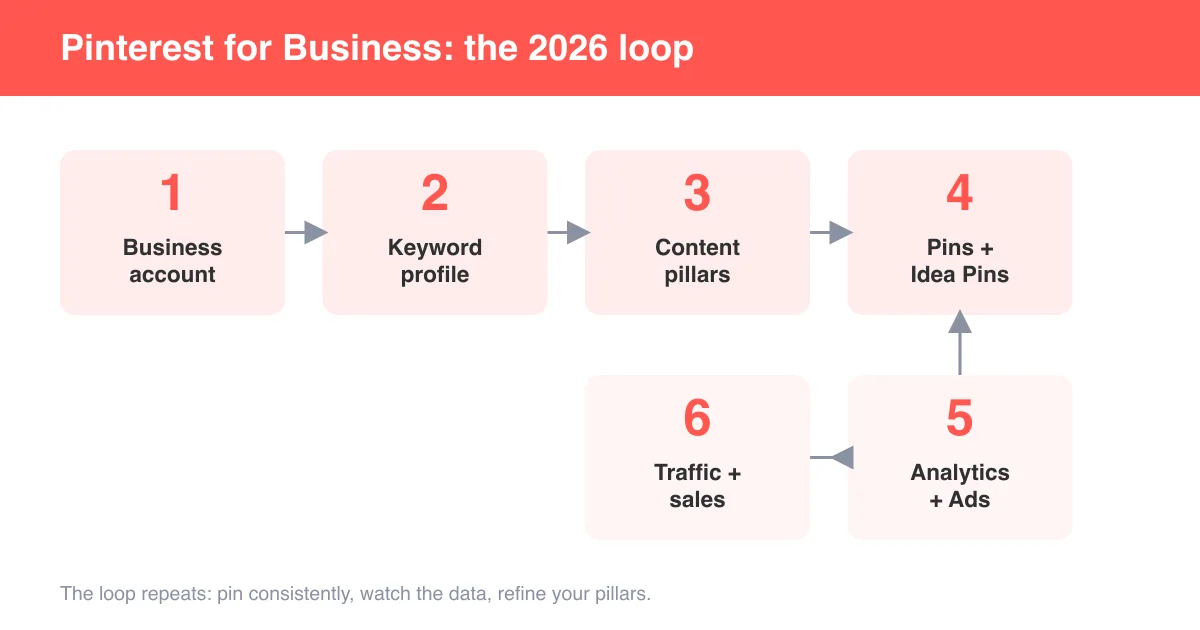
Third-party tools are optional, not required. Many creators and small businesses do everything they need with the free native scheduler, especially if they're already following a solid plan from our guide on how to use Pinterest for business.
Best times to schedule pins
There's no single universal "best time" that works for every account — it depends heavily on your specific audience's habits and time zone. That said, a few general patterns tend to hold up across many niches.
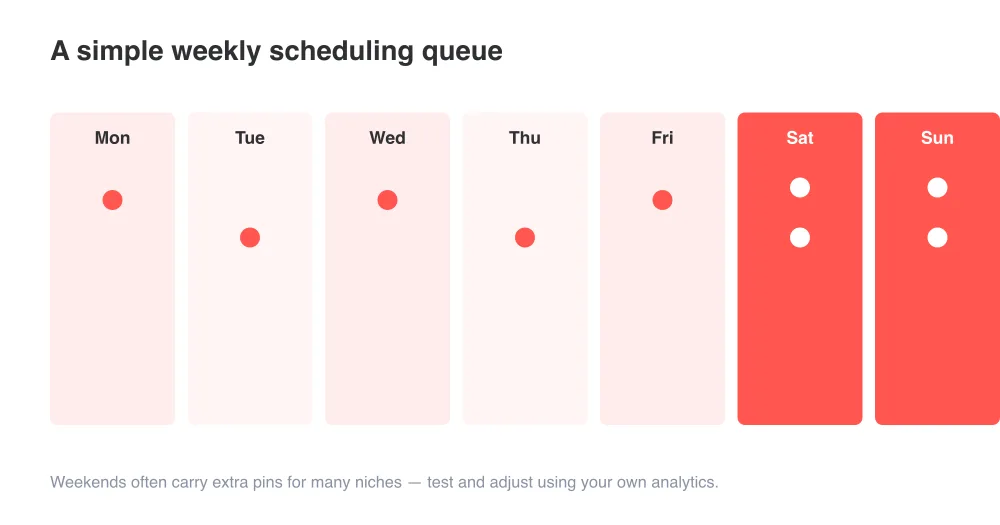
- Evenings and weekends often see higher browsing activity for many lifestyle, food, and hobby niches.
- Consistency (posting on a steady, sustainable schedule) tends to matter more than nailing an exact hour.
- Check your own Pinterest Analytics for when your specific audience is most active, rather than relying only on generic benchmarks.
- Spread scheduled pins throughout the day and week instead of publishing everything at once — this gives the algorithm more consistent signals to work with.
Editing or deleting scheduled pins
Scheduled pins aren't locked in — you can find and adjust them before they go live, which is useful if you spot a typo, need to swap the link, or change your mind about timing.
- Go to your profile and look for a "Scheduled" or "Drafts" tab/section, typically near your pins or created content.
- Open the scheduled pin you want to change.
- Edit the title, description, link, board, or scheduled time as needed, then save.
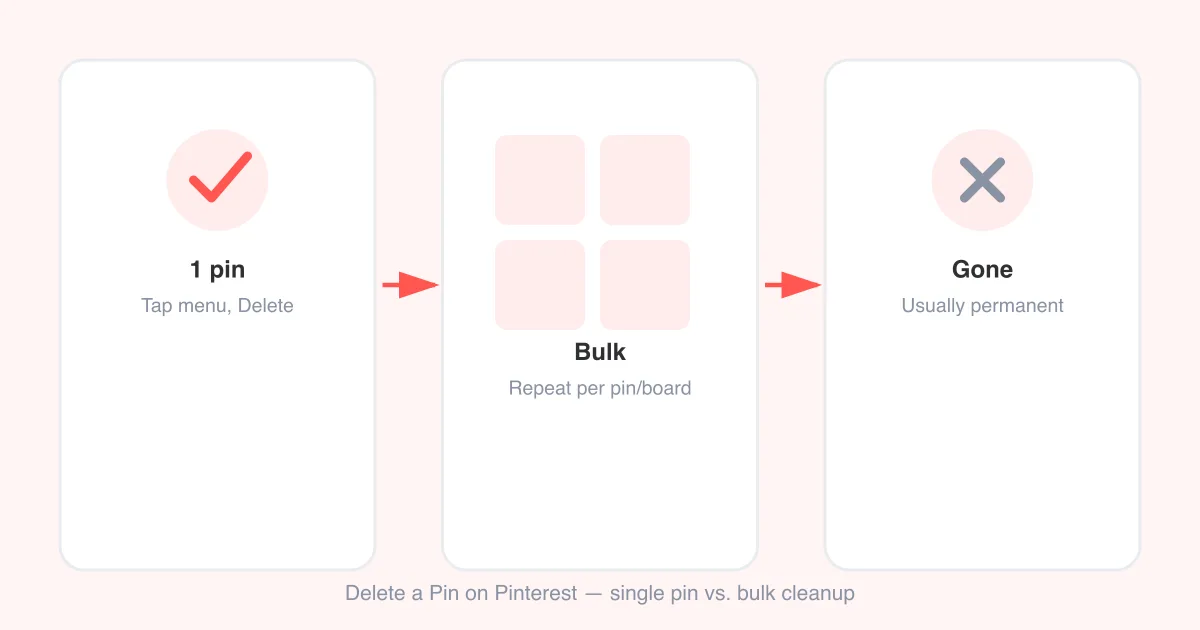
- To cancel it entirely, use the delete/remove option on that scheduled pin — this works similarly to how to delete pins on Pinterest once a pin has already gone live.
- Double-check the queue after bulk edits to confirm times and dates saved correctly.
If you're using a third-party tool like Tailwind, edits and cancellations happen inside that tool's dashboard, not directly in Pinterest — the change syncs back to Pinterest through the API connection.
Frequently asked questions
Yes. Pinterest's own Pin builder has a built-in publish-date option, letting you set a future date and time for a pin to go live without any external tool.
Sources