Tips
How to clear your Pinterest search history & cache
Learn how to clear recent Pinterest searches, delete individual search terms, and clear the app cache on iOS and Android to reset your feed and recommendations.
Short answer
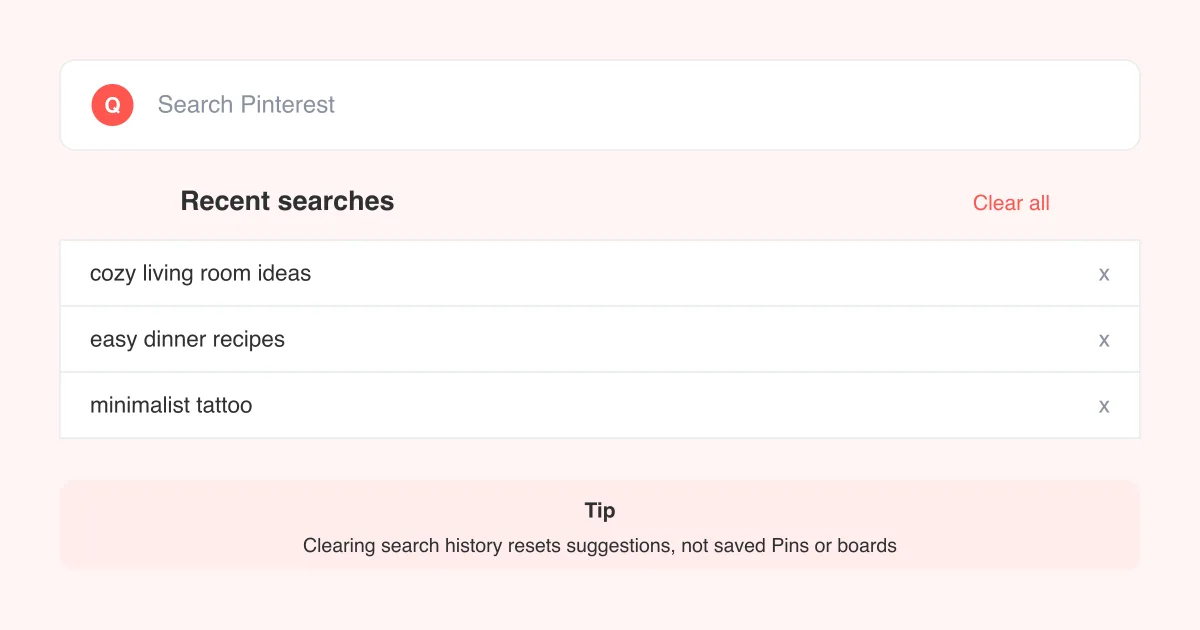
To clear your Pinterest search history, open the search tab, tap the X next to "Recent searches" to clear it all, or tap the small x on a single term to remove just that one. Clearing search history doesn't reset your whole feed — for that, you also need to clear the app's cache or adjust your personalization settings. Both are done from Settings, not from search itself.
Why clear your Pinterest search history
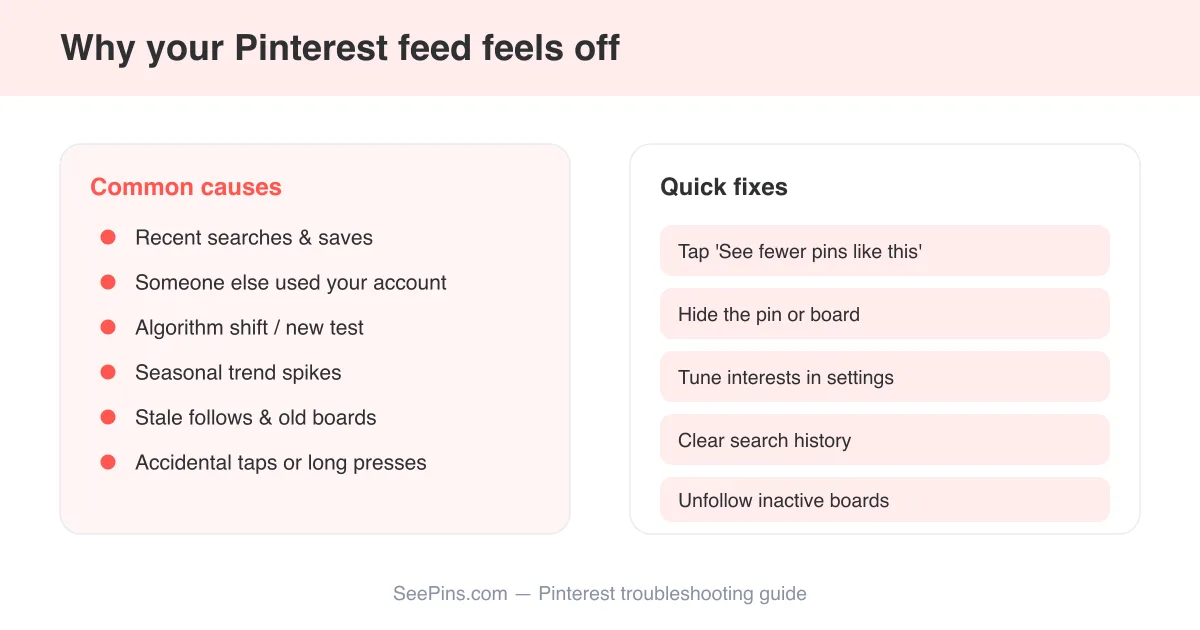
Pinterest uses your recent searches, along with the Pins you save and click, to shape what shows up on your home feed. Over time this can make your feed feel stale, repetitive, or [showing irrelevant images](/blog/pinterest-showing-irrelevant-images) — especially if you searched something once for a friend, a gift, or a one-off project and now can't stop seeing it.
- Reset recommendations after a one-time or unusual search
- Remove sensitive or embarrassing search terms from a shared or public device
- Free up a little local storage by clearing cached images and thumbnails
- Start fresh before using Pinterest for a new project, business, or interest
- Reduce ad and content targeting tied to recent search activity
Search history vs. browsing history
Clearing search history removes the terms you typed. It does not delete the Pins you've saved, the boards you've built, or your pinned images. Those stay exactly where they are.
Clear all recent searches
The fastest way to reset your search suggestions is to clear the entire recent search list at once.
- Open the Pinterest app and tap the search (magnifying glass) icon in the bottom navigation.
- Tap into the search bar so the "Recent searches" list appears.
- Look for Clear all or an X near the "Recent searches" heading.
- Tap it and confirm if prompted.
On desktop, click the search bar at the top of pinterest.com, and use the clear option that appears above the suggested search terms. Exact wording and placement can shift slightly between app updates and platforms.
Remove one search term without clearing everything
If only one or two searches are throwing off your feed, you don't need to wipe the whole list.
- Tap the search tab and open the search bar to view recent searches.
- Find the specific term you want gone.
- Tap the small x next to that individual entry.
- The term disappears immediately from the list; the rest of your history stays intact.
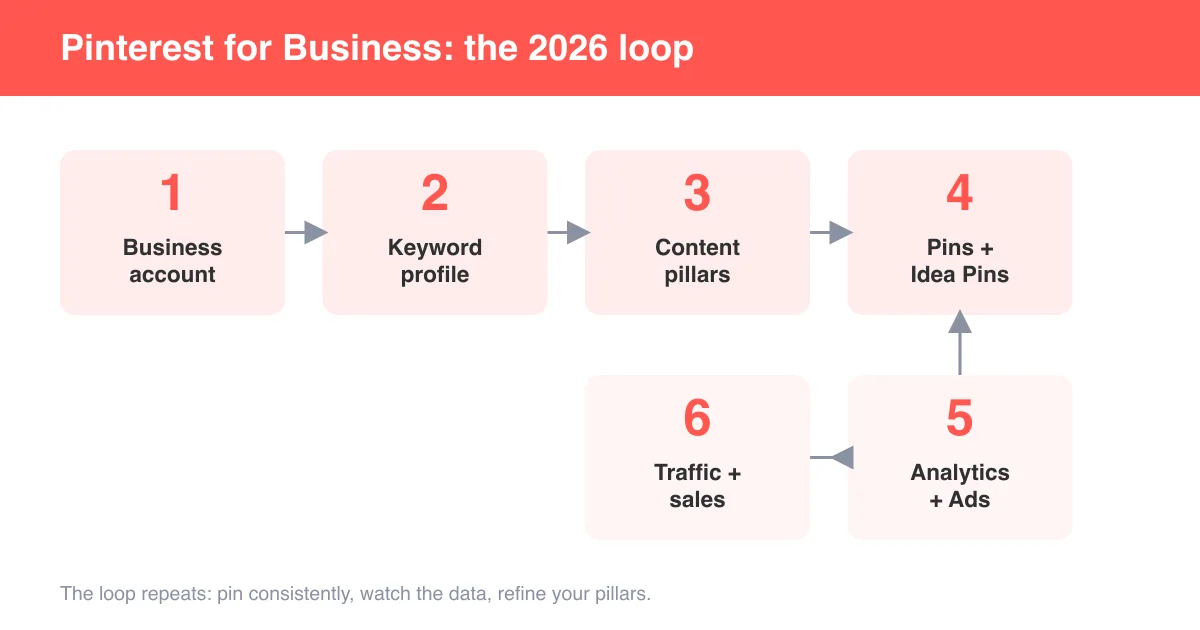
This is the better option if your searches are otherwise useful — for example if you regularly search topics for a niche board or a Pinterest business account, see also how to use Pinterest for business.
Clear the Pinterest app cache (iOS & Android)
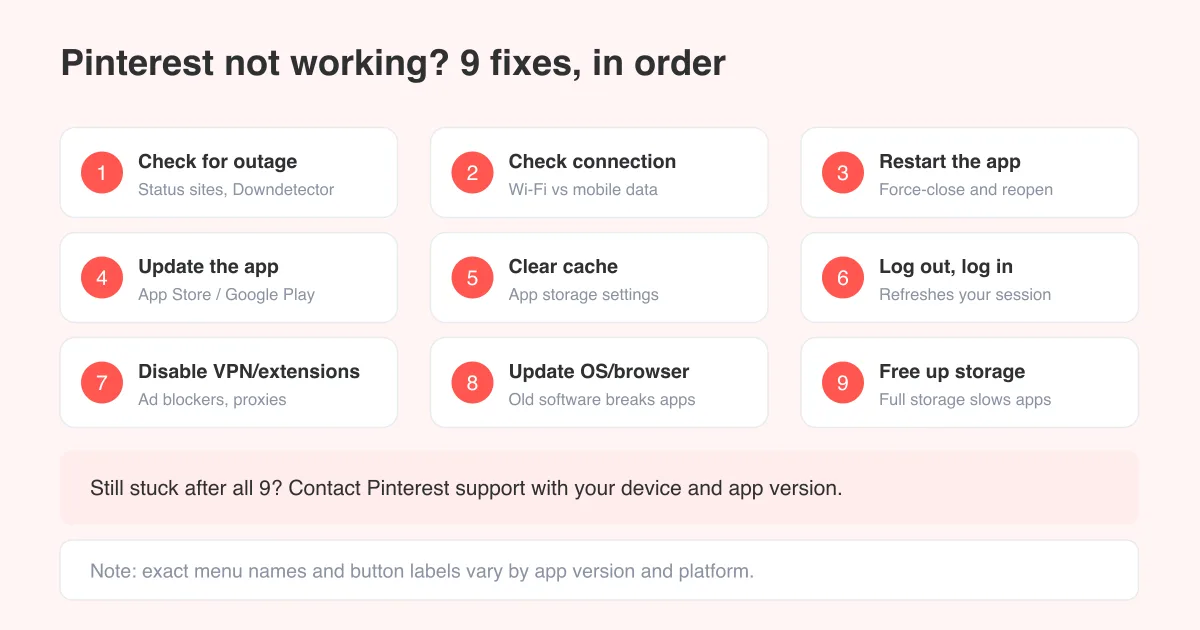
Search history and app cache are two different things. The cache stores images, thumbnails, and temporary data so Pinterest loads faster — but a bloated or corrupted cache can also cause a feed that feels off or an app that behaves oddly, similar to issues covered in why is Pinterest not working.
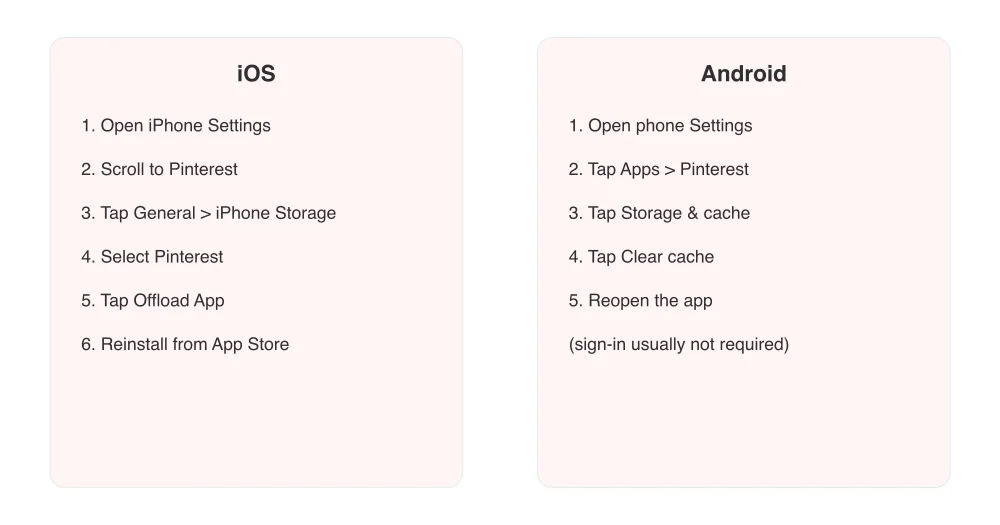
- iOS: Settings > General > iPhone Storage > Pinterest > Offload App (frees space without deleting your account; reinstalling restores the app).
- Android: Settings > Apps > Pinterest > Storage & cache > Clear cache.
- After clearing cache, reopen Pinterest and log back in if prompted.
Menu names vary by phone manufacturer and OS version. If you don't see "Storage & cache," look under "Storage" or "App info" instead.
How this affects your feed and personalization
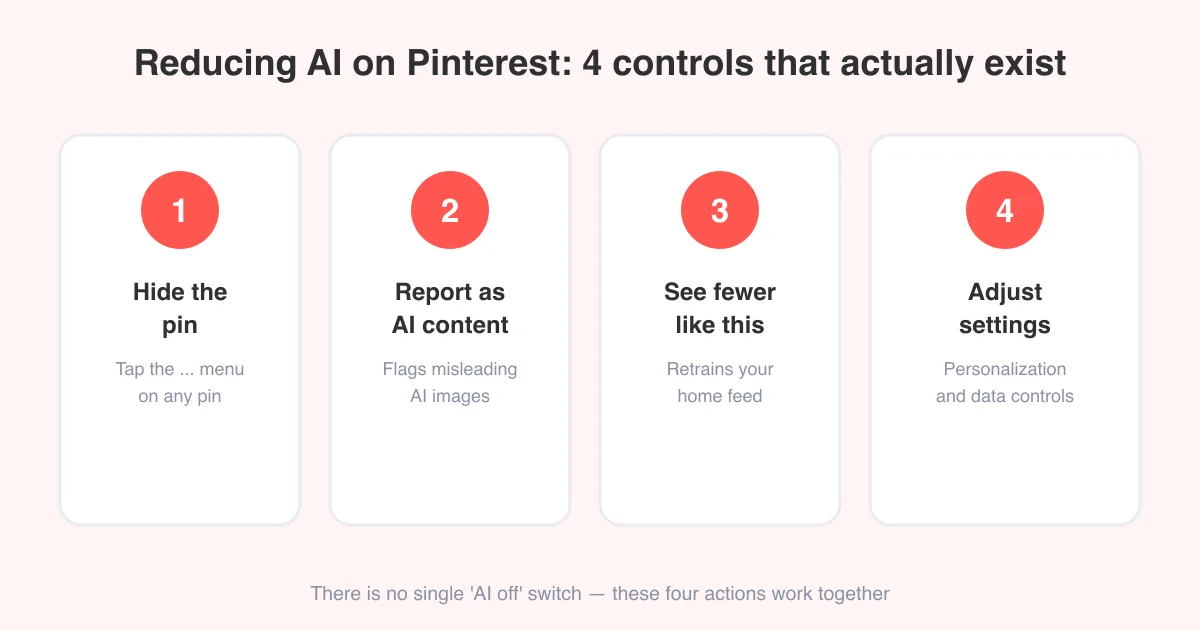
Clearing search history nudges Pinterest's recommendation system but doesn't fully reset it — the algorithm also weighs saved Pins, followed boards, and ad interactions. For a deeper reset of what content Pinterest personalizes for you, review your ad and data settings, and see how to turn off AI on Pinterest if you specifically want less AI-driven content shaping your feed.
- Clearing search history: removes typed search terms and related suggestions
- Clearing app cache: removes temporary files and cached thumbnails, can fix loading glitches
- Adjusting personalization settings: changes how your activity is used for recommendations and ads
If your feed is still off after clearing history
Sometimes clearing search and cache isn't enough. Unfollow boards or people whose content keeps surfacing, save a few Pins in the direction you actually want, and give the algorithm a few days to adjust. If Pinterest keeps behaving unexpectedly beyond feed content — freezing, failing to load, or not scrolling — that's usually a separate app issue rather than a search-history problem.
Frequently asked questions
Open the search tab, tap into the search bar to see "Recent searches," then tap "Clear all" (or the X next to the heading) and confirm.
Sources